Chapter 6 Understanding the Browser tool 65
ICS Remote Tools User Guide
Accessing the Browser tool
To access the Browser tool to add or change programming for a Norstar system:
1 Open ICSRT.
2 If you are not in the correct database, find the database where the correct customer is located.
Refer to
“Moving between databases” on page 38 for details.
3 Select the listing for the customer to which you want to connect.
4 Click on Run Tool, and select Browser.
The connect screen appears, with the connect information for that system.
5 Click on Connect.
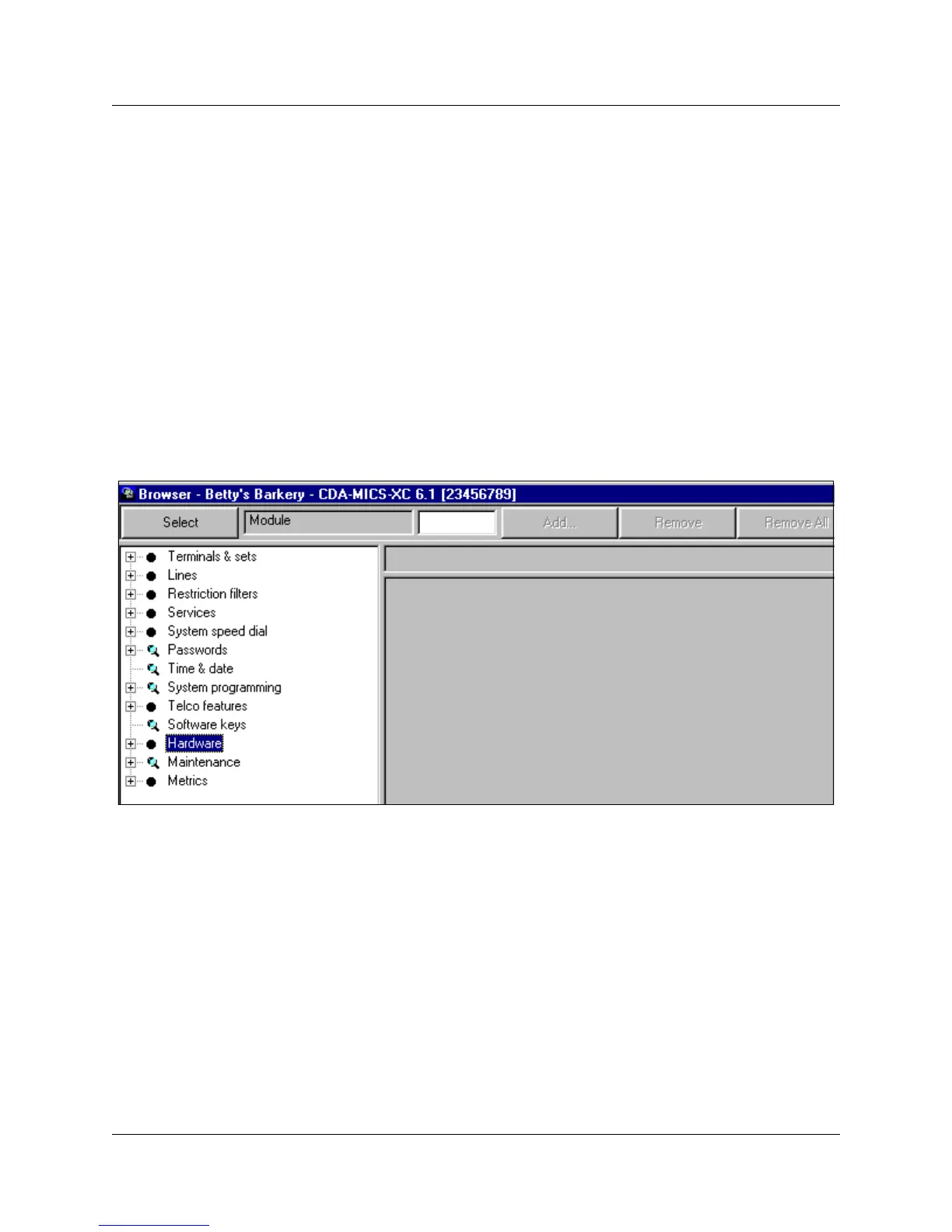
After your computer connects to the Norstar System, the following screen appears.
Figure 30 Browser main screen
Refer to “Understanding the Browser window” on page 66 if you need detailed information
about using the window.
6 Navigate to the section where you need to add information or make changes.
The navigation menu mirrors the set menus, with some minor exceptions.
Refer to “Comparing the Browser tool with set-based programming” on page 72 for a list of
some of the more obvious differences between the Browser and set programming.
Refer to the MICS/CICS Installer Guides for detailed configuration information.
7 When you complete the required activity, ensure that you exit the connection to the Norstar
system:
a On your desktop, click on the Norstar ICS Programming Tools screen, which sits behind
the Customer Info screen.



 To Next Page