54 Chapter 4 Connecting to a Norstar system from ICSRT
N0004999 01
Connecting through a customer record
You specify connection parameters when you set up the customer record (“Creating a customer
record” on page 42). Consequently, when you open a tool when a customer record is selected on
the Customer Info screen, the connection parameters will mirror what was entered in the Customer
record.
To connect to a Norstar system through a customer record:
1 On the Customer Info screen, select the customer record for the Norstar system to which you
want to connect.
2 On the menu, click on Run Tool, then select any tool except Select Workbook.
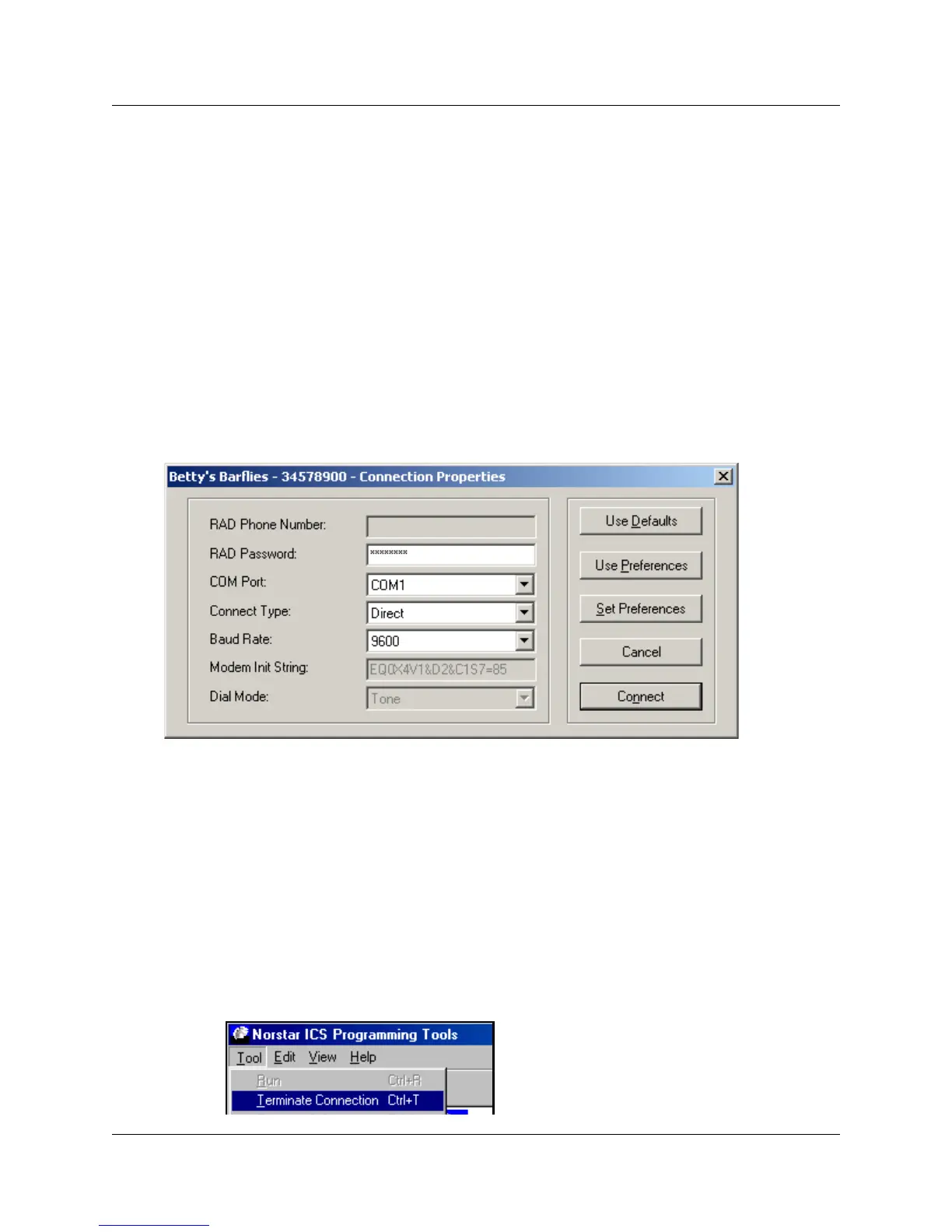
The Connection Properties dialog appears with the customer connection information filled in.
Information that is not required is greyed out.
Figure 24 Connection Properties screen
3 Click on Connect.
If you are connecting using one of the methods requiring assistance at the Norstar end, you
need to first contact the system using the telephone attached to the modem. Refer to
“Connecting to a Norstar system attendant” on page 18 for details.
4 Refer to Chapter 5, “Understanding the Remote Set tool“, on page 55, Chapter 6,
“Understanding the Browser tool“, on page 63, or Chapter 8, “Backing up and restoring
Norstar data“, on page 107 for descriptions of the tools that appear once the connection occurs.
5 When you complete the required activity, exit the connection to the Norstar system:
a On your desktop, click on the Norstar ICS Programming Tools screen, which sits behind
the Customer Info screen.
b On the top menu of this screen, click on Tool, and select Terminate Connection.



 To Next Page