Chapter 3 Setting up customers in ICSRT 41
ICS Remote Tools User Guide
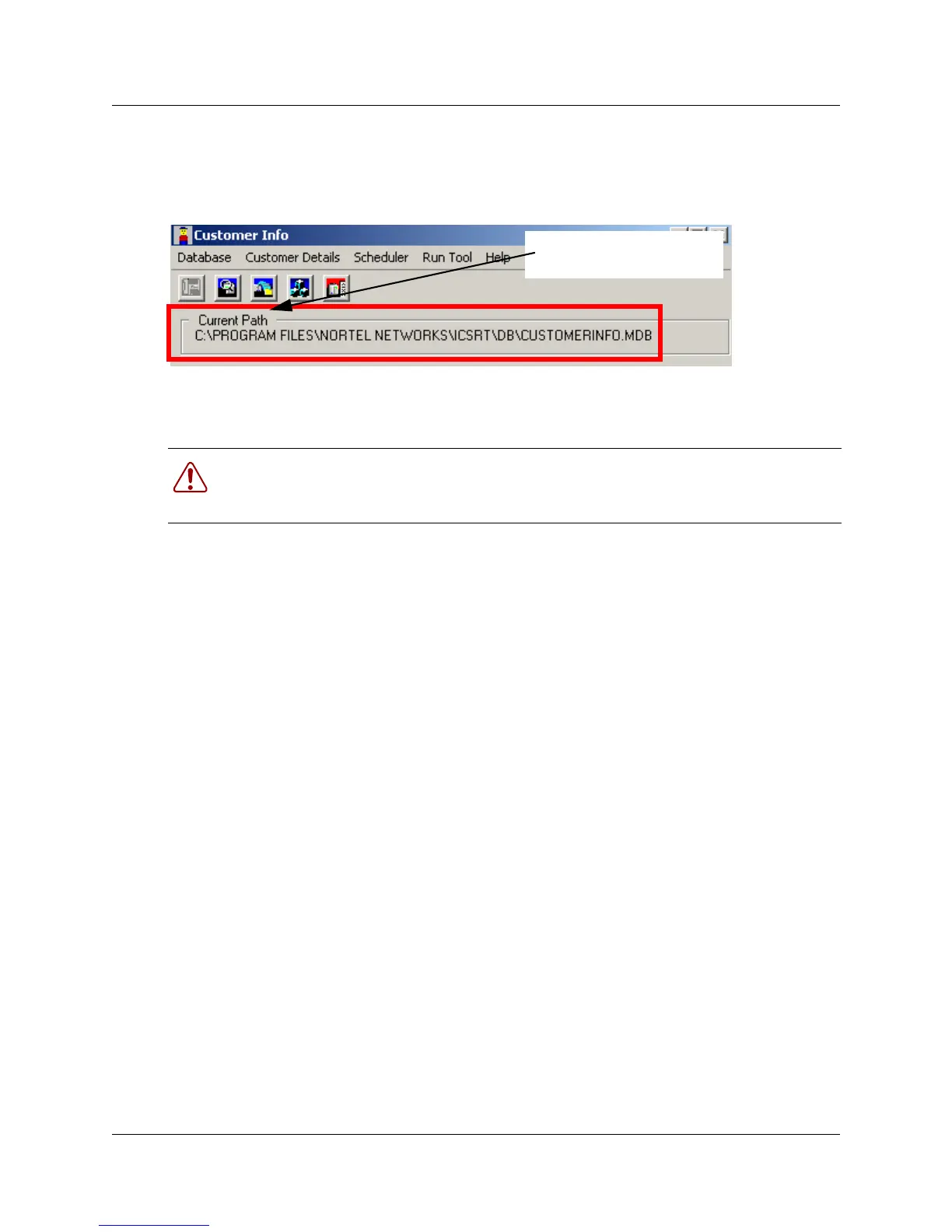
When you click on OK, the ICSRT Customer Info screen opens within the default database, as
shown in
Figure 16.
Figure 16 Customer Info opens in default database
Removing any other database does not have any impact on working of ICS Remote tools
application.
Setting up a multi-user database on a LAN
To use ICSRT in a local area network (LAN) configuration, you must:
• set up a database folder on the LAN file server
—use the Create setting under Database to create a database on the server if one currently
does not exist. (
“Creating a database” on page 36).
— if you have already created customer records on one of the computers, use the Copy
setting under Database to copy that database onto the server (
“Copying a database” on
page 39).
• install ICSRT on each computer that will be used to manage systems. Refer to “Computer
hardware requirements” on page 25 for computer requirements.
• ensure the computers are connected to the LAN.
• use the ICSRT Change Path setting to point each computer to the central database. Refer to
“Moving between databases” on page 38.
Using ICSRT in multi-user mode
ICSRT operates the same in multi-user mode as it does in single-user mode. The difference is that
you are using customer files from the network server. After ICSRT software is installed on each
computer, indicate where the database is located on the server.
Users use the Database, Change Path setting to select the database (“Moving between databases”
on page 38).
Use the Database, Refresh setting to occasionally update the database file if you know someone
else is working on it with you.
Warning: Do not delete the default database file Nortel Networks/ICSRT/db/
CustomerInfo.mdb. Deleting any of the default folders may cause ICSRT to fail, and you
would need to reinstall the application.
Default database path



 To Next Page