Chapter 8 Backing up and restoring Norstar data 117
ICS Remote Tools User Guide
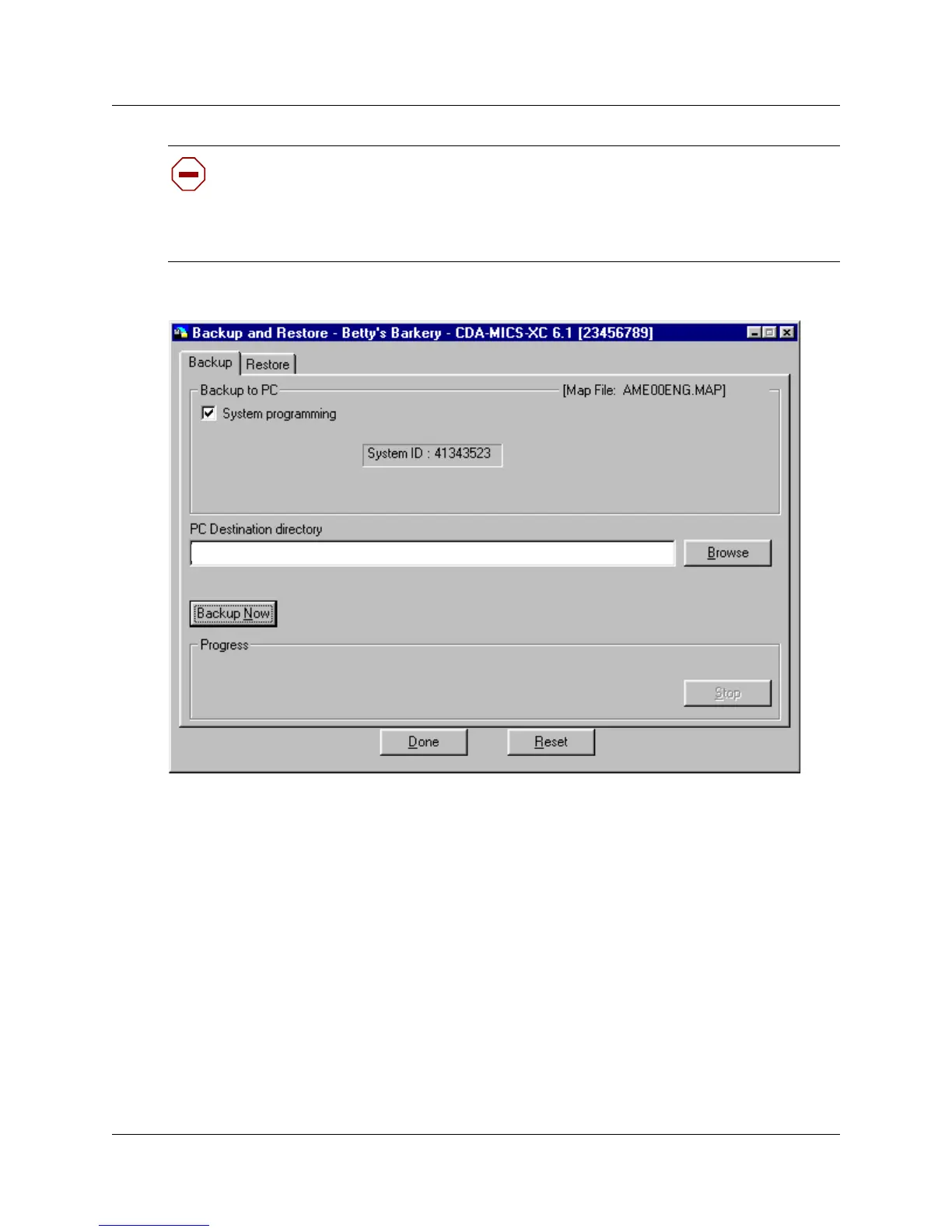
Figure 59 Backup and Restore screen, Backup tab
9 Click on Backup Now.
The backup begins immediately.
The Progress field indicates how the backup is progressing.
If you encounter errors or need to stop the backup, slick on Stop.
10 When the backup is complete, click on Done.
If you need to restart the backup while it is running, click on the Reset button.
The backup is stored as FNVRAM.new.
If there was a previous backup file, it is renamed as FNVRAM.old.
11 Ensure that you exit the connection to the Norstar system:
a On your desktop, click on the Norstar ICS Programming Tools screen, which sits behind
the Customer Info screen.
b On the top menu of this screen, click on Tool, and select Terminate Connection.
Caution: If you do not change the database path, the backup file is saved in the default
backup file in the ICSRT folder. Saving the file in this folder can be a security risk, as any
other manual backup file saved to the default folder will replace this file.
If you choose to save the file in the default backup folder, it is strongly recommended that
you move the file to another location once the backup is complete.
<drive>:\<path to customer database>\backup\<manualbackupfolder>\



 To Next Page