70 Chapter 6 Understanding the Browser tool
N0004999 01
To change the time and date, do one of the following:
• Select the number for the year, month, day, hour, minute, or seconds, then type a new value,
then press Apply.
or
• Select the number for the year, month, day, hour, minute, or seconds and adjust the value up or
down using the pair of arrows to the right of the box, then press Apply.
or
• Click Load local time and date. The system enters the time and date from the computer clock
into the boxes. The time and date at the ICS are not changed until you click Apply.
Using the task bar
The buttons and fields that create the task bar across the top of the Browser window become active
when headings that allow you to choose or add more than one similar item are selected, such as
Terminals & Sets, Lines, and Services.
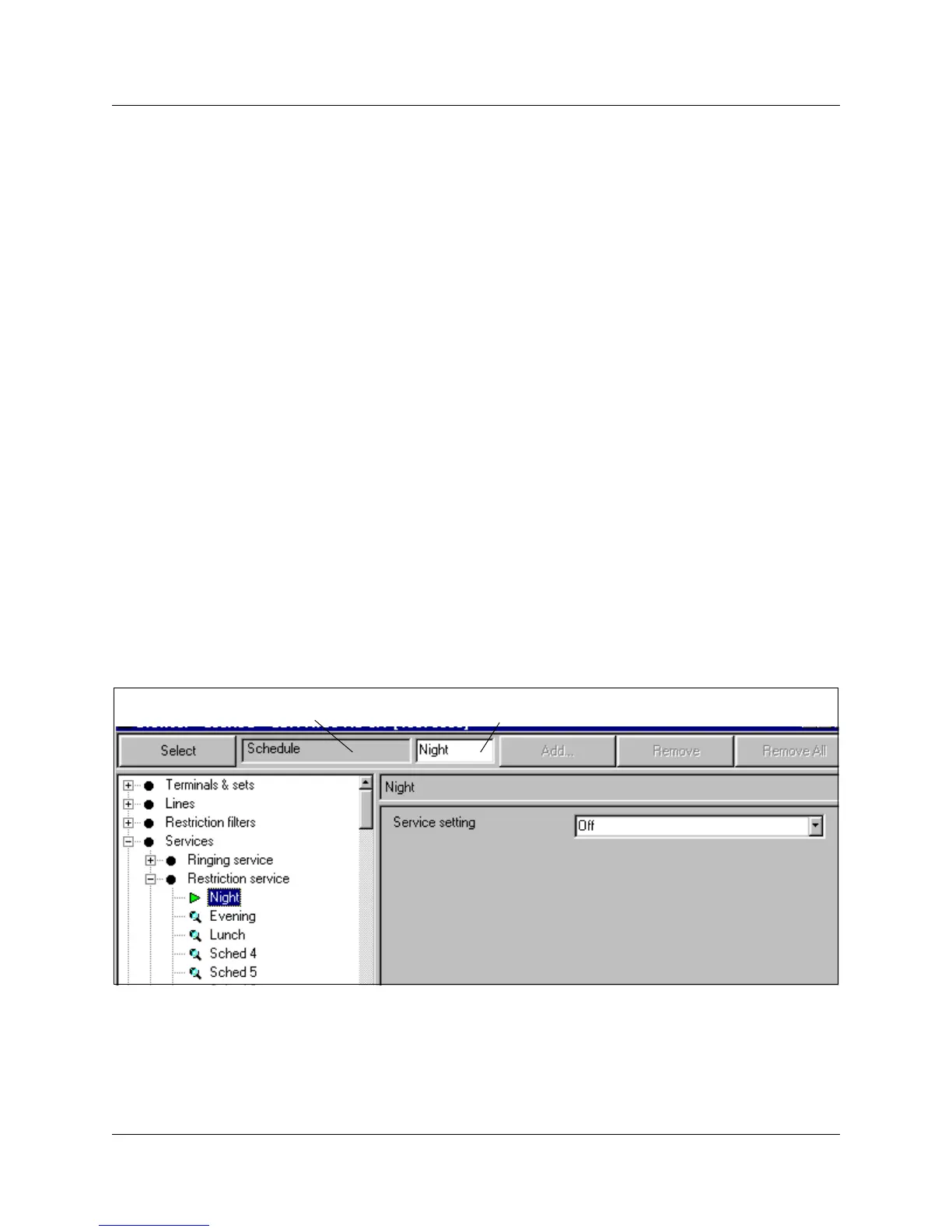
The label displayed in the first field on this task bar will change to match the kind of settings found
under the heading. For example, in the figure shown in
Figure 36, if you open Services and
Restriction service, then click on Night, the label will read Schedule.
The value of the selection, in this case, Night, displays in the field to the right of the label name.
Figure 36 Changing position using the top bar
You can enter other values in the value field to move to other items in the list.
When you enter a different value, click the Select button, or press <Enter> on the keyboard. The
navigation tree switches to the selected item. For example: If you enter Lunch in the value field of
the screen shown in
Figure 36, then click on Select, the Restriction service called Lunch is
highlighted, and an arrow icon appears beside the heading.
Label of selection Existing value



 To Next Page