Chapter 6 DME Wipes
366
Creating User Programmable DME Patterns
a) Transition according to DME wipe patterns 1202, 1203, or 1204
b) Transition according to DME wipe pattern 1201
c) Transition according to DME wipe pattern 1251
For details, see “Overview” (page 334).
Notes
For the following group of effects available in two-channel mode, no user
programmable DME wipe patterns can be created.
Page turn, Page roll, Frame in-out, Brick
Notes on creating keyframe effects
When creating a keyframe effect to be used as a user programmable DME
pattern, note the following, depending on the transition mode used.
Notes on single transition mode (one-channel mode)
• Either create the first keyframe image outside the screen area, or set the
image size to zero so that it cannot be seen within the screen.
• Create the last keyframe to be a full-size image.
• In the <Transition Mode> group of the Key Frame >DME User PGM menu,
select [Single].
Notes on flip tumble (one-channel mode)
• Create the first keyframe image at full size. In the <Back> group of the DME
>Input/Output >Video/Key menu, depending on the direction of the rotation
you want during the transition, press [H Invert] or [V Invert], turning it on.
• Create the last keyframe with the image inverted so the back side is visible,
and with the size at full size.
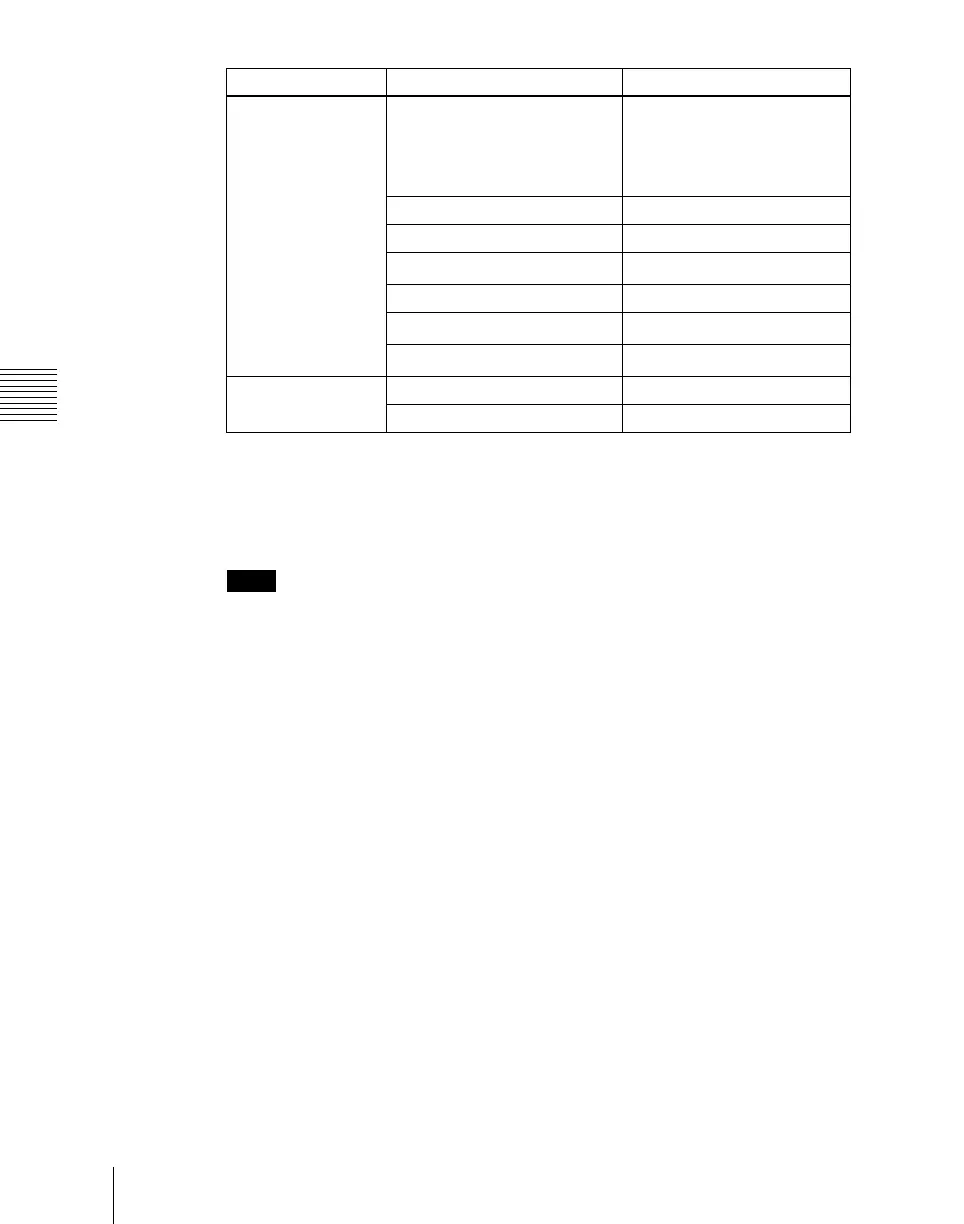
Channels Transition mode Effect group
One-channel mode Single transition mode Slide, Split, Door, Page turn,
Page roll, Squeeze, Mirror,
Sphere, Character Trail, Wave,
Ripple, 2D Trans, 3D Trans,
Sparkle, Split Slide
Flip Tumble Flip Tumble, Mosaic, Defocus
Frame in-out Frame in-out
Frame in-out H
a)
Frame in-out
Frame in-out V Frame in-out
Picture-in-picture
b)
Picture-in-picture
Compress
c)
Picture-in-picture
Two-channel mode Dual transition mode Slide, Squeeze, 3D Trans
Two-channel picture-in-picture Picture-in-picture



 To Next Page