116 Operation
2005995 Rev O – 210712
Creating a Print Message
To Create a Print Message:
1. Print messages are created on a PC using Orion software. For more information on
creating a print message in Orion, see the Orion User Guide.
Transferring a Print Message
Once a print message has been created in Orion, it can be transferred to the Controller by USB
or Ethernet.
To Transfer a Print Message by USB:
1. Insert a USB Drive into the USB Port of the PC.
NOTE: The USB format must be FAT32 or NTFS.
2. Transfer the file for the print message onto the USB Drive.
3. Remove the USB drive from the PC and insert the USB Drive into the USB Port of the
Controller.
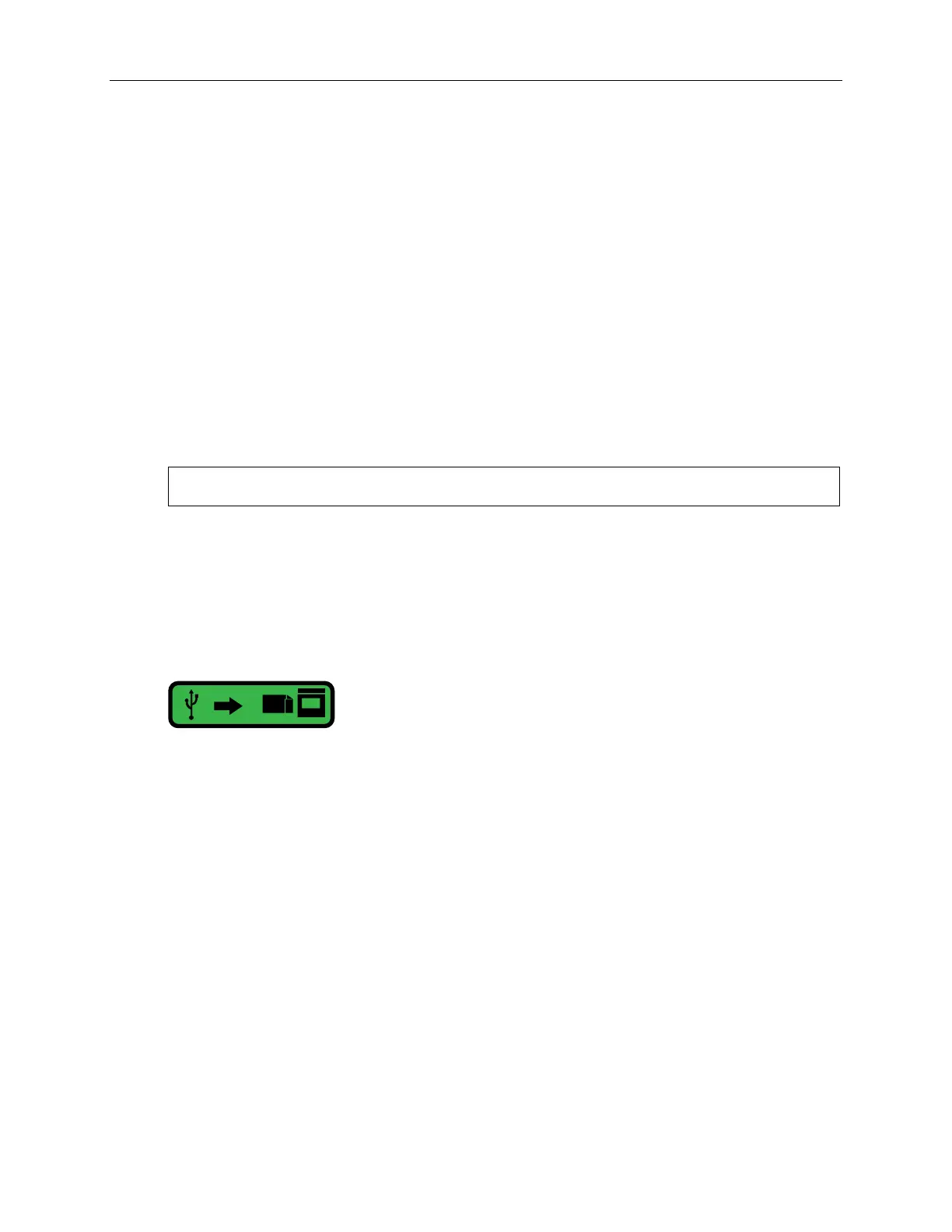
4. On the Touchscreen, copy the message file from the USB Drive to the Controller by
selecting the button below.
To Transfer a Print Message by Ethernet:
1. Send the message to the Printer using Orion.


 To Next Page