Objet1000 Plus User Guide 5 Using Objet Studio
DOC-06810 Rev.B 5-35
Setting Model
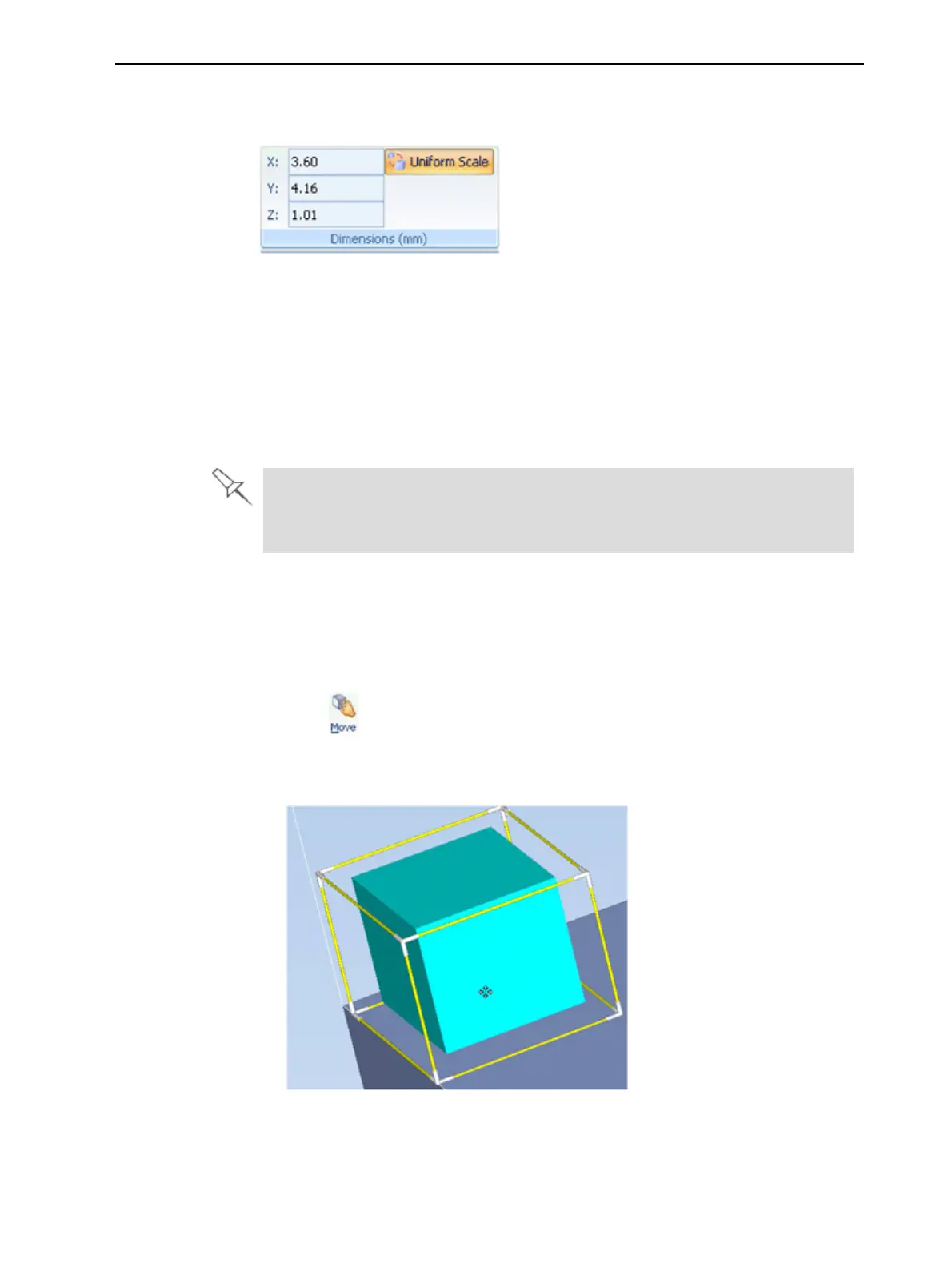
Dimensions
Youcanchangeanobject’sdimensionsbychangingitssizeontheX-,Y-,and
Z-axes,fromtheDimensionsgroupontheModel Settingsribbon.
Figure5-41DimensionsontheModel Settingsribbon
•IfUniform Scaleisenabled,changingtheobject’sdimensionononeaxis
affectstheotherdimensions,proportionately.
•Afterchangingameasurement,pressEnterorclickinanotherfieldinthe
Dimensionsgroup.
Note: Youcanchangetheheightoftheobjectsonthebuildtrayonlyifthisis
allowedbytheObjetStudiosettings(see"PositioningObjectsontheZ-Axis"on
page5-31).
Therecommendedminimumsizeforeachobjectonthebuildtrayis800mm
(ontheX-axis)and130mm(ontheY-axis).Althoughsmallerobjectscanbe
printed,theseminimumdimensionsensuregoodprintquality.
Repositioning
Objects
Youcanmanuallymoveandrotateanobjectonthebuildtraywiththearrow
keys,orbydraggingitwiththemouse.
Tomanuallymanipulateanobject:
1. Selectanobjectbyclickingitonthebuildtray,orinthemodeltreepane.
2. Click ontheModelToolbar,orontheModel Settings ribbon.
Aframeappearsaroundtheobject,andthecursorchangestoindicate
thattheobjectcanbemoved.
Figure5-42Manuallymovinganobject













 To Next Page