Objet1000 Plus User Guide 5 Using Objet Studio
DOC-06810 Rev.B 5-70
Default
Settings
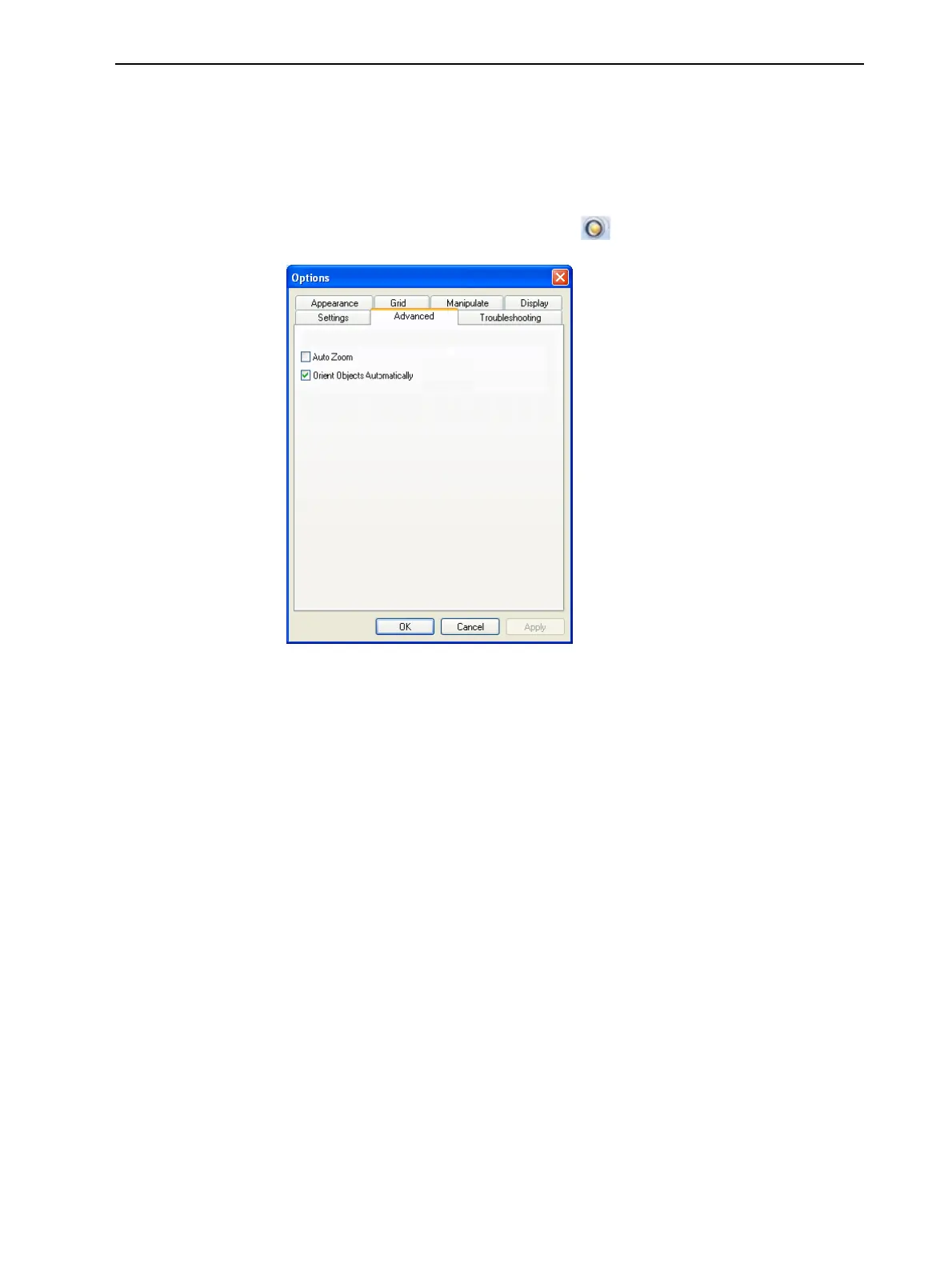
YoucancontrolthedefaultsettingsofseveralObjetStudiofeaturesfromthe
AdvancedtaboftheOptionsdialogbox.
TodisplaytheOptionsdialogbox
➢ FromtheToolsmenu,selectOptions.
or—
IntheObjetStudioCommandsmenu ,clickOptions.
Figure5-92Optionsdialogbox,Advancedtab
Automatic
Orientation
Bydefault,whenObjetStudioplacesobjectsonthebuildtray,itorientsthem
optimally,fortheshortestprintingtime.Ifnecessary,youcanchooseto
cancelautomaticorientationeachtimeyouplaceanobjectonthebuildtray
(see"AutomaticOrientation"onpage5-27).Inanycase,whenobjectsareon
thebuildtray,youcanchangetheirorientationmanually(see"Manual
Positioning"onpage5-29.)
TochangethedefaultsettingsothatAutomatic Orientationisdisabled:
➢ IntheAdvancedsectionoftheOptionsdialogbox,clearthecheckbox.
AutomaticZoom
WhenAuto ZoomisselectedintheAdvancedsectionoftheOptionsdialog
box,thedisplayzoomsin,todisplaytheobjectsplacedonthebuildtray.This
allowsyoutocarefullyinspectandmanipulatetheobjects.
Bydefault,thisfeatureisnotenabled.Inanycase,youcanchangethezoom
level,asnecessary(see"ZoomOptions"onpage5-49).













 To Next Page