Objet1000 Plus User Guide 5 Using Objet Studio
DOC-06810 Rev.B 5-49
❒ Adaptive Polygon Reduction—Varyingdegreesofpolygonreduction
areapplied,asnecessary.
❒
Entire Object—Nopolygonreductionisapplied.
7. Tosavethesesettings,sothattheywillbeappliedeverytimeyouplace
this objectonthebuildtray,clickSavePolygonReductionData.
8. ClickApplytoseetheresultsofthesettingswithoutclosingthedialogbox.
Selectingthe Entire Object optioncancelspolygonreduction.
Objectdisplay
options
Thedisplayformataffectshowquicklyobjectsdisplay.Forexample,ifyou
selectBoundingBox,objectsdisplayfasterthantheydowhenyouselect
EntireObject.Youcanchoosedisplayformatsforobjectswhentheyare
stationary(static view)andforwhenyouaredraggingthem(changing view).
Toselecttheobjectdisplaypreferencewhilechangingview,andinstaticview:
1. Selecttodisplayobjects:
❒ WithaBounding Box(seeFigure5-51onpage5-43)
❒ WithAdaptivePolygon Reduction (changing viewonly)
❒
WithPolygon Reduction (static viewonly)
❒
Entire Object
2. ClickOKwhendone.
Zoom Options
Whilemanipulatingobjects,youoftenneedtoviewthematdifferentzoom
levels.
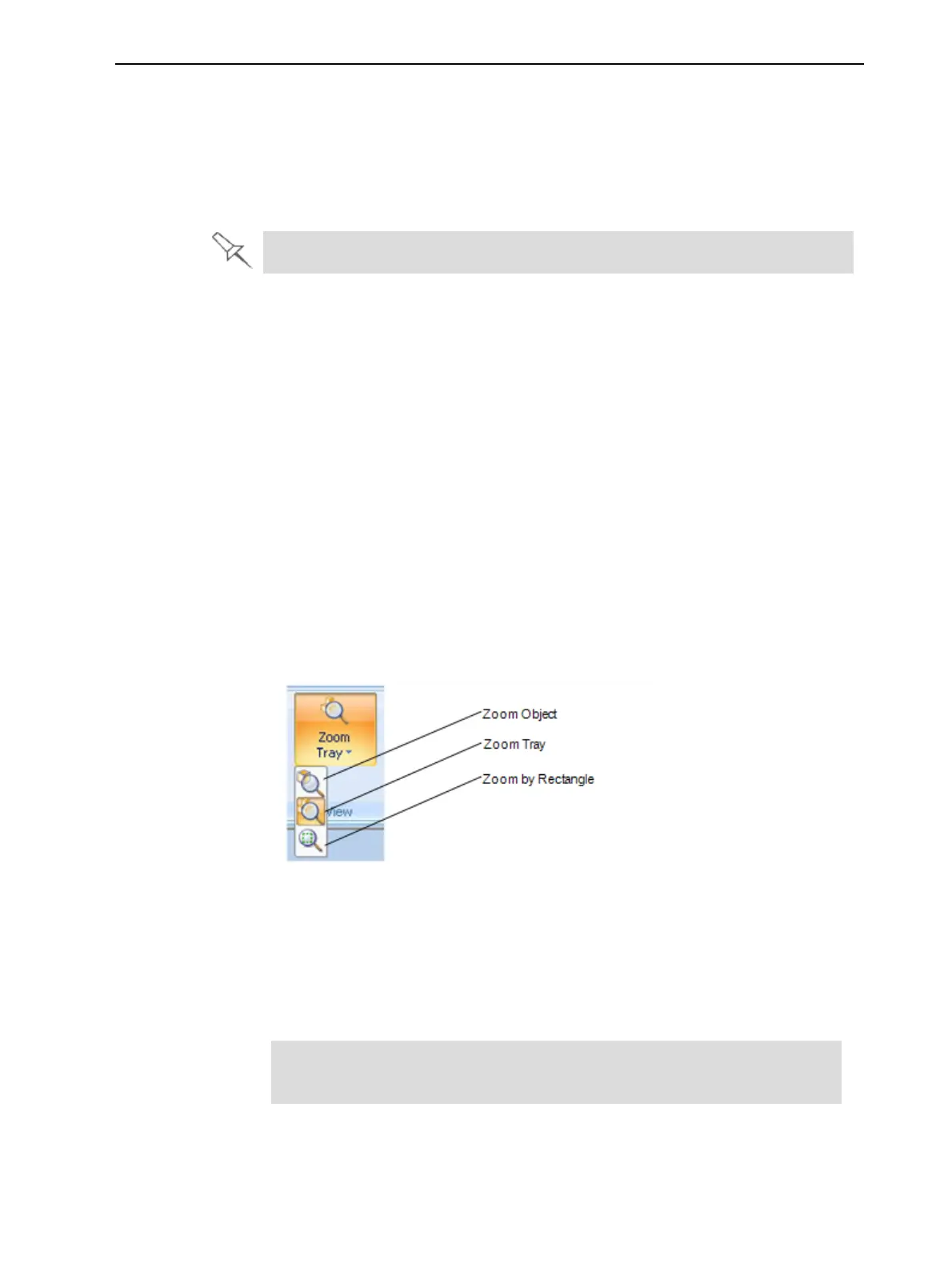
Tochangethezoomlevel:
Figure5-65Zoom flyouttoolbar
❒ Zoom Objectfocusesontheselectedobject.
❒ Zoom Traydisplaysthewholetray.
❒ Zoom by Rectangleallowsyoutodisplayasectionofthetrayby
selectingitwiththemouse.
Youcanalsozoominandzoomoutwiththemousewheel.
YoucanconfigureObjetStudiotoautomaticallyzoominontheobjects
placedonthebuildtray.See"AutomaticZoom"onpage5-70.













 To Next Page