6.7 When an Error Message Appears on the Control Panel
156
6
Troubleshooting
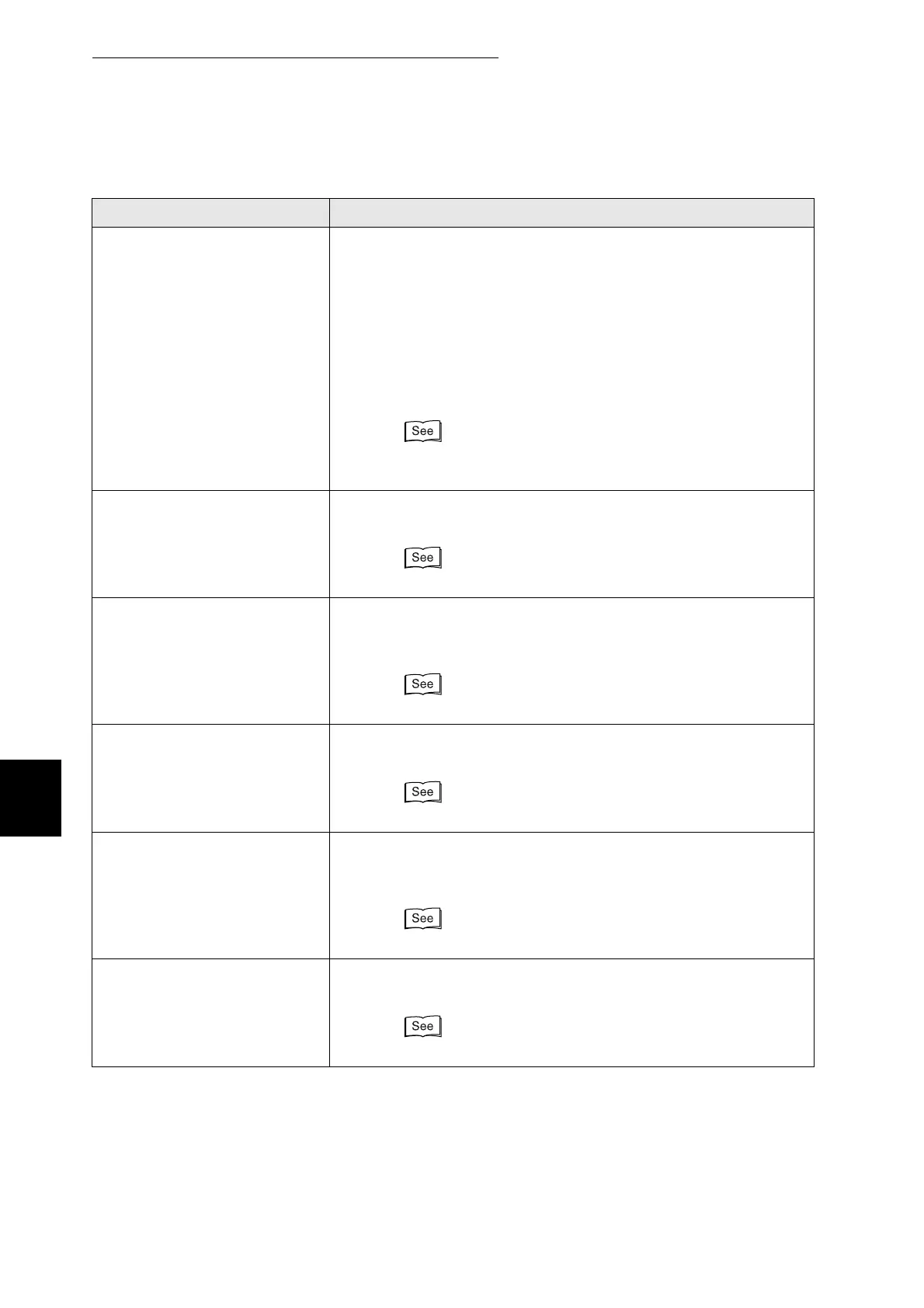
Check Paper
in ManualTray
Paper is not properly loaded in the multi purpose tray or is different
from that specified on the computer.
Action: Make sure the paper is properly loaded into the multi
purpose tray. If the computer settings are incorrect, cancel
printing.
Check the following settings on your computer, reconfigure
any that are incorrect, and reprint.
●
Is the correct paper tray specified?
●
Is the correct paper size specified?
"4.2.2 Loading Paper in the Multi Purpose Tray" and "3.4.2
Canceling Printing at the Control Panel"
Replace Transfer
Roller
The transfer roller needs to be replaced.
Action: Replace the transfer roller.
"8.3.2 Replacing the Transfer Roller"
Reinsert Transfer
Roller
The transfer roller is not inserted in the printer or the cartridge is set
improperly.
Action: Push the transfer roller all the way into the printer.
"8.3.2 Replacing the Transfer Roller"
Replace Drum
Cartridge
The drum cartridge needs to be replaced.
Action: Replace the drum cartridge.
"8.2.2 Replacing the Drum Cartridge"
Reinsert Drum
Cartridge
The drum cartridge is not inserted in the printer or the cartridge is set
improperly.
Action: Push the drum cartridge all the way into the printer.
"8.2.2 Replacing the Drum Cartridge"
No Paper in
Tray 1
There is no paper in tray 1.
Action: Load paper into paper tray 1.
"4.2.1 Loading Paper in the Paper Tray"
Message Meaning and Action
"N" represents a number.
"xxx" represents a paper size or paper orientation.



 To Next Page