Installing the Encompass 4 Reader
4-29
Caution
Do not ground the input power supply.
Caution
After connecting the wires in the communications cable, connect the drain wire
from the communications cable to Earth Ground.
Connect the yellow/black wires to
Signal Ground.
Connecting Communications
TransCore offers reader models that communicate through RS–232, RS–422, and
Wiegand interface protocols. This section describes the procedures and materials
required for connecting the communications to the junction box and to the sense input
and sense output circuits.
Required Materials
You need the following materials to connect the communications cable to the PC:
• PC or laptop
• Any terminal emulation program such as Procomm Plus™ or Hyper Terminal™
running on a PC
• Communications cable to connect to the COM1 port on your PC
Connecting the Encompass 4 Reader to the PC
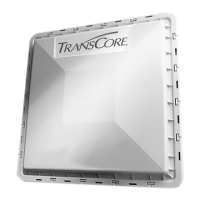
Encompass 4 Reader communications and customer interface signals are supplied
from the Encompass 4 Reader to the host through a multiwire cable, which is a 13-pair
pigtail. The connector for this cable is located on the back of the Encompass 4 Reader.
Refer to the following sections to connect the appropria
te communications wires from
the cable to the terminal strip that is located inside the junction box.
These sections contain instructions for connecting RS
–232, RS–422, and Wiegand
communications between the Encompass 4 Reader and the PC. Each section contains
wiring instructions and pin assignments followed by step-by-step connection proce-
dures.
The Encompass 4 Reader can remain powered up while connec
ting reader-to-host PC
communications.
RS–232 Interface
RS–232 interface signals are supplied by three or five wires from the Encompass 4
Reader communications cable. The pin assignments for the signal to the host male


 To Next Page