Encompass 4 Reader System Guide
8-12
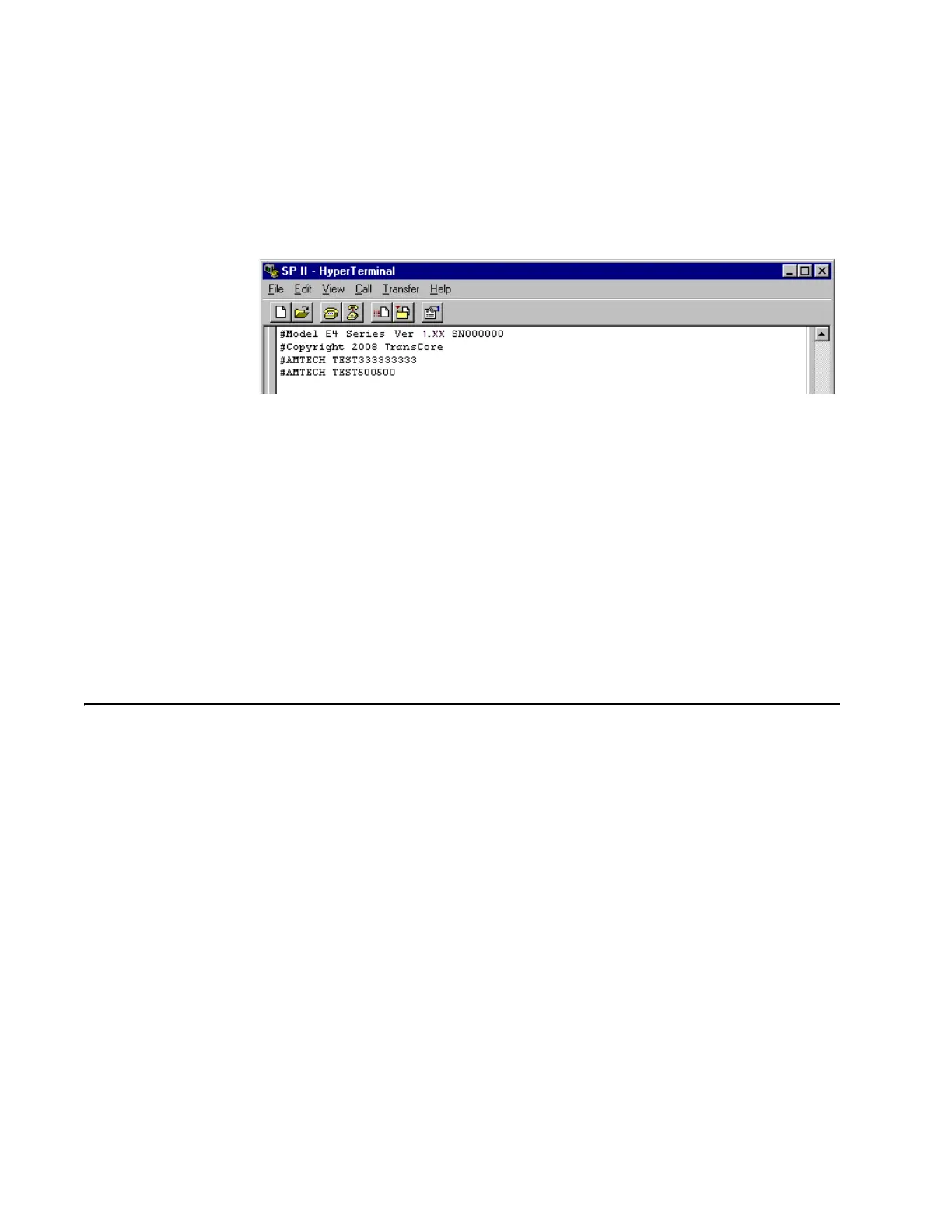
4. When the Encompass 4 Reader reads the sec
ond tag successfully, the terminal
emulation application displays that tag’s information in the main screen below
the information for the first tag, as shown in Figure 8-7.
Figure 8-7 Second Successful Tag Read
If the read is unsuccessful, perform the following actions:
• Ensure the tag you are using is compatible with the Encompass 4
Reader.
• Using the audible circuit tester as described in “Testing the
Encompass 4 Reader Using an Audible Circuit Tester” on page 4-
5, verify that the reader is capable of reading the tag in the read
zone. If it is, the problem is probably
in the communications
between the Encompass 4 Reader and the host computer.
Configuring Encompass 4 Parameters
Follow the procedures in this section to configure Encompass 4 parameters using a
PC, laptop, or terminal emulator. The PC or laptop must be connected to and commu-
nicating with the Encompass 4 Reader, and the
terminal emulation application must be
configured correctly, as described in the section “Verifying Communications” on page
8-8.
Note: If you
are using Wiegand mode, you must connect the PC or laptop to the
Encompass 4 Reader using the RS
–232 or RS–422 interface before attempting to send
commands to the reader. You can leave the Wiegand interface connected during this
procedure.
To configure parameters
1. Switch to command mode by typing #01 at the prompt on the terminal
emulation sc
reen, and pressing ENTER.
Note: All Encompass
4 Reader commands are preceded by the start-of-message char-
acter (#).
2. To meet requirements of your site, make change
s to default operating parameters
as described in the following sections.


 To Next Page