Encompass 4 Reader System Guide
8-6
section “Connecting the Encompass 4 Reader to the PC” on page 4-29. Then, enter the
appropriate configuration commands through the terminal emulation software on your
PC.
See Chapter 7, ”Commands” for a detailed description of all available configuration
commands.
Starting the Terminal Emulation Software
You can use a PC and any terminal emulation software to enter the host commands to
download flash software, configure reader operating parameters, perform diagnostics,
and retrieve tag data. The following procedures show examples using Hyper Termi
-
nal™, an application included with Microsoft Windows. Most terminal emulation
applications have a similar sequence for launching.
To start the terminal emulation software
1. At the command prompt, type your terminal emulation start command; or if
using Windows Hyper Terminal, select:
Programs>Accessories>Hyperterm
and press ENTER.
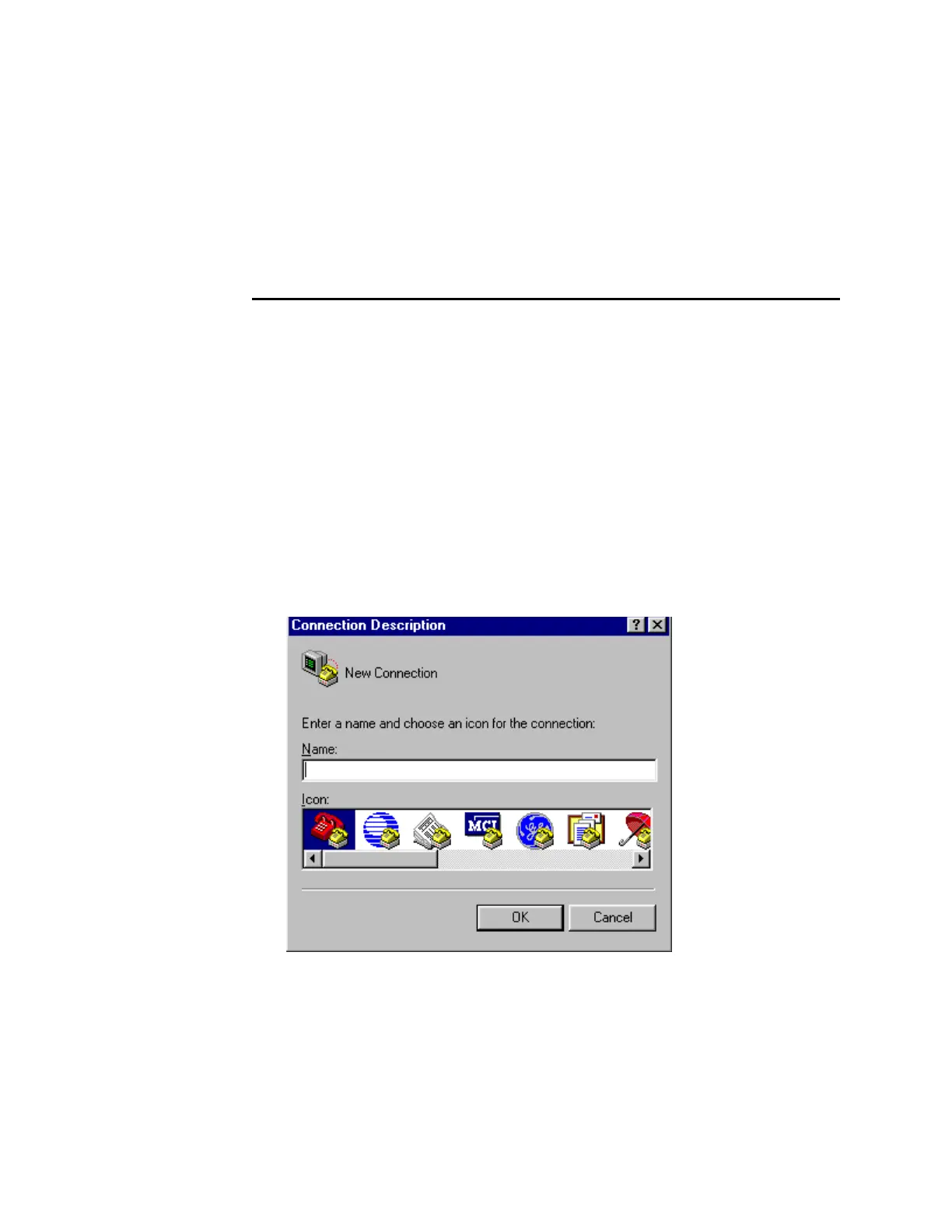
The application displays the Connection Description dialog box as shown in
Figure 8-1.
Figure 8-1 Connection Description Dialog Box
2. Enter a name for the session and click OK.
The application displays the Phone Number dialog box as shown in Figure 8-2.


 To Next Page