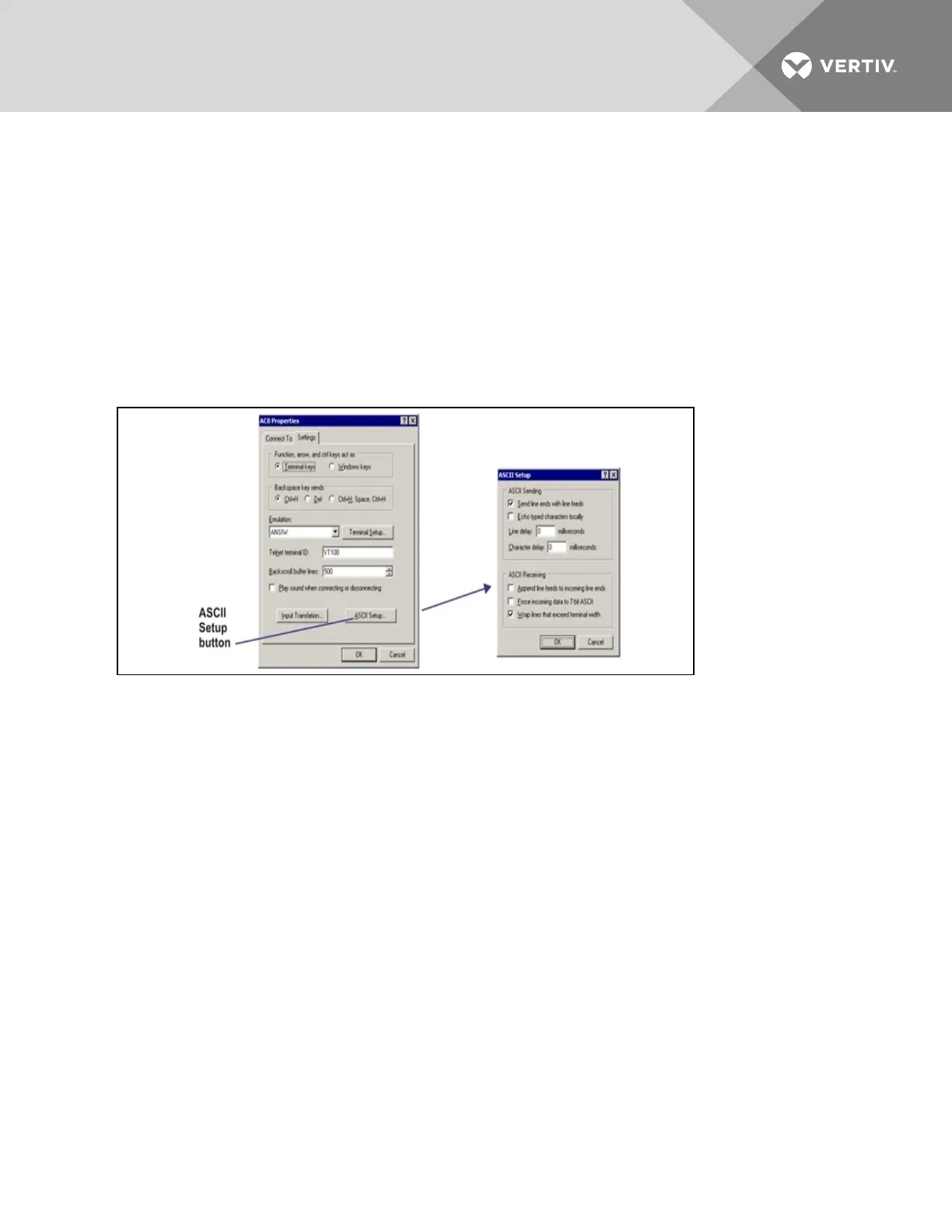
9. In the Properties window, above right, click on the Settings tab and choose the following
settings:
• Function, arrow, and ctrl keys act as: Terminal keys
• Backspace key sends: Ctrl+H
• Emulation: ANSIW
• Telnet terminal ID: VT100
• Backscroll buffer lines: 500
• Play sound when connecting or disconnecting: Unchecked
ASCII Setup
10. In the Properties window, click on the ASCII Setup button, shown below left.
11. In the ASCII Setup window, shown above right, choose the following settings:
• ASCII Sending: place a check mark (4) in the Send Line Ends With Line Feeds box.
• ASCII Receiving: place a check mark (4) in the Wrap Lines That Exceed Terminal Width
box.
• Click OK.
The setup is now complete. To use the new connection, proceed to the next section, Connect to the
Service Terminal Interface below.
Connect to the Service Terminal Interface
After creating and setting up a connection, use a communications program such as HyperTerminal to
access the Liebert AC8’s Service Terminal Interface.
1. Verify communications connections between the remote computer and the Liebert AC8:
a. For direct connection (via RS232 port):
• Connect a null modem cable from the computer’s COM1 port to the Liebert AC8’s RS232
port (for location, see RS232 Connector on page28).
b. For remote connection (via modem):
Vertiv | Liebert® AC8 User Manual | 115



 To Next Page