3.6.2 ADDING / REPLACING IFOBS
NOTE: If your system is set up as Random Return to Multiple Systems, the process for replacing an iFob is
different to the procedure shown here. Refer to the section Replacing iFobs in Random Return to Multiple
Systems.
Most Traka Systems work on fixed iFob replacement basis which means the iFobs must be returned to the position
from where they were taken. By default the system will not know where an iFob should go therefore the iFob serial
number must be assigned to the position in the system and the Traka32 software.
1. Go to the system that you wish to assign the iFob to. If the system has one or more doors, access the system
in the normal way.
If you have a No Door system, do not access the system and proceed to the next step.
2. Insert the iFob into a vacant position.
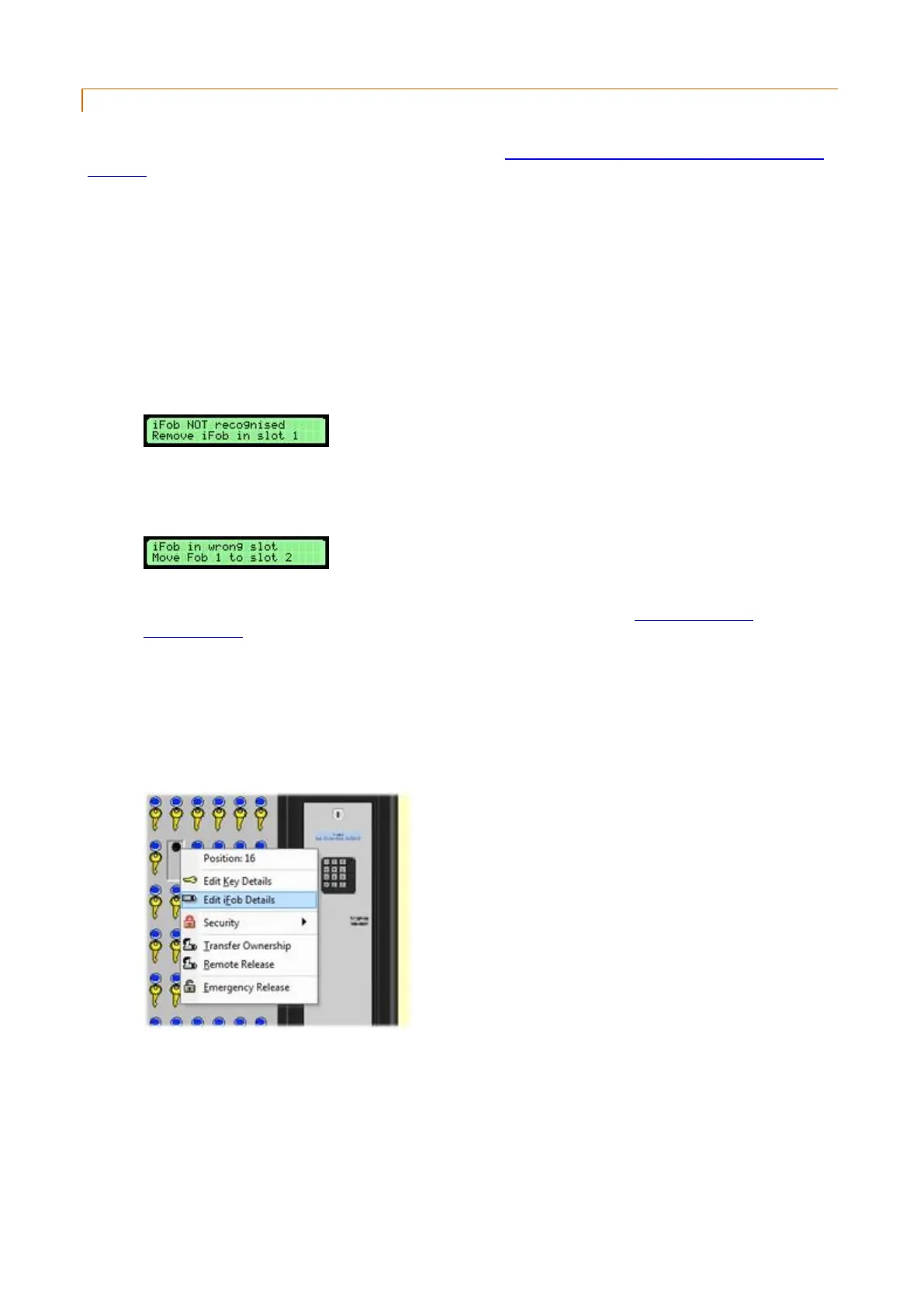
3. If the system has a door the display should show...
In which case, ignore the message and close the door.
If the following message is shown...
This means that the iFob you are using is already in use within the system. You must first deallocate or
remove the iFob from Traka32 before reallocating it again. Please refer to the De-allocating iFobs or
Removing iFobs section.
NOTE: Ensure nobody accesses the system until the following steps are completed otherwise they
will be asked to remove the unrecognised iFob and this may cause confusion.
4. The quickest way to add a new iFob into a system is from the System Viewer.
5. From the main screen select the system from the drop down in the main toolbar, and from the system viewer
right click over the picture of the relevant position and click on Edit iFob Details.
6. The selected iFob record will open.


 To Next Page