Authorisation
This option will only be enabled if the firmware of the selected system has X System Authorisers enabled.
Refer to the X System Authorisers section for more details.
Available / Current Access Levels
Each iFob in a system has an Access Level assigned to it. For a user to be able to take an iFob, the user must
have that access in their Current Access Levels list. For example, if an iFob has access level 021, and the
user needs access to this iFob, they must have access level 021 in their Current Access Level list. If not, the
user will not be able to take the iFob.
For more details please refer to the Access Levels section.
To Add All access levels to the Current List, click on
To Add Selected access levels, select the appropriate levels from the Available List and click on
To Remove Selected access levels, select the levels from the Current List and click on
To Remove All access levels from the Current List, click on
To select a group of access levels, click on the first access level, hold down the Shift key and click on the
last access level in the group.
To select several individual access levels hold down the Ctrl key and click on the access levels in the group.
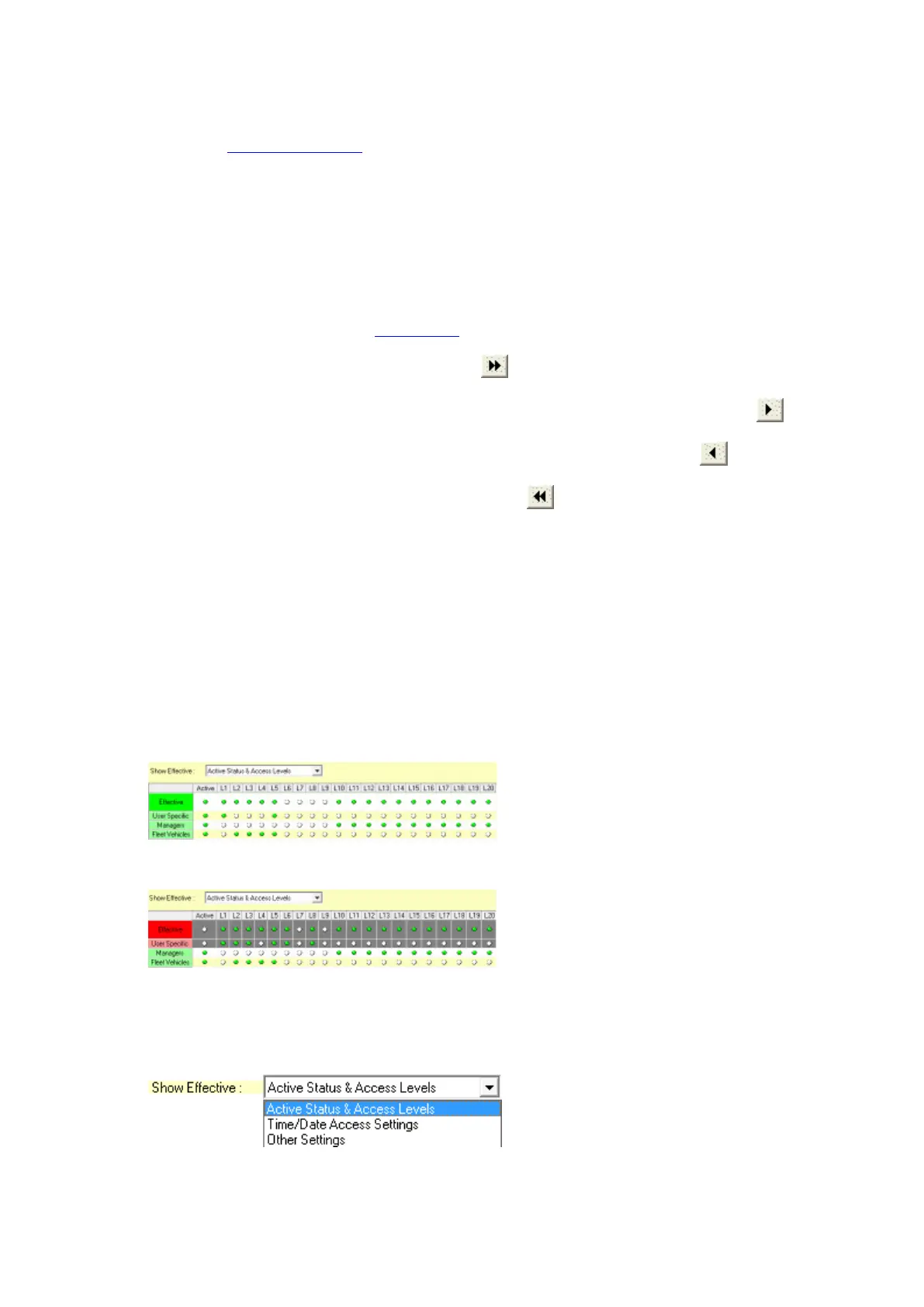
Show Effective Security
This grid provides a graphical representation of the user’s effective system and iFob access taking into
account their user specific security settings and the security groups to which they belong.
If the effective box is green, then the user has access to the currently selected system.
If the effective box is red, then the user does not have access to the currently selected system.
It is possible to display the effective security different access credentials. Select from the Show Effective drop
down list:-


 To Next Page