2.4.4.1.2 MOXA CONFIGURATION
Before configuring a Traka Moxa Ethernet Device (TMED) you will need to obtain certain information from your
Network Administrator. Please refer to the planning section for details.
Once you have obtained the configuration details you can configure the TMED. The TMED cannot be set up through the
Traka32 software and has to be configured either by using Telnet or Moxa PComm Terminal Emulator. If you are not
experienced with networks we suggest you ask your Network Administrator or Local Traka Engineer to set up the
TMED.
Using Telnet
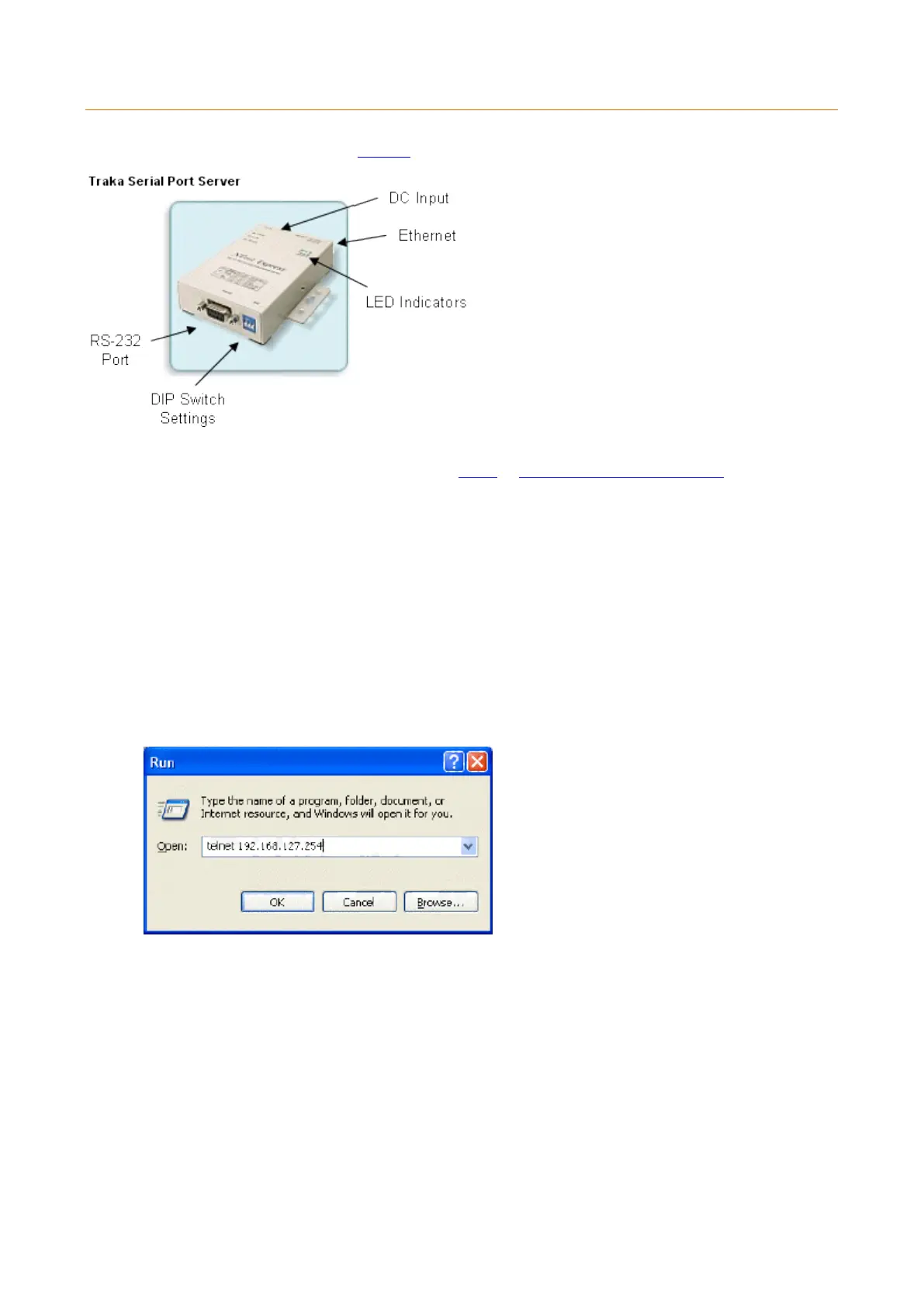
1. Check that the DIP Switch Settings on the TMED are all set to Off.
2. Check that the PWR and Link lights are both On. If the PWR light is not on then re-check your connections.
If the Link light is not on then re-check your connections and ensure that the network port that you have
connected the TMED to is patched in correctly.
3. From a workstation that is connected to the same network, click on Run from the Start button and the
following window will appear...
In order to establish an initial connection with the TMED you must first telnet to the device using its default IP
Address. The default IP Address can be found on the under side of the TMED. In the example this is
192.168.127.254.
Type telnet 192.168.127.254 followed by Enter.


 To Next Page