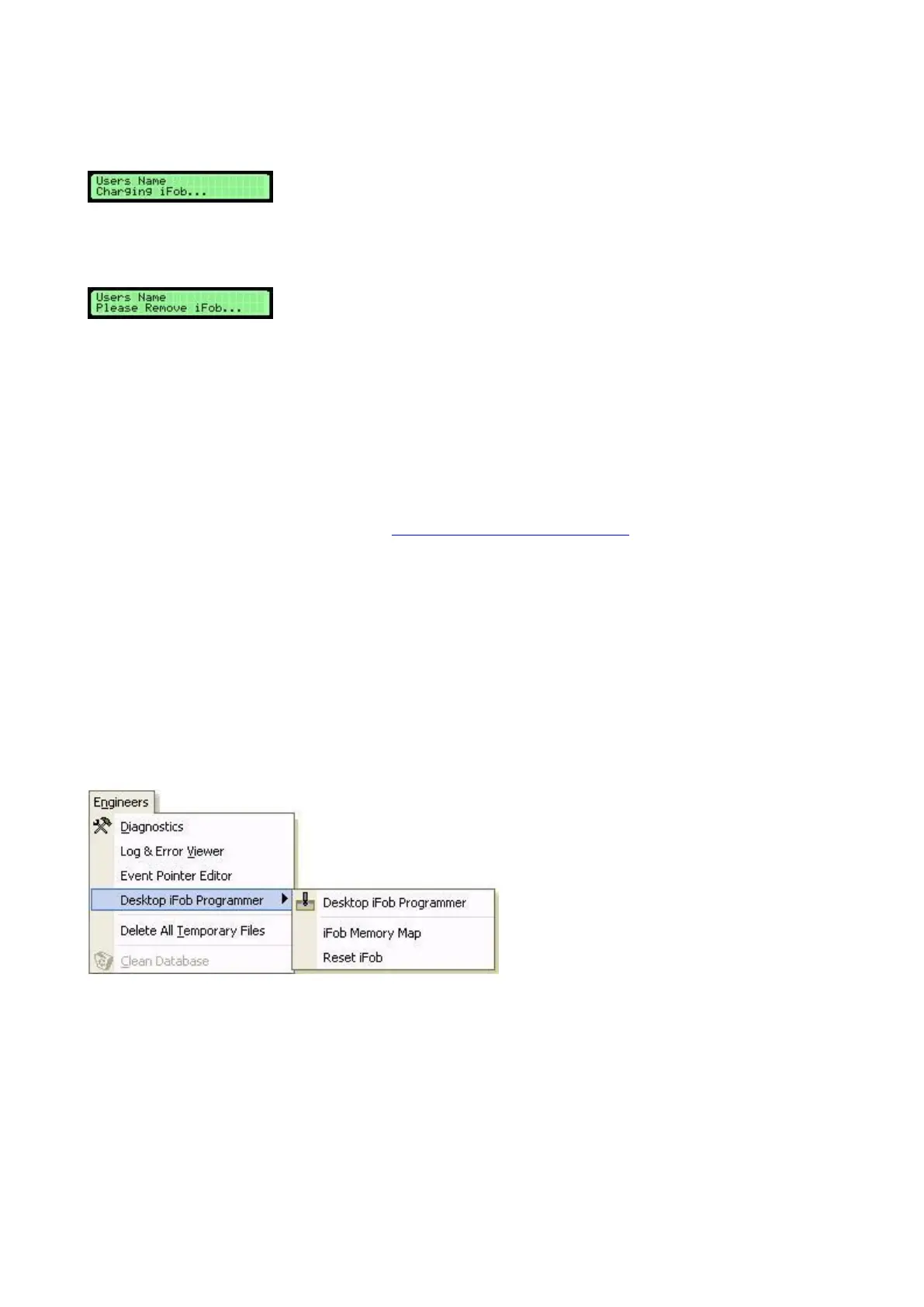
The user now enters their secondary PIN into the keypad...
NOTE: There is no need to press any buttons, the user can simply begin to enter the secondary PIN
straight away.
After a few seconds the iFob will be fully charged and the user may now remove their iFob.
This process assigns the iFob to the user. When the user next inserts their iFob into the download station they will be
prompted to swipe their card, this will recharge the iFob and allow the user to remove it from the cabinet. All the
transactions that have taken place will be downloaded to the cabinet.
Desktop iFob Programmer
If you wish to use a Desktop iFob Programmer and you have not previously used one before, you will need to install
the Drivers to your machine, please refer to the Desktop iFob Programmer Installation guide for further information.
The Desktop Programmer is useful for several things such as resetting iFobs, creating Program iFobs, creating Test
iFobs etc.
Resetting an iFob
The main function of the Desktop iFob Programmer when using it in conjunction with the Download Station, is
resetting iFobs. For example if you have an iFob that was used before and you wish to assign it to a new user, you can
reset the iFob and use it again.
Once the correct Drivers have been installed successfully and you have plugged you Desktop Programmer in to a free
USB port, you can insert the desired iFob into the barrel of the Desktop Programmer ready for resetting. Next on the
tool bar at the top of the screen in Traka32 click Engineers > Desktop iFob Programmer > Reset iFob.
After a few seconds a window will appear informing you whether the reset was successful or not. If the reset is
successful the message will read 'iFob Information Successfully Cleared'. You are now able to remove the iFob and use
it as desired.


 To Next Page