3.19.14.4.6 LICENSE EXPIRY DATES
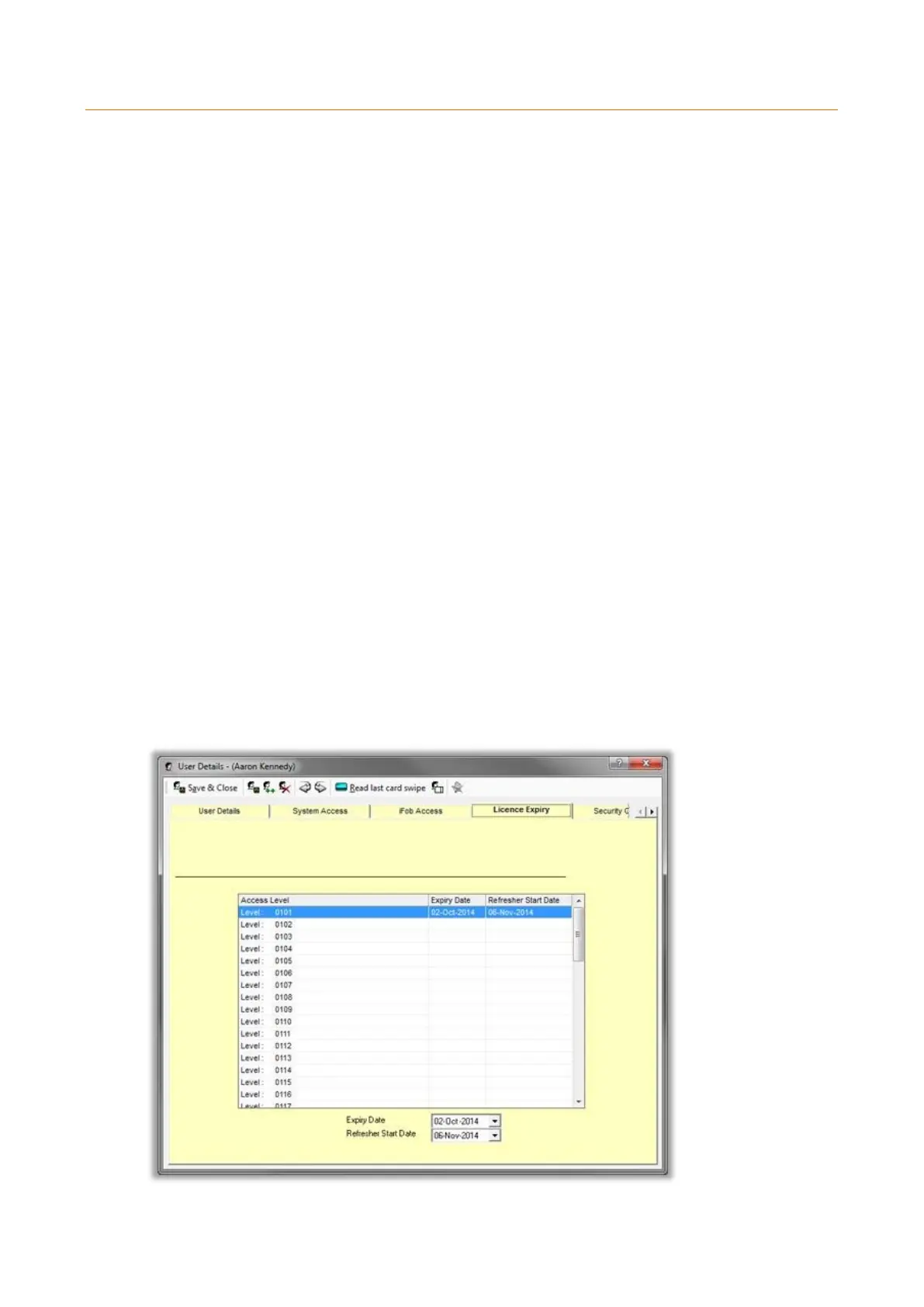
License expiry dates can be entered against the access level/Truck types 1-56 (Access Levels 101 – 156) from the
user’s details. This facility can be used to record when a user’s license will expire for a given truck type. It will stop
them from driving a truck once their license has expired.
Enabling the Option
There is an option in Traka32 properties that needs to be enabled before the license expiry option will work. To enable
the option follow the steps below.
1. From the top of Traka32 select File > Properties.
2. When the properties window opens, select the Comms tab from the left hand side.
3. There will be an option called ‘Revoke License Expired’. Select this tick box and click Save & Close.
NOTE: You need a form of auto-comms enabled for this option to appear.
NOTE: There is a setup procedure that a Traka engineer/project manager will have followed to
ensure that the 'Revoke License Expired' option is available. If you have an iFob Per Person
system with auto-comms and the option does not appear, please contact Traka.
4. Next you will need to add the expiry dates to the user details. From the top of Traka32 select the User List.
5. Highlight the desired user and double click, or select the Users button from the banner above and click the
Edit User button.
6. When the user details window opens, navigate to the License Expiry tab.
7. Highlight the desired access level/s (which represents the truck type e.g. 101 type 1) and using the drop
down selection box enter an Expiry date.
NOTE: You can highlight multiple access levels at once.
NOTE: If the user’s expiry date is 48hrs prior to the next time the auto-comms runs past midnight,
then the user will not get picked up by the license expiry option. To be safe, set the expiry date at
some point in the future.


 To Next Page