Chapter 6 Autel Enterprise App 103
2. Tap this icon to display the specific signal status:
When the signal is 3-5 grids, the remote controller
signal is displayed as strong.
When the signal is 1-2 grids, the remote controller
signal is displayed as weak.
3. When the remote controller is not connected to
the aircraft, the remote controller signal is
displayed in gray color.
7
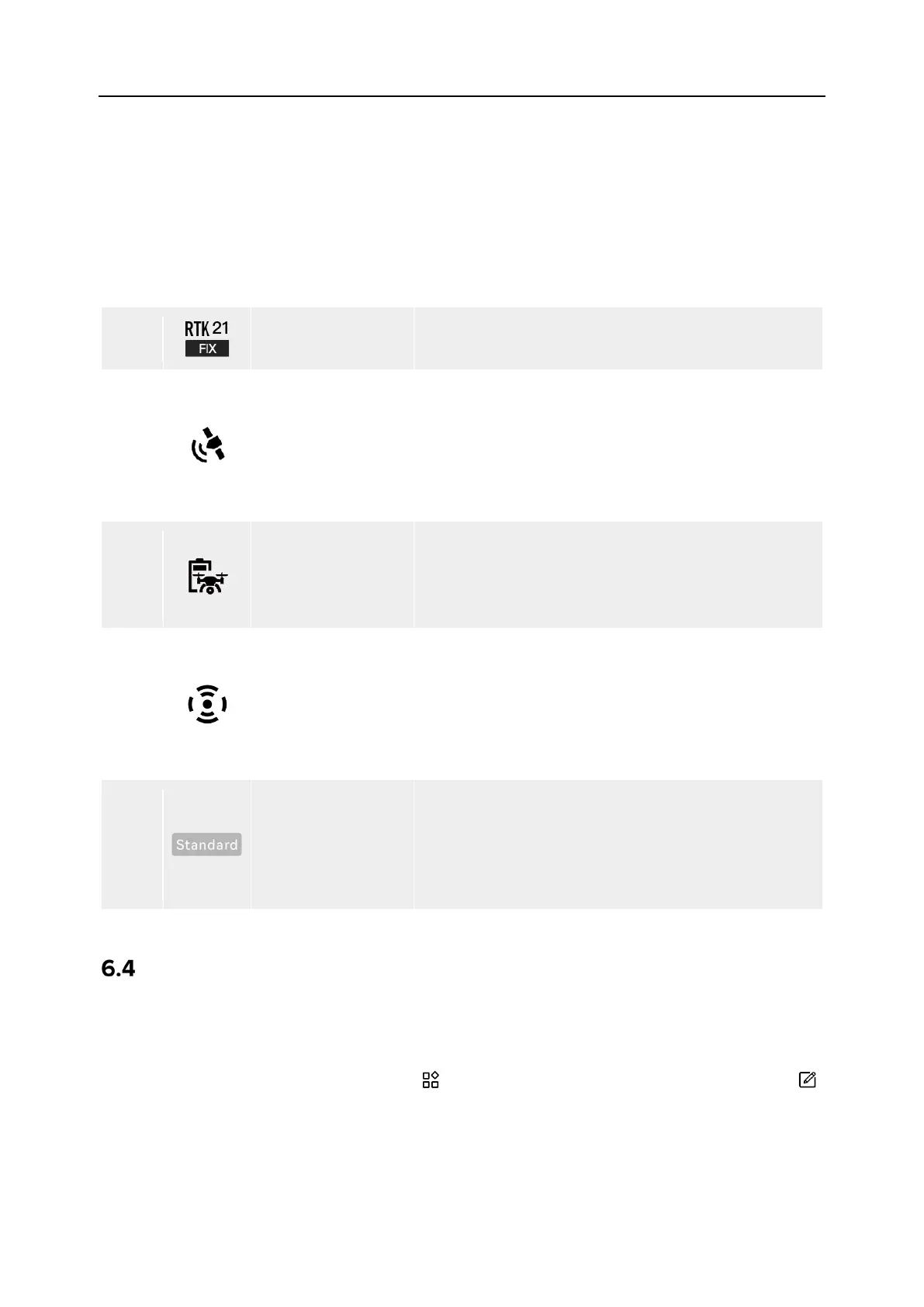
RTK Signal Status
Displays the current
RTK signal strength and
positioning accuracy level.
8
GNSS Signal Status
1. Displays the current GNSS positioning signal
status of the aircraft.
2. Tap this icon to display the specific signal status
and satellite connection status.
3. If the aircraft receives no GNSS signal, the GNSS
signal is displayed in gray color.
9
Aircraft Battery
1. Displays the current battery information of the
aircraft.
2. Tap this icon to display the battery level, voltage,
and temperature of the aircraft battery.
10
Obstacle
Avoidance System
Displays the current activation status of the aircraft
obstacle avoidance system.
Green indicates that the obstacle avoidance
system is activated.
Red indicates that the obstacle avoidance system
11
Speed Mode
Display
Displays the current speed mode of the aircraft.
Four modes are available, that is, Slow mode,
Smooth mode, Standard mode, and Ludicrous
mode. For more information about the speed
modes, see “3.8.2 Flight Modes” in Chapter 3.
Shortcut Toolbar
The shortcut toolbar is displayed at the bottom of the system status notification bar of the Autel
Enterprise App, which allows you to quickly activate certain functions.
In the shortcut toolbar, you can long press and drag the function icons to customize the sorting.
At the same time, you can also tap on the “ ” icon to enter "Shortcuts" and then tap on the “ ”
icon on the right side of "Shortcuts" to add a function icon into or delete a function icon from the
shortcut toolbar.




 To Next Page