Chapter 6 Autel Enterprise App 115
Set Battery Warning Threshold
Move the slider left or right to set warning thresholds for low battery and critically low battery.
Critically Low Battery Warning: Red status. The adjustable range is from 8% to 25%.
Low Battery Warning: Orange status. The adjustable range is from 15% to 50%. The low
battery warning threshold should be at least 5% higher than the critically low battery warning
threshold.
Gimbal Settings
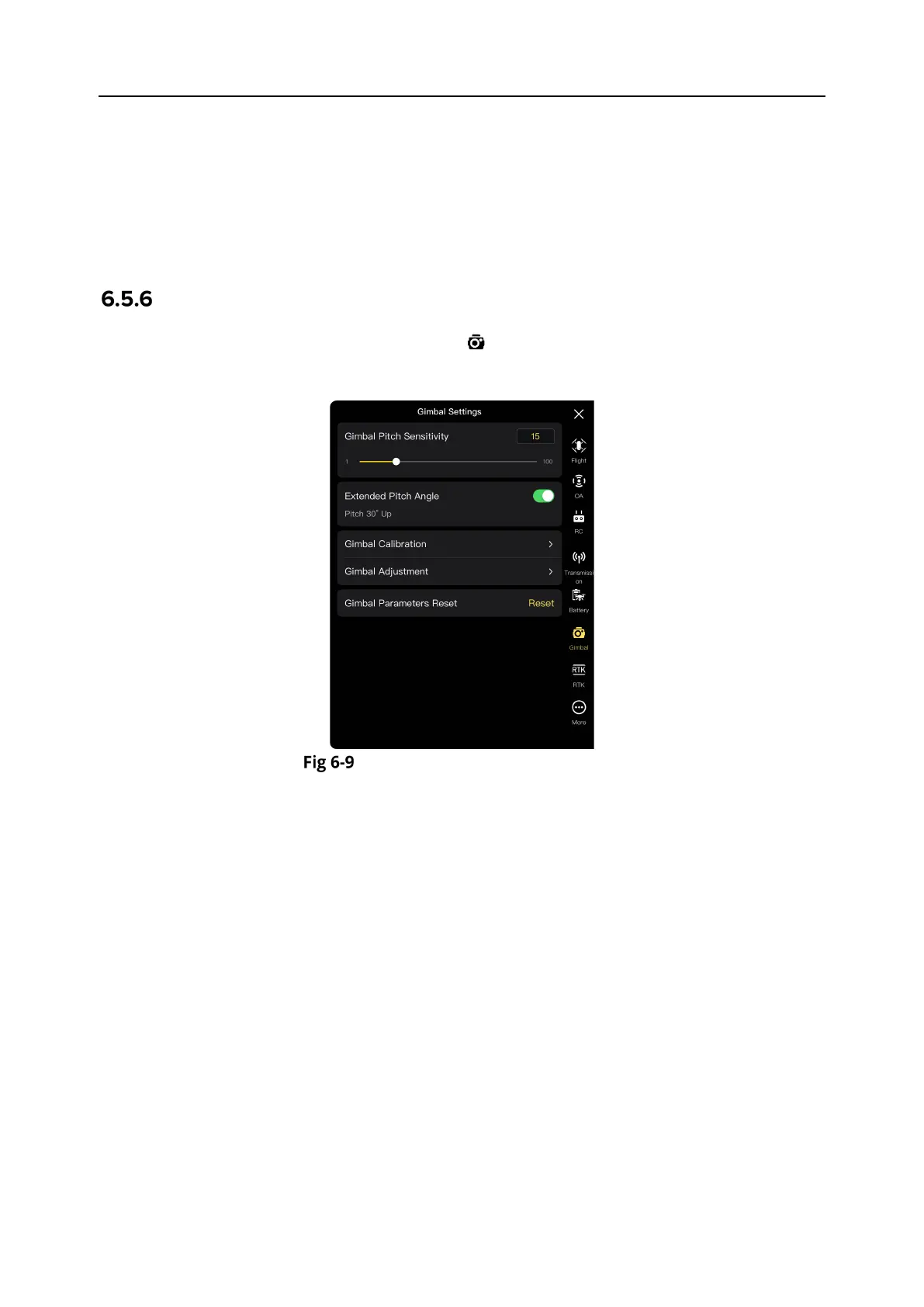
In the sidebar of the “Settings” interface, tap the " " icon to enter the "Gimbal Settings" interface,
where you can set the gimbal pitch sensitivity and extended pitch angle, or calibrate and adjust
the gimbal, as shown below.
"Gimbal Settings" Interface
Set Gimbal Pitch Sensitivity
Enter a value in the edit box to the right of "Gimbal Pitch Sensitivity", or move the slider left or
right to adjust the value, so as to set the number of degrees the gimbal rotates on the pitch axis
per second (unit: °/second).
Turn On/Off Extended Pitch Angle
Tap the button to the right of "Extended Pitch Angle" to turn on the upward gimbal rotation
function.
If this function is turned on, the gimbal can rotate up to 30 degrees above the level baseline.
If this function is turned off, the gimbal can only maintain a level or downward rotation and
cannot rotate upwards to switch to a pitch view.
Gimbal Calibration
When there is an abnormality in the gimbal, tap "Gimbal Calibration", and then tap the "Start
calibration" button, and the gimbal will automatically start calibrating. For more information, see
“2.11.3 Gimbal Calibration” in Chapter 2.
Gimbal Adjustment
When the position of the gimbal tilts, tap “Gimbal Adjustment” and tap the buttons under the
functions of “Roll”, “Yaw”, and “Pitch” to adjust the gimbal, so that the horizontal and vertical axes




 To Next Page