102 Chapter 6 Autel Enterprise App
lower-right side displays the "Infrared" preview
interface.
3
Maximize Window
Tap this icon to adjust a preview interface to the
corresponding full-screen interface.
In any camera interface or camera preview interface, you can swipe up anywhere to hide
all function icons and swipe down to restore the display of function icons.
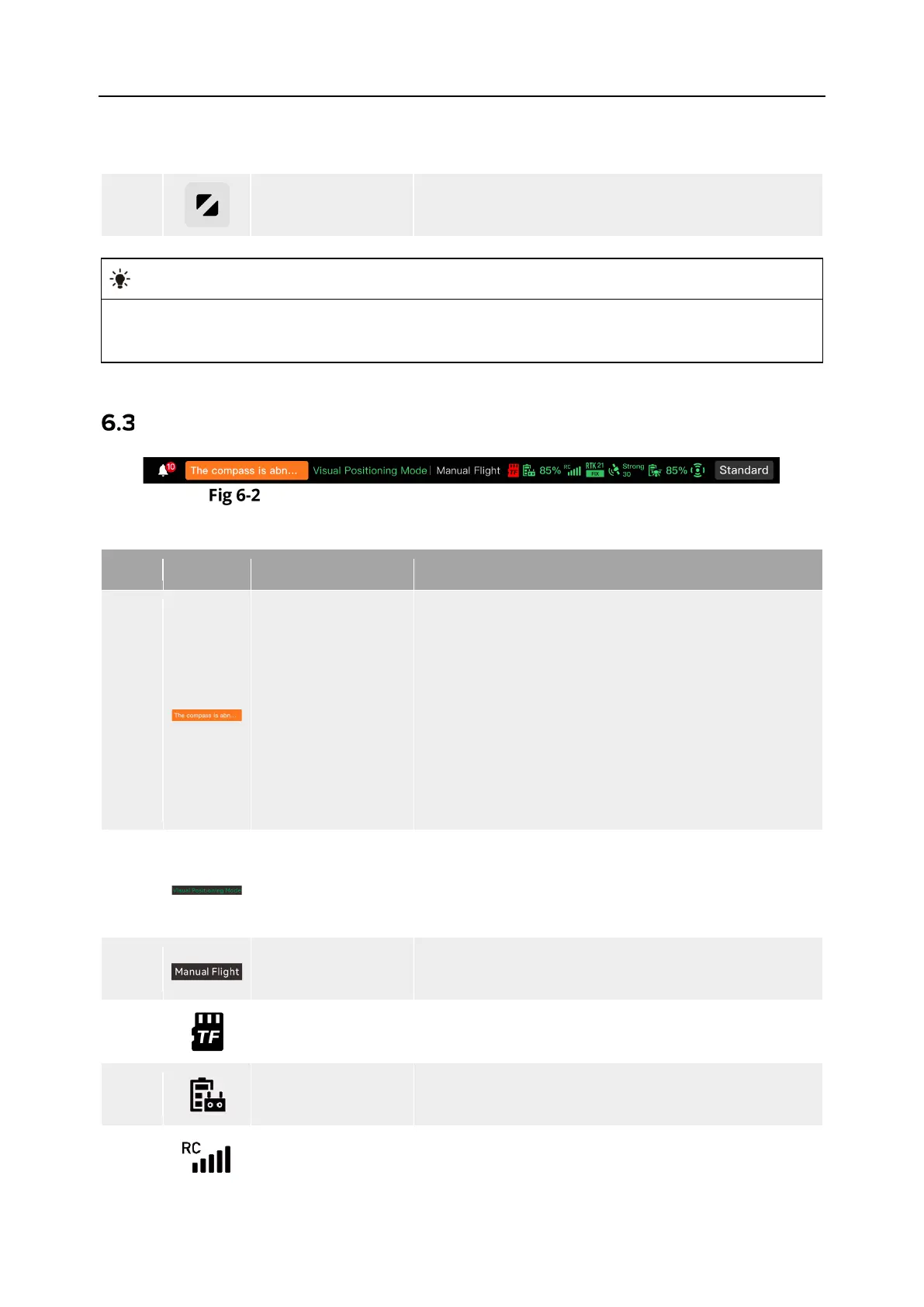
Status Notification Bar
Status Notification Bar of the Autel Enterprise App
Table 6-3 Details of the Status Notification Bar of the Autel Enterprise App
No. Icon Meaning Description
1
Status and Fault
Warning
Displays the current warning information of the
aircraft:
Gray indicates that the remote controller is not
connected to the aircraft.
Orange indicates a medium-level warning. In this
case, the aircraft will
taking off but should pay attention to flight safety.
Red indicates a high-level warning. In this case,
the aircraft will be prohibited from taking off and
can take off only after you solve the fault.
2
Flight Status
Displays the current flight status.
There are 3 modes: GNSS mode, visual positioning
mode, and ATTI mode. For more information, see "
3.8.1 Flight Status" in Chapter 3.
3
Mission Status
Displays the current mission type and mission status
4
No SD Card
Indicates that there is no microSD card installed in
the gimbal currently.
5
Battery
Displays the current battery level of the remote
controller.
6
Remote Controller
Signal Status
1. Displays the current communication signal status
between the remote controller and the aircraft.




 To Next Page