Chapter 6 Autel Enterprise App 105
5
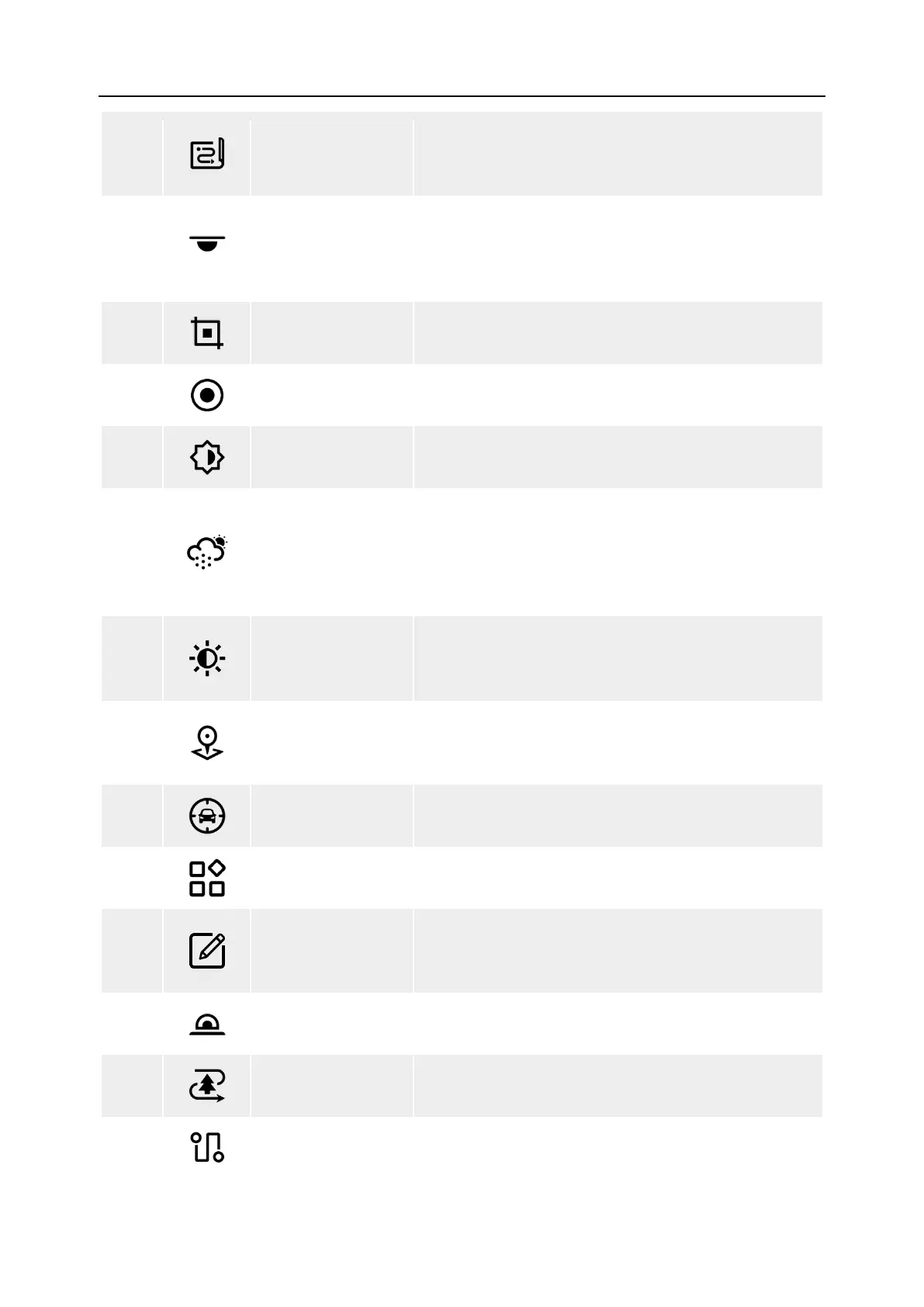
Missions
Tap this icon to enter the “Missions” interface, where
you can query, edit, favorite, and delete previously
saved historical flight missions.
6
Aux Light
Tap this icon to turn on the bottom LED auxiliary
light, which can assist in landing and enhance the
aircraft's visual sensing capabilities in weak-light
environments.
7
Screenshot
Tap this icon to capture the current screen in a
screenshot.
8
Recording Tap this icon to start recording the current screen.
9
Brightness
Tap this icon to move the slider left and right to
adjust the brightness of the camera.
10
Defog
Tap
this icon to make the shooting or recording
scene more transparent and enhance color
contrast, which is used to eliminate the "fogging
phenomenon" in the picture or the lack of picture
11
Night Mode
Tap this icon to enter night shooting mode. Even
when shooting in a low-
light environment, the
picture will remain clear.
12
PinPoint
Tap
this icon to display information such as the
latitude, longitude, and altitude of the target point
selected on the image transmission interface.
13
Tripod
Tap this icon, and the aircraft will automatically lock
onto the selected target.
14
More
Tap this icon to enter the “Shortcuts”, where you can
view all shortcut function icons.
15
Edit Shortcuts
Tap this icon to add function icons from "Shortcuts"
to the "Shortcut Toolbar" or move the function icons
in the "Shortcut Toolbar" to "Shortcuts".
16
Strobe
Tap this icon to turn on the strobe on the top of the
aircraft fuselage.
17
Bypass
Tap this icon to quickly set the OA mode of the
aircraft to "Bypass".
18
Rectangle
Tap this icon to enter the "Rectangle" mission editing




 To Next Page