BD FocalPoint™ GS Imaging System Instrument User’s Manual
68
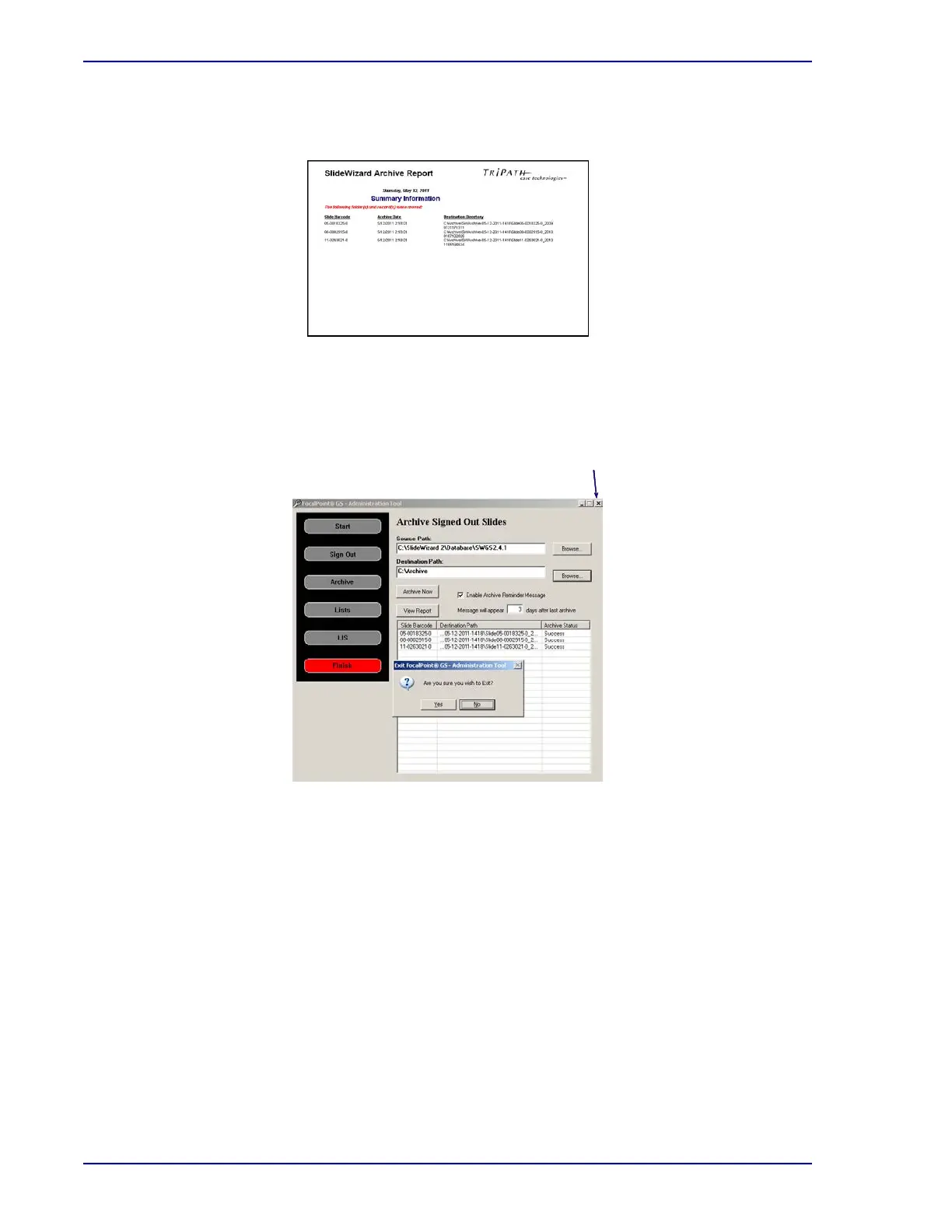
3 Click OK. The View Reports button becomes enabled (below the Archive Now button). Use
this button to generate a list of archived slides.
Figure 7-13 – Archived slide report
4 When finished archiving slides and viewing reports, close the Archive Signed Out Slides
window using the X at the upper right hand corner.
A window appears to confirm closing the application. Click YES to continue.
Figure 7-14 – BD FocalPoint™ GS - Administration Tool (Close Archive Signed Out Slides)
The Finish button on the display turns red. This indicates that signing out and archiving the
slide(s) is now complete.
A new folder is now created in the designated destination.
After the data has left the database, the slide accession number will no longer be seen on the
slide list. Additionally, the information and FOVs are no longer available to the user in the
BD FocalPoint™ GS Review application.
Time frame for archiving data
Signing out and archiving a batch of slides should be done after approximately 2,000 slides have
been reviewed.



 To Next Page