Calibrating Instruments - Instrument Overview Window 41
INSTRUMENT OVERVIEW WINDOW
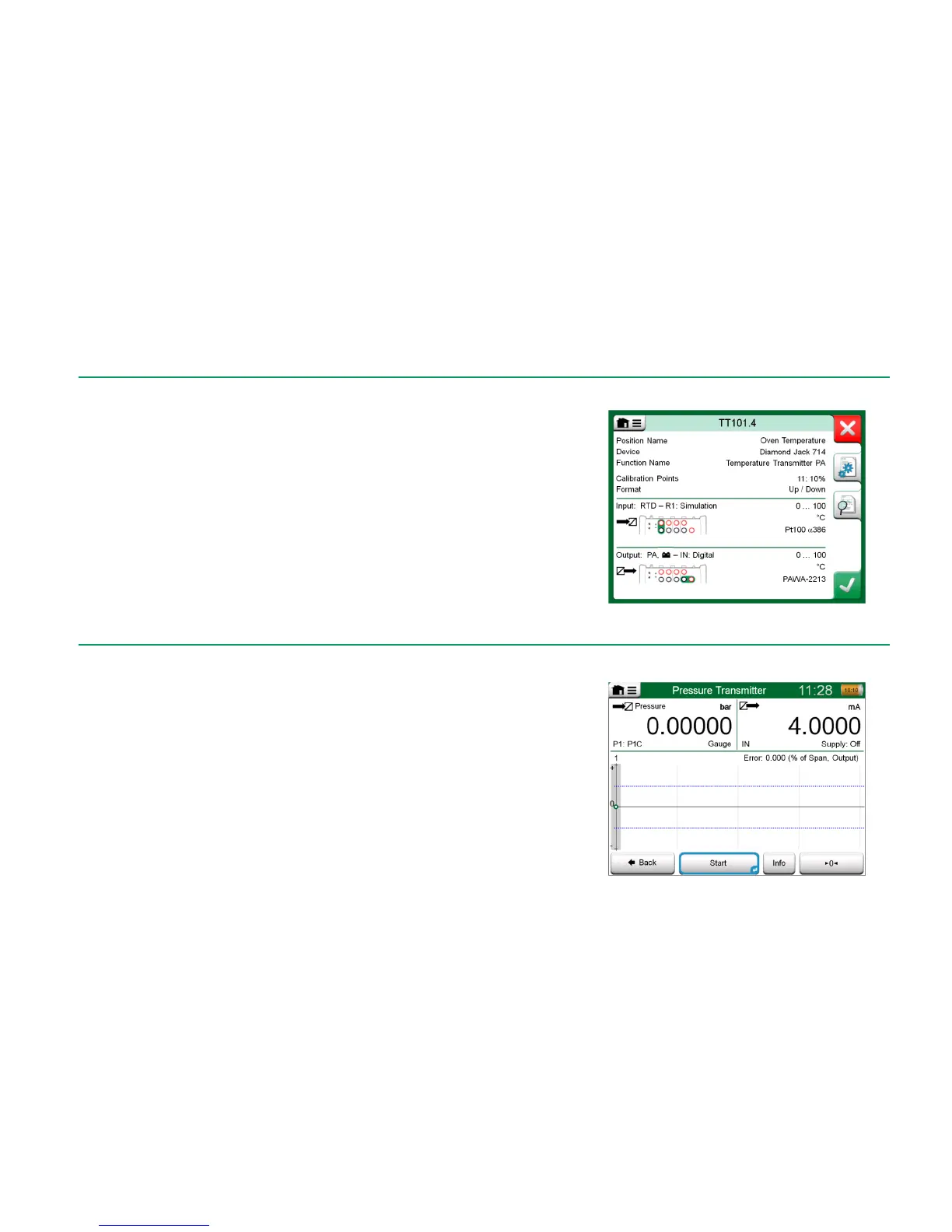
When an instrument is selected, the Instrument Overview window opens and
general data of the selected instrument is presented. See adjacent picture.
With the help of the buttons on the right side of the window, you may
edit/check the instrument data,
view calibration results for this instrument (if applicable) or
start calibrating the selected instrument and open the calibration window
(from the check mark on green background).
The bulleted list above is presented in the same order as the icons are in In-
strument Overview window.
Note that the menu contains some useful instrument related tools.
Instrument Overview Window
CALIBRATING AN INSTRUMENT USING MC6
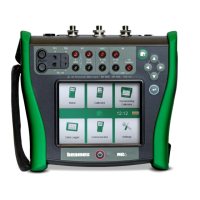
When you start calibrating an instrument, the Calibration window opens. See
adjacent picture. Note that a possible Before Calibration Note window may
open before the Calibration window is shown.
Before you tap the Start button, ensure that the signals are "live", i.e. meas-
urements and the required connections are as they should. If unsure, use the
connection diagrams found in the Instrument Overview Window. It opens from
the Info button.
If gauge pressure modules are used in the calibration, remember to zero them
before starting the calibration.
Tap the Start button to begin calibration. The rest depends on the instrument
setting: Automatic Acceptance.
Button for zeroing a pressure module in the
lower right corner.


 To Next Page