You can interact with MC6 by tapping on available buttons/controls displayed
on the touch screen. Optionally: use the hardware arrow keys to move between
the available buttons/controls. The first time you push a hardware arrow key the
Hardware Focus Indicator is displayed (a blue border around the active but-
ton/control). When using the hardware arrow keys, use the hardware Enter key
to select ("tap") a button/control.
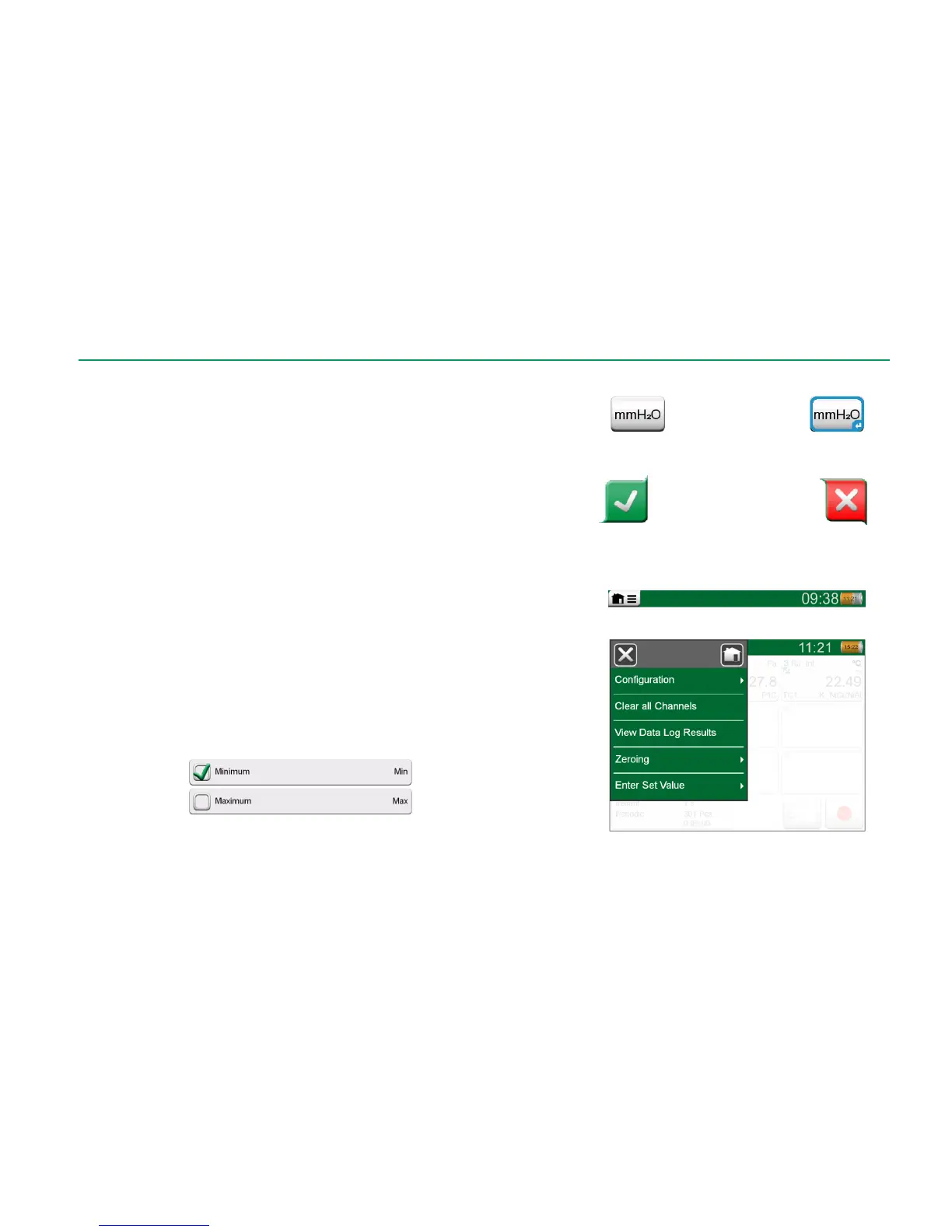
Buttons often open a pop-up window for entering data, e.g. a unit button with
the text "mmH
2
O" opens a pop-up window of available units. Certain buttons do
have special functionality, like "Accept" and "Close" buttons. They close a pop-
up window and either accept or reject the changes. There are other buttons,
e.g. for going to the next/previous page pages, scrolling through a wide table of
data, removing a number in a numeric field (backspace), clearing a numeric
field, etc. Most of them are familiar since they look similar as in personal com-
puter software.
One important button is the Menu button which is available in the upper left
corner of almost any window. Tap on it to open a context-sensitive menu with,
among other things, a software version of the Home button presented on previ-
ous page.
Check Boxes are special buttons that are either "checked" or "unchecked".
See picture below. Again, the functionality is familiar from personal computers.
Check Boxes, both a checked
and an unchecked one.


 To Next Page