About Instrument Parameters - Calibrating or Data Logging HART instruments 65
CALIBRATING OR DATA LOGGING HART INSTRUMENTS
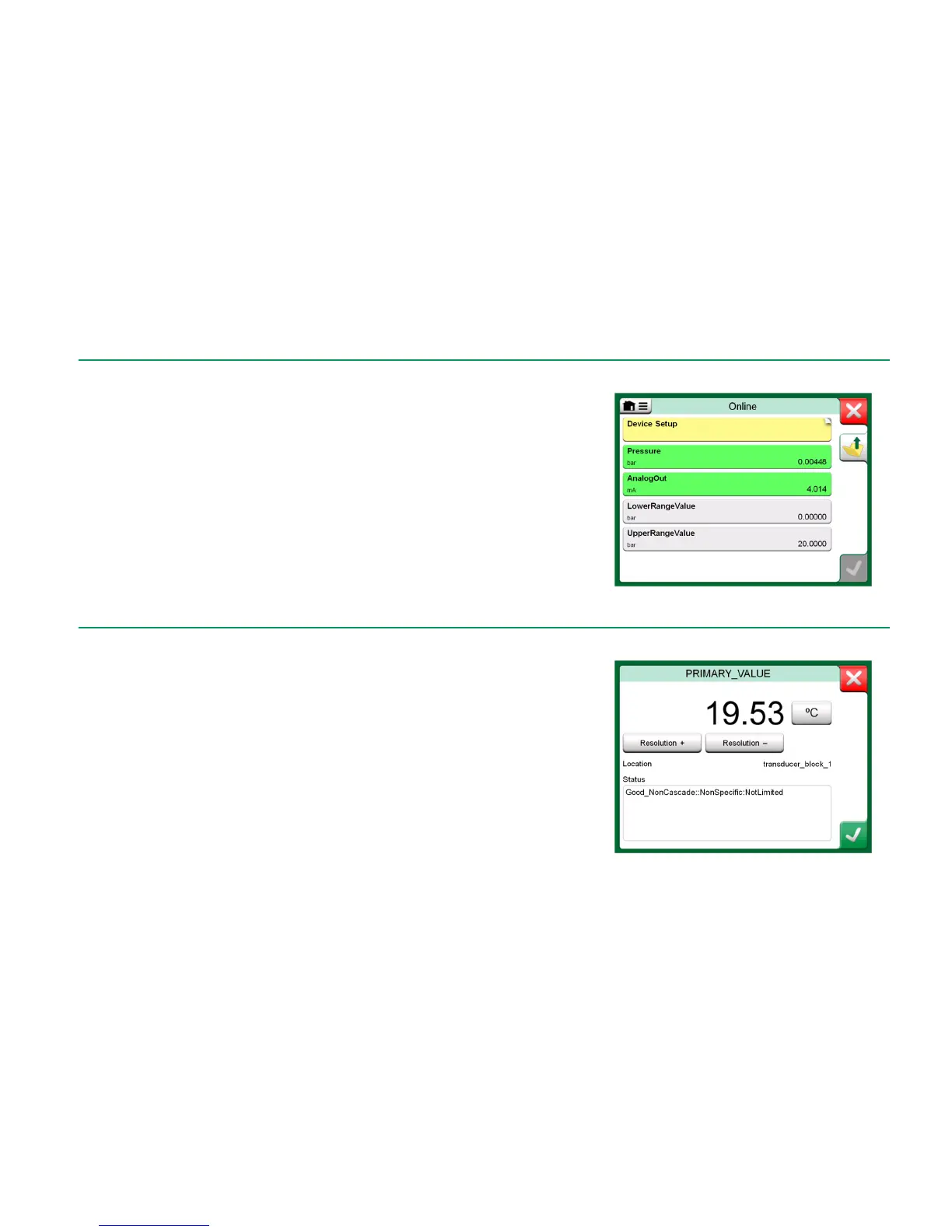
Usually, when calibrating or logging, you need to locate a Value Parameter, a
Process Variable, in the HART instrument's instrument data. Remember that
Value Parameters have green background.
Unfortunately the structure of data and naming conventions in HART instru-
ments vary between different makes and models. Thus there is no single path
from selecting the instrument in MC6 to locating the parameter. Refer to your in-
strument's manual to find the blocks where the parameters are located. Use the
information presented on the previous page to browse the instrument data. See
also hint on previous page.
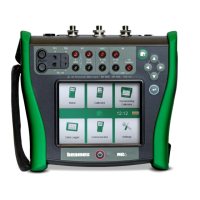
Once the parameter is located, tap on it. In the opened window (a picture simi-
lar to the one at bottom right): Tap the Accept button to start calibrating or log-
ging that parameter.
Example of a variable list in a HART Transmitter
CALIBRATING OR DATA LOGGING FIELDBUS INSTRUMENTS
This is a quick guide for selecting a FOUNDATION Fieldbus or Profibus PA
instrument's Parameter for calibration/data logging. If you want to make more
extensive configurations, refer to chapter About Instrument Parameters on
page 64 and the manual of your instrument at hand.
1. First you must select either FOUNDATION Fieldbus or Profibus PA as
your communication protocol and select the instrument as presented in
chapter: Selecting the Instrument on page 63.
2. Transducer is the typical name of the Block (folder) where measurement
parameters are located. When applicable, tap on it. Note that the Block
name depends on the instrument, so when uncertain, refer to your instru-
ment's user manual.
3. Browse the opened list of blocks, records and parameters. Tap the one
you select for use in MC6, e.g. Primary Value.
4. Accept the selection by tapping on the Accept button.


 To Next Page