3-2 COMPUTER PRELIMINARIES Biodex Medical Systems, Inc. © 2014
System-Wide Icons
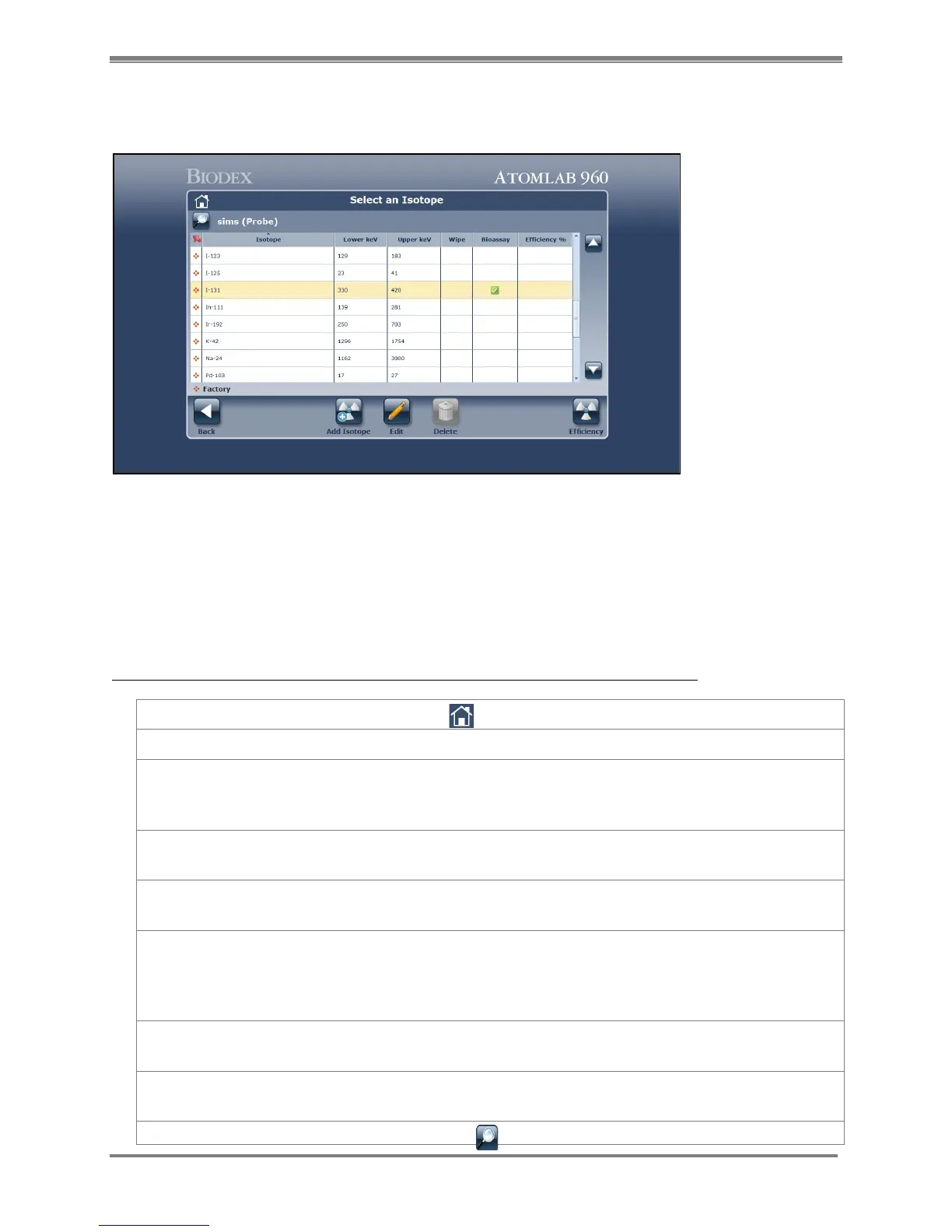
(See Figure 3.2.)
Figure 3.2. The Atomlab 960 features a variety of icons that are used throughout the system, including <Back>, <Add>,
<Edit> and <Delete> as shown on the Select An Isotope screen.
Several functions used on numerous pages throughout the program are represented by icons
located at the bottom of the screens to which they apply. Simply select any of these icons to
advance to the function or screen described.
System-wide icons, which may appear amongst screen specific icons, include:
<Home>: Select this icon at any time to return to the Home page.
<Back>: Select this icon at any time to go back one screen.
<Add>: This icon allows an item to be added to the current operation.
For example, on the Isotope page, select this icon to add an
isotope.
<Edit>: This icon allows the user to select and edit the item displayed or
highlighted.
<Save>: Use this icon to save any changes or new information entered on
the current page.
<Delete>: Use this option to delete the information just entered or previously
entered and now selected. For example, if you entered a patient and
are now finished with that patient, you could delete the patient from
the system memory. (See note below.)
<Accept>: Confirm the data entered or displayed is correct and should be
stored.
<Abort/Cancel>: This option cancels the current operation or entry without saving
any changes.
<Search>: Use the Search icon for information such as a name or I.D. #.



 To Next Page