Select <Accept> then <Back> to return to the <System Maintenance> screen.
Restore Database
The Restore Database function allows users to restore a previously backed up database to
become the Atomlab’s current data set. The restoration can be from the local drive (the backup
that is created by the Checkpoint Database function) or from a removable flash drive (created
from the Database Backup function).
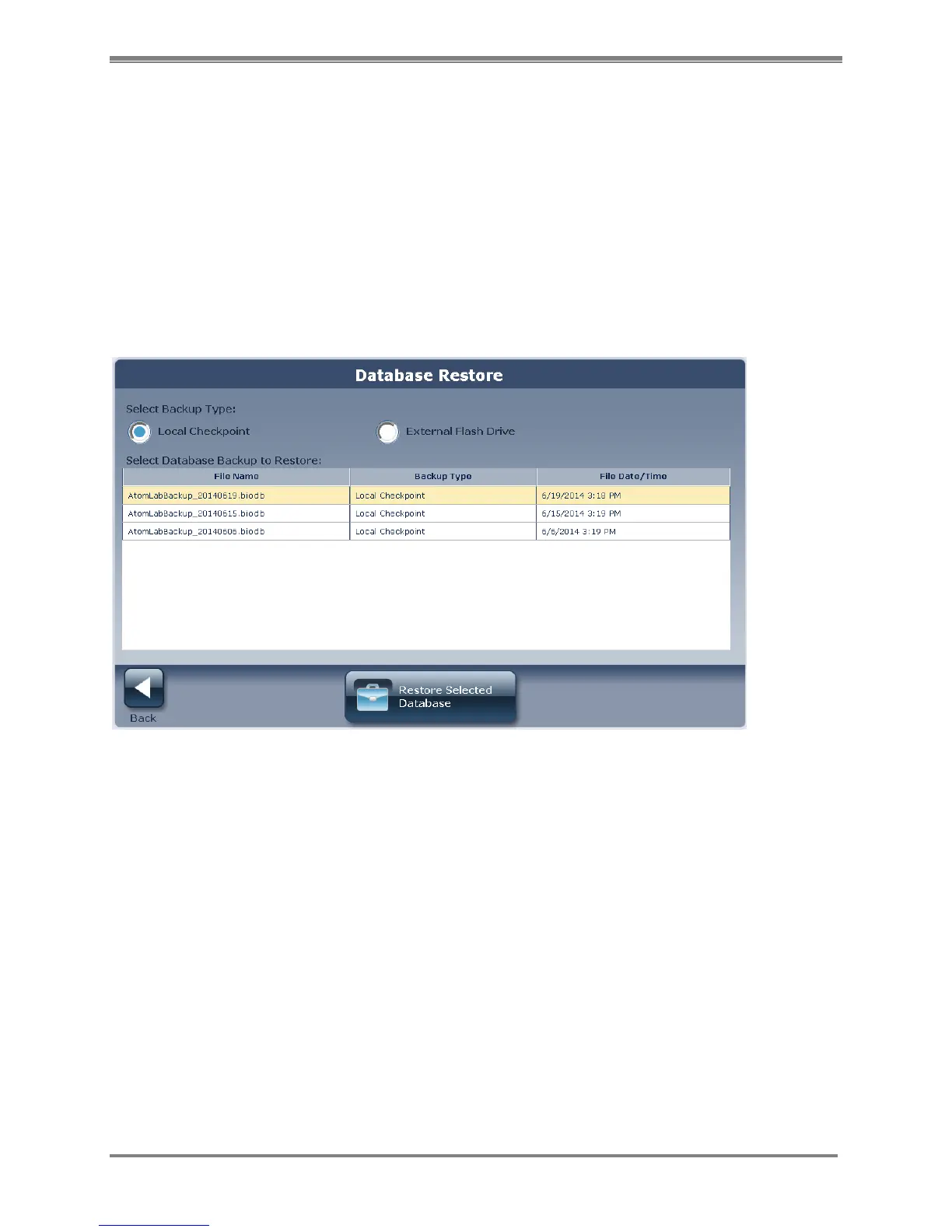
Selecting the <Restore Database> button on the System Maintenance menu will bring you to
this screen:
Figure 4.39. Database Restore screen.
On this screen, you can select which type of backed-up database you would like to restore—
either the Local Checkpoint or an External Flash Drive.
In either backup type, there is list of backed up databases that have been created. The most
recently backed up database will be the top row of the list. Select the database that you would
like to have restored as the Atomlab’s current data set, and then select the <Restore Selected
Database> button.
The resulting screen will ask you to confirm the restore action.



 To Next Page