DICOM Setup/Configuration
Once the DICOM licensing part is complete, Atomlab 960 software will then display more setup
options. Follow the steps below to complete the DICOM Setup/ configuration of the servers.
Setup Procedure:
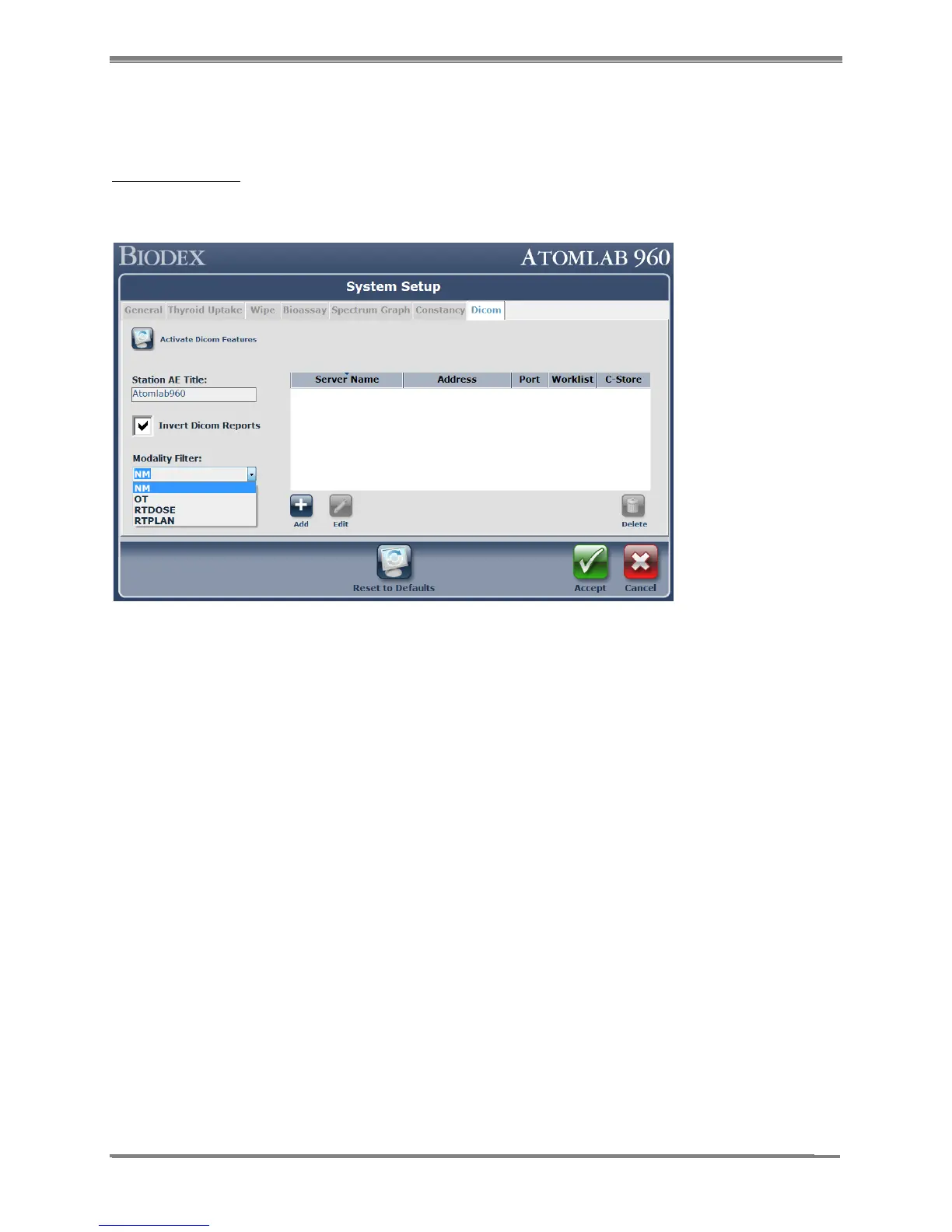
1. Atomlab 960 software will display the following screen. The user must provide the
necessary information.
Figure 10.5.
2. On the above screen, fill in the following information:
a. Station AE Title - By default, value will be “Atomlab960”. Please confirm
that, same “Station AE Title” is used on the Hospital’s/Facility’s (PACs/) DICOM
system. This title MUST match; otherwise it will not work.
b. Invert DICOM Reports - By default, this will be checked. If this is checked, this
will display inverted color on the DICOM report -background black, text white.
c. Modality Filter – Modality filter is a drop-down box that includes some
predefined modality values. By default, value “NM” will be selected
(abbreviation for nuclear medicine). This will filter the patient list from DICOM
Worklist server. If it’s set to “NM” only patients associated with the NM
(Nuclear Medicine) modality will appear in the list of patients. To view all
patients from the list, delete the selected value and leave it as blank. You can
also type any other value in the modality filter as well. Any new value used
will also be saved for later use.
3. Now configure the Worklist and Storage Server to the Atomlab 960 software, select the
<Add> button.



 To Next Page