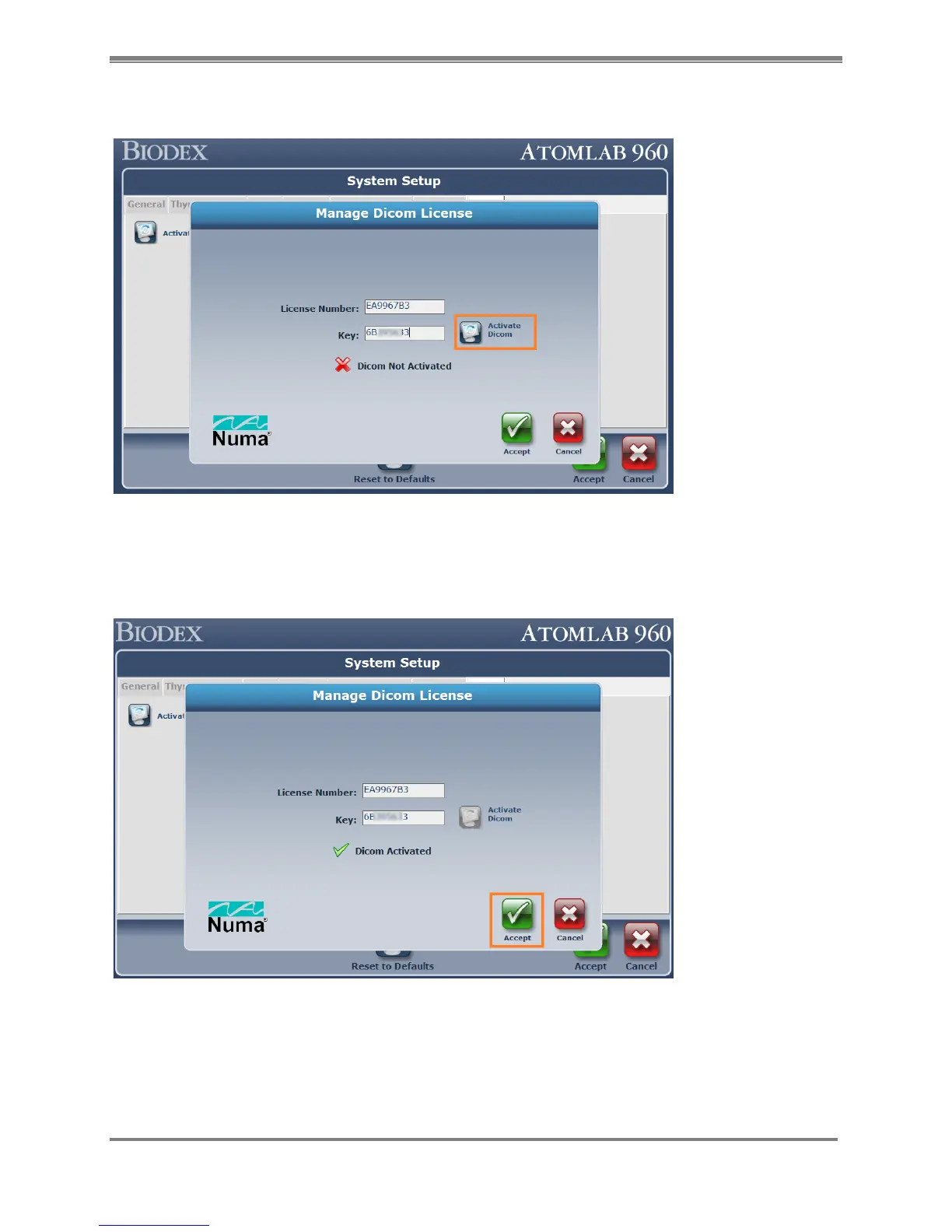
5. If the license key does not match it will display error message on the screen.
Figure 10.3.
6. If the “License Number” and the “Key” match, the Atomlab 960 software will display the
message “DICOM Activated” and the <Activate DICOM > button will be grayed out.
7. Now, select the <Accept> button to finish the DICOM licensing process.
Figure 10.4.
8. DICOM is now licensed, activated and ready for next step- DICOM system setup/
configuration.



 To Next Page