4-8 UTILITIES Biodex Medical Systems, Inc. © 2014
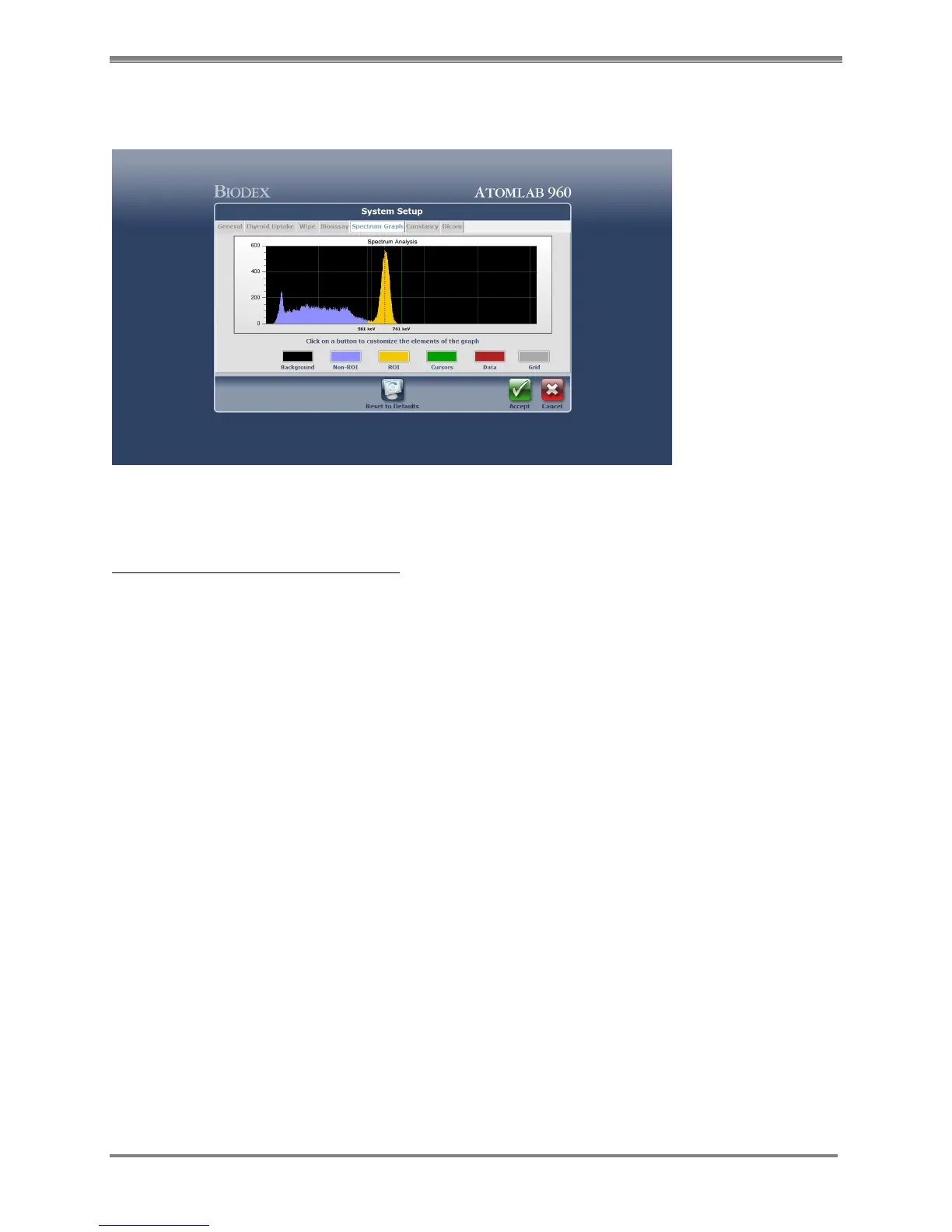
Spectrum Graph Screen
(See Figure 4.7)
Figure 4.7. System Setup Spectrum Graph screen.
System Setup-Spectrum Graph Screen:
1. From the <System Setup> screen, select the <Spectrum Graph> tab. The System Setup
Spectrum Graph screen is now displayed.
2. Select from the colored buttons beneath the graph to customize the various components of
the screen display. For example, you can change the ROI color from yellow to green or the
grid background from black to blue.
3. The Color Dialog screen is now displayed. From this screen you can adjust or add colors in
the standard Windows format. Selected colors, new colors and color codes are displayed to
the right of the color screen. Select <OK> to confirm you changes or <Cancel> to return to
the System Setup Spectrum Graph without making changes.
4. The <Default> button with the color pallet on it will return all colors to the factory default
color scheme.
5. When you have finished customizing the graph elements, select <Accept> to save, or choose
another tab at the top of the System Setup screen to enter additional information before
selecting <Accept> to save all data. Select <Cancel> to return to the System Setup screen
without saving the color customizations entered.



 To Next Page