NOTE: If you are going to perform constancy and not just calibration, you must go to the
Utilities section and select the constancy function on System Setup and add the constancy
information for your detector. The constancy information will be displayed each time you
perform a calibration/constancy.
Perform a Daily Calibration or Constancy
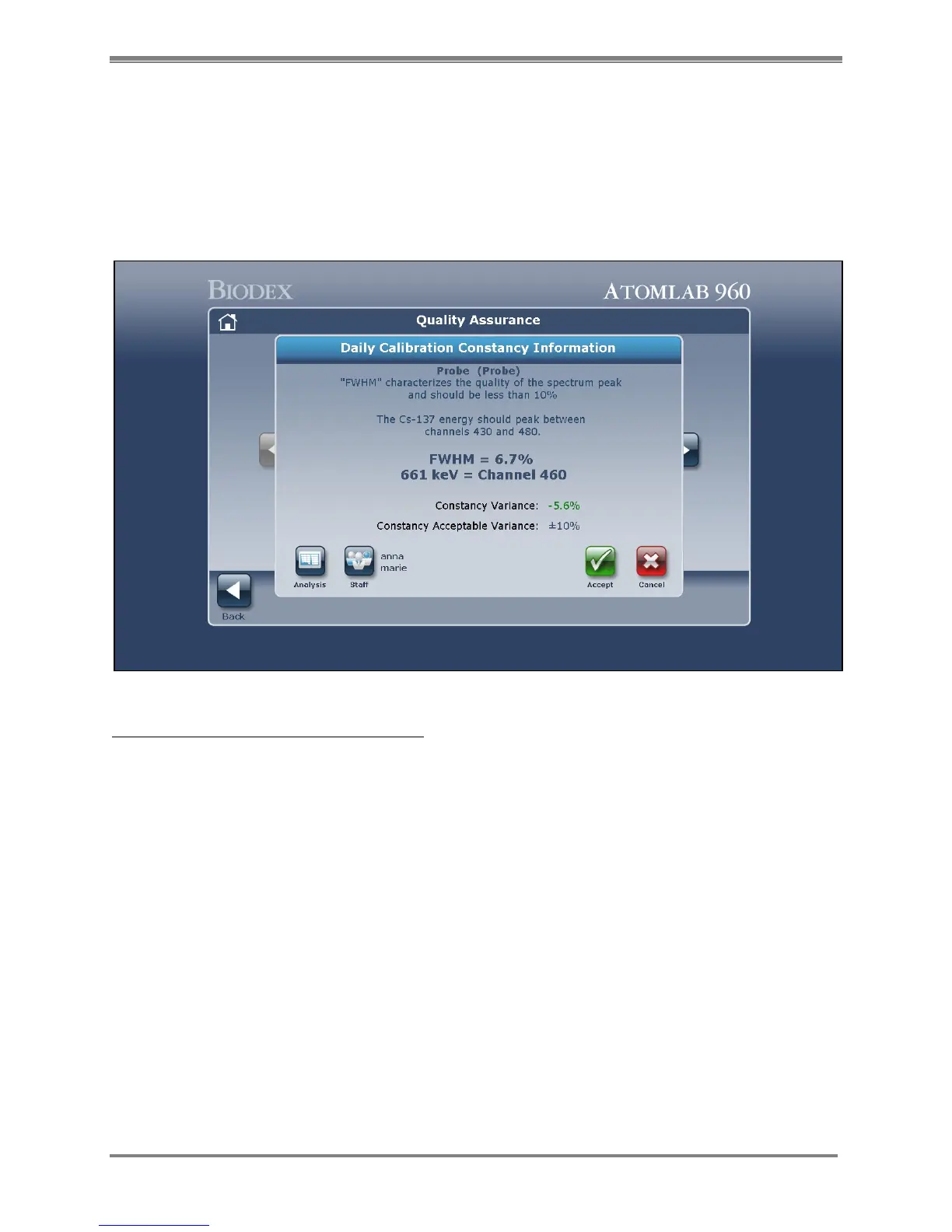
(See Figure 5.9.)
Figure 5.9. The Daily Calibration Information screen.
Perform a Daily Calibration or Constancy:
1. After the system has been turned ON and allowed to warm up and stabilize, select <Daily
Calibration> from the Quality Assurance screen.
2. The <Select Detector> screen is now displayed. Select the desired detector.
3. Highlight the well or probe to calibrate and select <Accept> to confirm.
4. Position the 10 µCi, Cs-137 source in the source holder (Calibration/Constancy Fixture) and
select <Accept>.
5. The Counting Daily Calibration screen is now displayed with the selected isotope and
detector listed above the counting window. Select <Abort> at any time to exit the calibration
while counting is in progress. To the right of the screen, ROI Counts (region of interest
counts), ROI CPM (ROI counts per minute), Elapsed Time and Time Remaining are displayed
in real time.
6. If calibration is successful, a "Counting Complete" message will display on the screen. Select
<Next> to advance to the Daily Calibration Information screen.
7. At this screen, the user can select <Analysis>, select and update <Staff> , <Accept> the
Calibration Information displayed, or <Cancel> to return to the Select Detector screen
without saving the calibration.
8. If the Daily Calibration Information is acceptable, select <Accept> to accept the daily
calibration results and return to the Quality Assurance screen.



 To Next Page