2-10 ASSEMBLY AND STAND OPERATION Biodex Medical Systems, Inc. © 2014
International Date/Time/Number Format Settings
The Atomlab 960 is able to support different Date/Time/Number formats to accommodate
customers in various countries around the world. Changing these formats requires adjustments
in two main steps:
Regional Settings of the Panel – The Atomlab 960 software runs on a Windows Operating
System. The Regional settings on the Panel must be changed in the manner described in this
section.
Date format settings on Atomlab 960 software - The Date format on the Atomlab 960
software must match the Regional Settings.
NOTE: It should be noted that currently the Atomlab 960 program does not support different
languages. Only Date/Time/Number format can be configured.
In the following example we will be configuring the Atomlab 960 panel operating system and
Atomlab 960 software to be changed from the English Date format to the Swedish Date format.
Regional Settings of the Panel
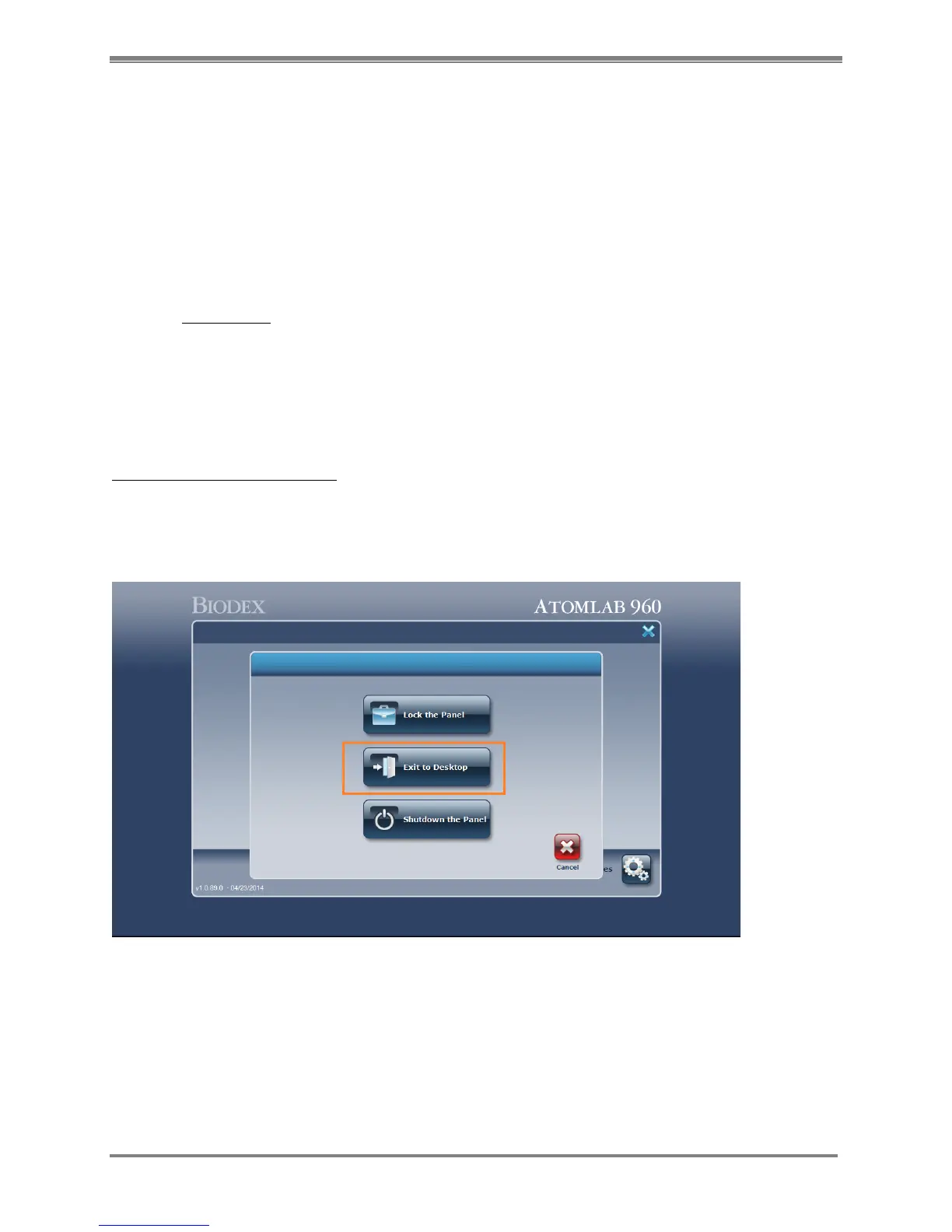
1. From the Main Menu screen of the Atomlab 960 software, select the <X> mark from the top
right corner of the screen. Then select the <Exit to Desktop> option. This will bring up the
desktop screen on the Panel.
Figure 2.11 Exit options of Atomlab 960 software
2. Go to the Control Panel settings by selecting the “Start” > “Control Panel” option. On the
Control Panel, make sure the view is set to “Large Icons”.



 To Next Page