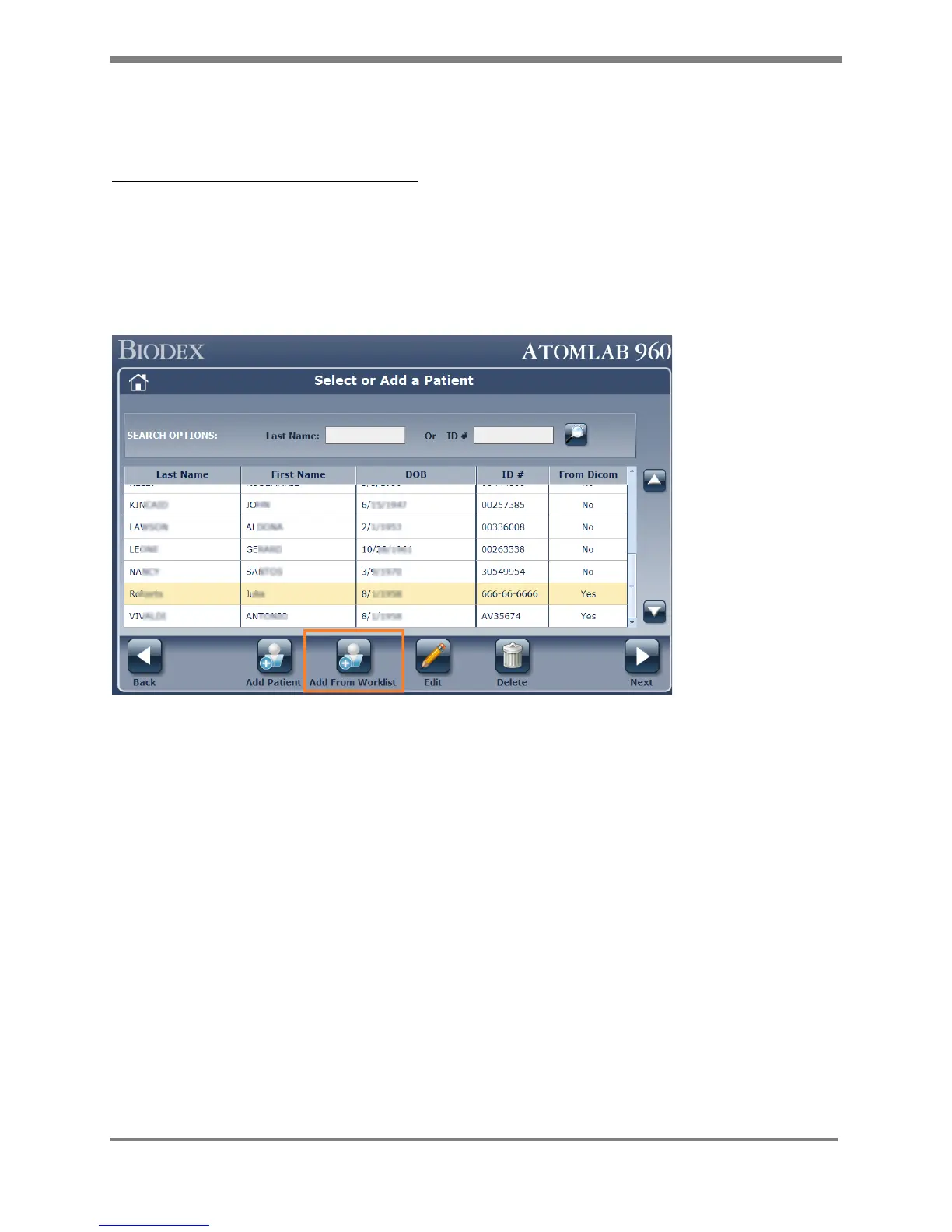
Add Patient From Worklist Server and Create A Study
In-order to access the patient from the Worklist for a thyroid uptake operation, follow the
procedure below:
Procedure To Add Patient From Worklist:
1. Select <Home> screen of Atomlab 960 software. Then select <Testing>. Select <Thyroid
Uptake> button. This will bring up the existing list of Patients in the Atomlab 960
software.
2. To add a patient from the Worklist, select the <Add From Worklist> button.
NOTE: Patients added not using the <Add From Worklist> button cannot be sent to DICOM.
ONLY patients added thru DICOM can have the Uptake test results sent to DICOM.
Figure 10.12.
3. This will open the Worklist Patient Search screen. This screen has some filter options. Apply
the necessary filter, if needed. To search from a Worklist select the <Search> button. This
will populate the list of patients.
a. Name- To filter by patient name, type the name of the patient.
b. Procedure Date- You can choose either Specific Date or Any date. By default it
will be selected for current system date/ today’s date.
c. Worklist Provider- With this dropdown box, it gives an option to select the
Worklist provider. If multiple Worklist providers are configured, it can be selected
from the drop down box.
d. Accession Number- Allows to filter the patient list with Accession number.
NOTE: You must select a specific <Procedure Date> button or <Any>
date button and one of the other search options before selecting <Accept>.



 To Next Page