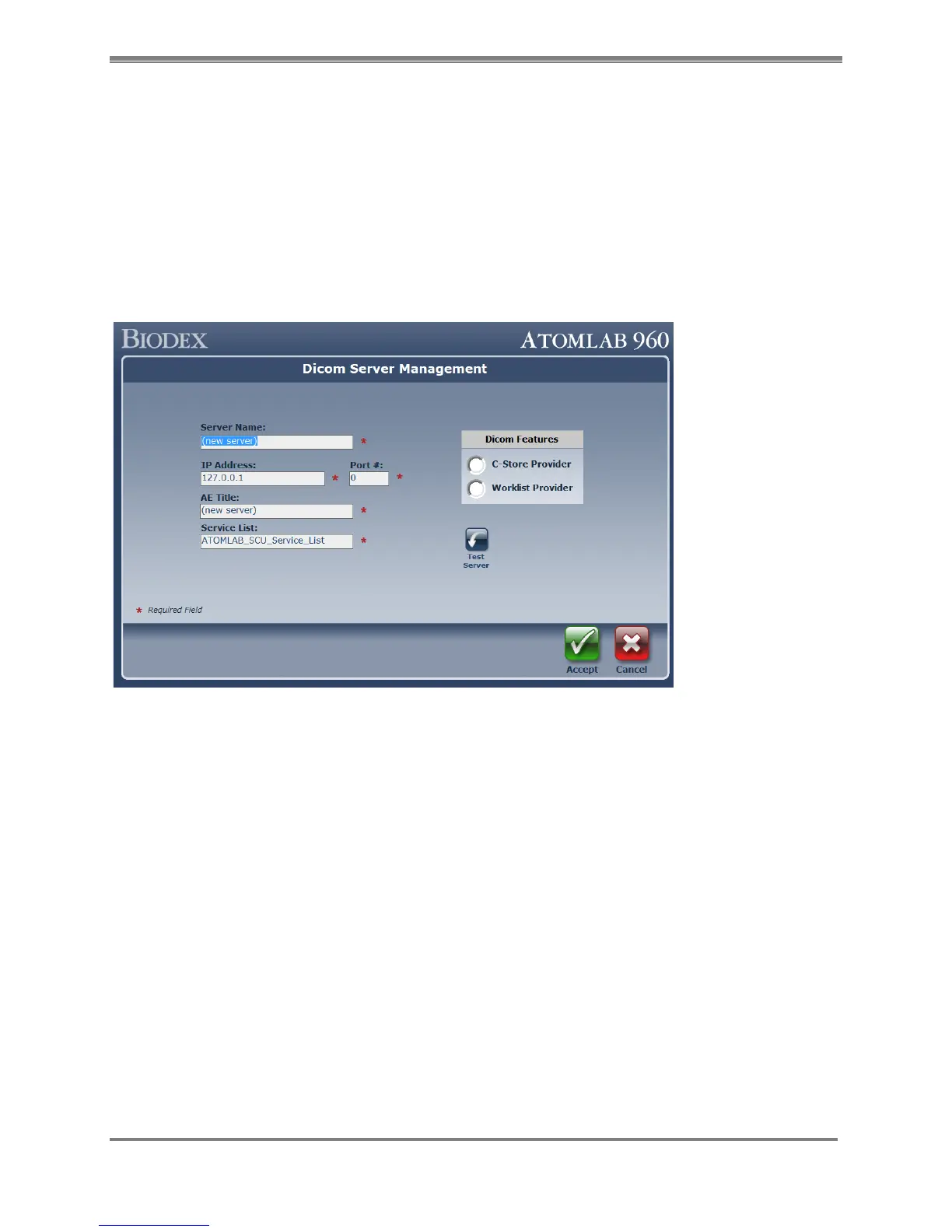
4. To add a Worklist select the <Add> button in #3. This will present the following
“DICOM Server Management” screen. Type all required information on that screen.
a. Server name- Delete the default value in the text box and type a name for the
server (for example, Worklist server)
b. IP Address – Delete the default value in the text box and type the IP address
of the server. (It also allows entering server machine name / hosting name.)
c. Port- Delete the default value on the text box and type the port for the server
d. AE Title- Delete the default value in the text box and type the AE title of the server
e. Service List- Typically it will appear with a value “ATOMLAB_SCU_Service_List”.
You may leave it as is unless the server setting is different.
f. DICOM features – select the type of server, whether it’s a C-Store or Worklist
Provider.
Figure 10.6.
Once all the information has been provided, it will look like the following screen.



 To Next Page