View, Print or Save A Daily Calibration Report:
1. Select < Calibration History> from the Quality Assurance screen. The Daily Calibration
History screen is now displayed.
NOTE: If you have the Constancy function turned on, it looks like Fig. 5.9. It has an extra
column with the Constancy change from the previous time the Calibration/Constancy was
performed.
2. To print current Daily Calibration test highlight the desired calibration test and select
<Report> to view the specific calibration test with spectrum.
3. Select the <Printer> icon at the top of the screen to access the print screen.
4. Select <OK> to print the Daily Calibration Detail Report or select <Cancel> then <Back> to
return to the Daily Calibration History screen.
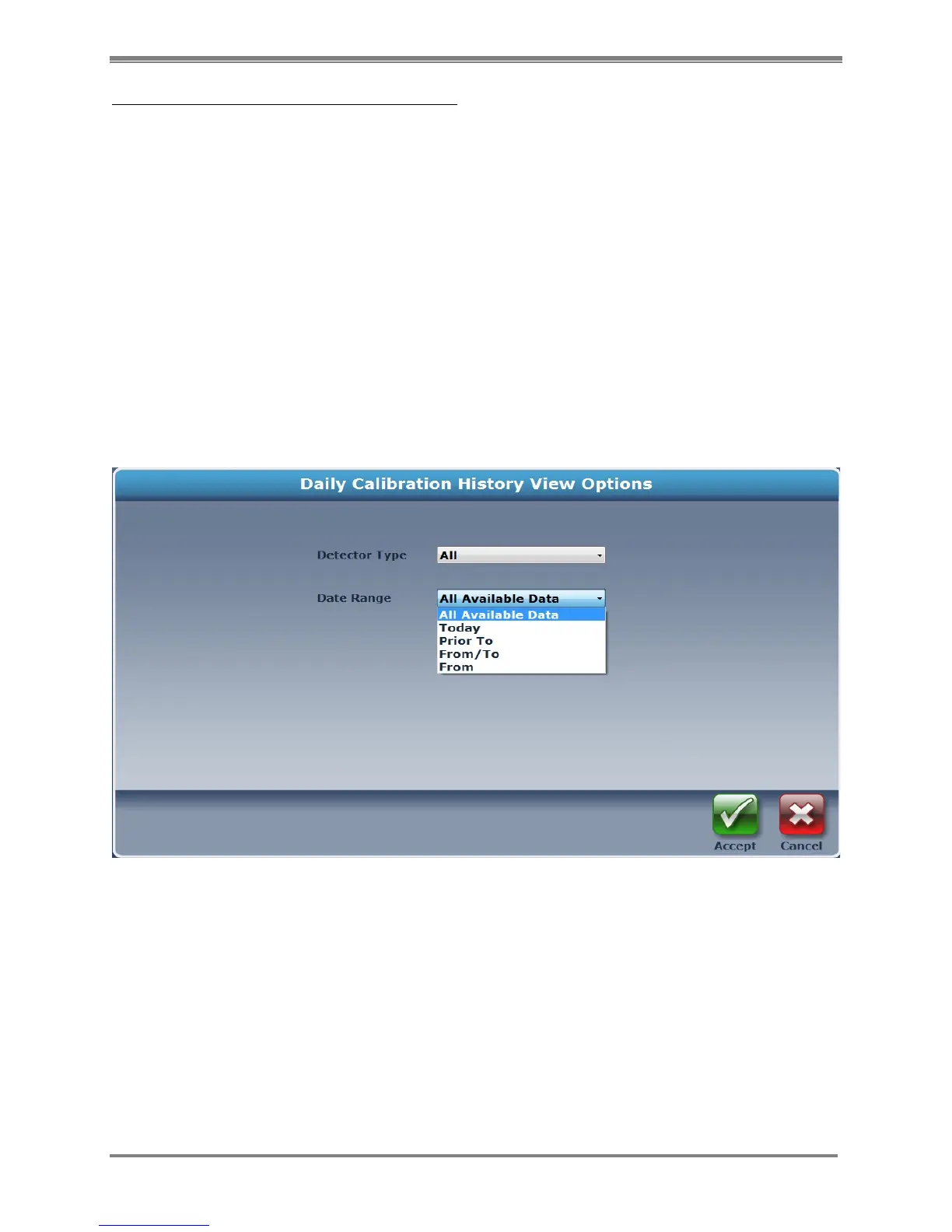
5. On the Daily Calibration History screen, select <View Options>. The Daily Calibration
History View Options screen is now displayed. This screen allows the user to select a
specific <Detector Type>, and the <Date Range> to be displayed for the results of the tests
on the Daily Calibration History screen.
Figure 5.12. Calibration Printer Information screen.
6. Highlight the desired calibration test and select <Report> to view the specific calibration
test with spectrum.
7. Select the <Printer> icon at the top of the screen to access the print screen.
8. Select <OK> to print the Daily Calibration Detail Report or select <Cancel> then <Back> to
return to the Daily Calibration History screen.
NOTE: If you wish to print a specific calibration spectrum, see steps 5 through 8, above.
9. On the Daily Calibration History screen select <Reports> to view and select the type of Daily
Calibration Report to View or Print. Choose from <Single Detail>, or <Summary History>.



 To Next Page