Bluetooth®
Bluetooth control allows you to control your camera wirelessly from portable devices. Using the
‘Blackmagic Camera Control App’ you can power the camera on or off, change settings, adjust
metadata and trigger record remotely from an iPad. You can enable or disable Bluetooth by
tapping the ‘Bluetooth’ switch icon in the ‘setup’ menu. WhenBluetooth is enabled, the camera
can be detected by Bluetooth devices up to 30feet away. It’s important to mention for URSA
Cine’s Bluetooth control to work correctly you need to connect your camera’s WiFi antennas to
their antenna points on the top panel towards the rear of the unit.
Because URSA Cine uses the same set of commands for Bluetooth control as it does for
‘Blackmagic SDI Camera Control Protocol’, you can write your own applications to control
almost every setting in the camera remotely, from monitoring to audio settings, the camera’s
built in DaVinci Resolve color corrector or lens control.
For more information see the ‘Blackmagic SDI camera control protocol’ section in this manual.
Pairing your Camera with your iPad
1 Enable Bluetooth by tapping the ‘Bluetooth’ switch icon in the ‘setup’ menu on your
URSA Cine.
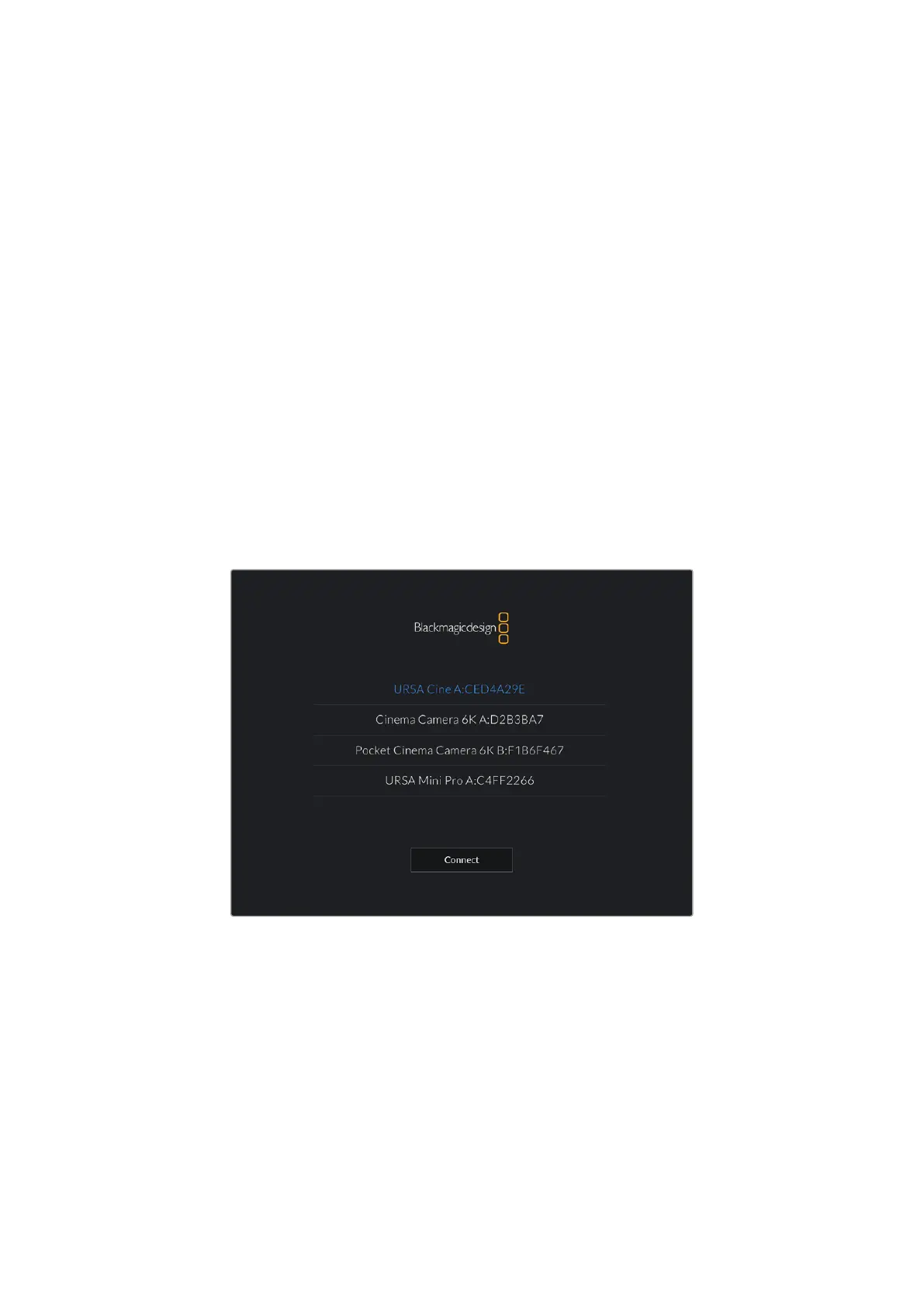
2 Open the ‘Blackmagic Camera Control App’ and select the URSA Cine you would like to
pair with. Available cameras will be listed by their camera letter, followed by their unique
hardware ID. For example A:3198FC00.
Select the URSA Cine you would like to pair with
When you install the Blackmagic Camera Control App and run it for the first time, you will
be asked if you want to ‘allow location access.’ If you select ‘while using the app,’ GPS
readings from your iPad will be included in the metadata of the files you shoot, allowing you
to geotag footage. This information can be viewed in Blackmagic DaVinci Resolve versions
14 or higher.
If you do not want to using this information, select ‘never.’
To change settings, go to settings, privacy, location services, camera control on youriPad.
3 When you try to connect for the first time the Blackmagic Camera Control App will request
a six digit code to pair with the camera. This code will be displayed on the camera’s LCD
screen. Type this code into the iPad.
145Settings


 To Next Page