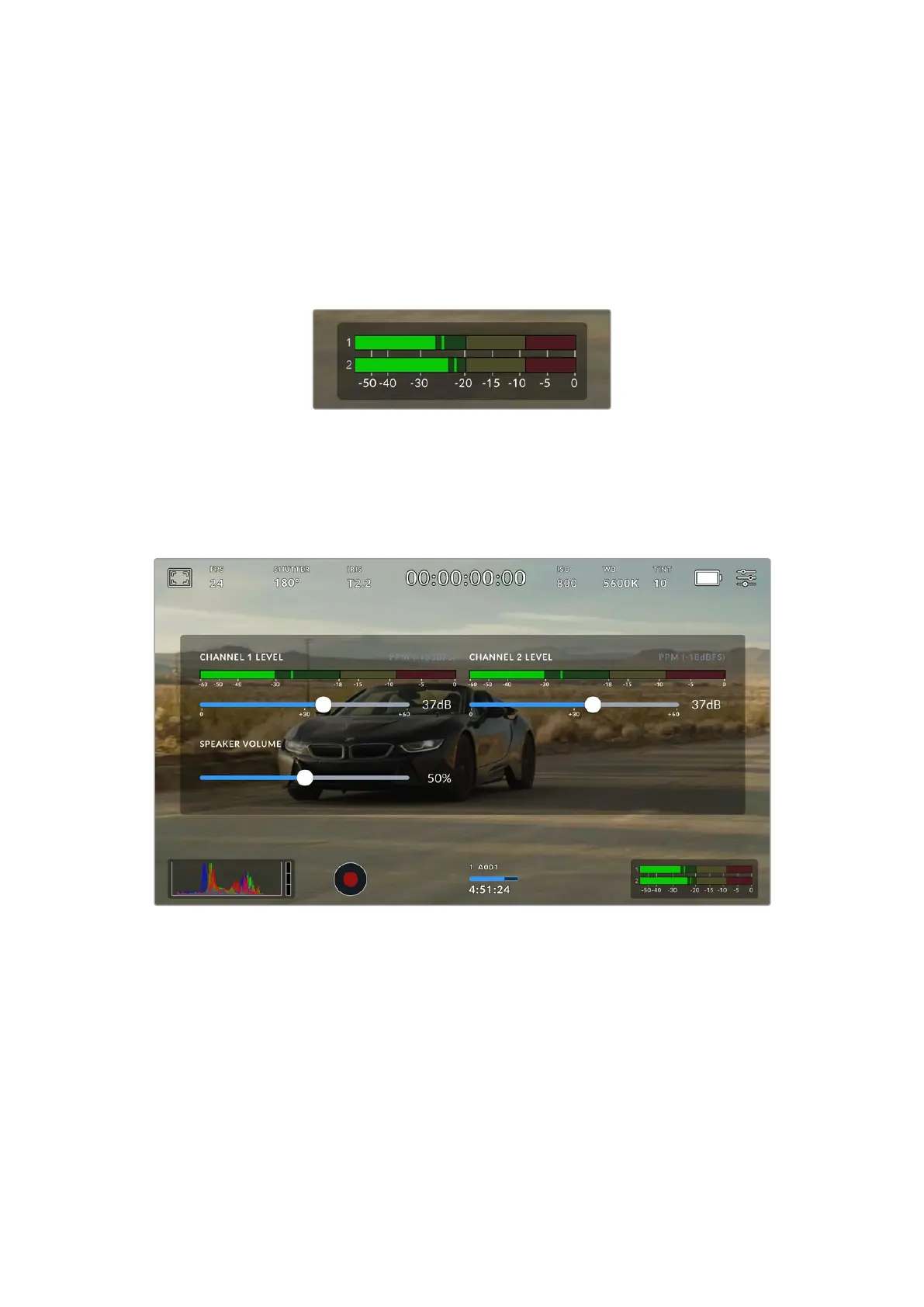
Audio Meter
The peak audio meters display audio levels for channels 1 and 2 when using the internal
microphone, or via external audio when connected. You can display PPM or VU meters.
To change the meter type, see the ‘setup’ settings later in this manual.
To achieve optimum audio quality, ensure your audio levels do not reach 0 dBFS. This is the
maximum level that your camera can record, meaning that any audio that exceeds this level
will be clipped, resulting in distortion.
The colored bars on the audio meter represent peak audio
levels. Ideally your peak audio levels should fall in the upper
end of the green zone. If your peaks enter into the yellow or
red zones your audio is in danger of clipping.
You can tap the audio meter to bring up volume controls for audio input channels 1 and 2,
aswell as headset or speaker volume.
Tap the audio meters on your URSA Cine’s touchscreen toeasily access volume and headset or speaker settings
Focus Zoom
You can magnify any part of your URSA Cine’s preview image by double tapping the LCD
touchscreen in the location you would like to zoom. You can move the magnified image
by dragging your finger around the touchscreen. This is very helpful when checking focus.
To return to the standard magnification, double tap on the touchscreen again.
When you have ‘focus zoom’ enabled you can also make a pinch to zoom multitouch gesture
to adjust the zoom level on the touchscreen. The ‘setup’ menu on your URSA Cine lets you
configure a function button as a ‘focus zoom’ toggle that behaves like a double tap on the
touchscreen. This can be configured to show on the LCD or the front or main SDI to outputs.
100Touchscreen Controls



 To Next Page