Your URSA Cine will search the root directory and ‘presets’ folder on theselected storage
media. It’s worth noting that presets saved elsewhere on your storage media will not be visible.
Tap a preset to select it and tap ‘import’ to confirm. If the preset you want to import has the
same name as a preset already saved to your camera, you will be prompted to overwrite the
existing preset or keep both. At the top right of this screen, you’ll see the number of remaining
empty preset slots available on your camera.
NOTE If your URSA Cine’s preset slots are full, the import menu will not be available.
You will need to delete an existing preset to make room.
Exporting Presets
To export a preset to storage media, select the preset you want to export by tapping it and tap
the ‘manage’ icon.
From the ‘manage preset’ options choose ‘export selected preset’. Use the storage media
selection switch to choose the storage media you would like to export the preset to. From the
‘export to’ options tap the card or drive you would like to export your preset to. Confirm your
choice by tapping ‘export’.
If the storage media you’ve chosen already has a preset saved to it with the same name as
the one you’re exporting, you will be prompted to overwrite the preset on the card, or keep
both presets.
Deleting Presets
Your URSA Cine has space for sixty presets. To delete a preset, select it and tap the ‘delete’
icon. You will be prompted to confirm your choice. Tap ‘delete’ to confirm.
LUTS
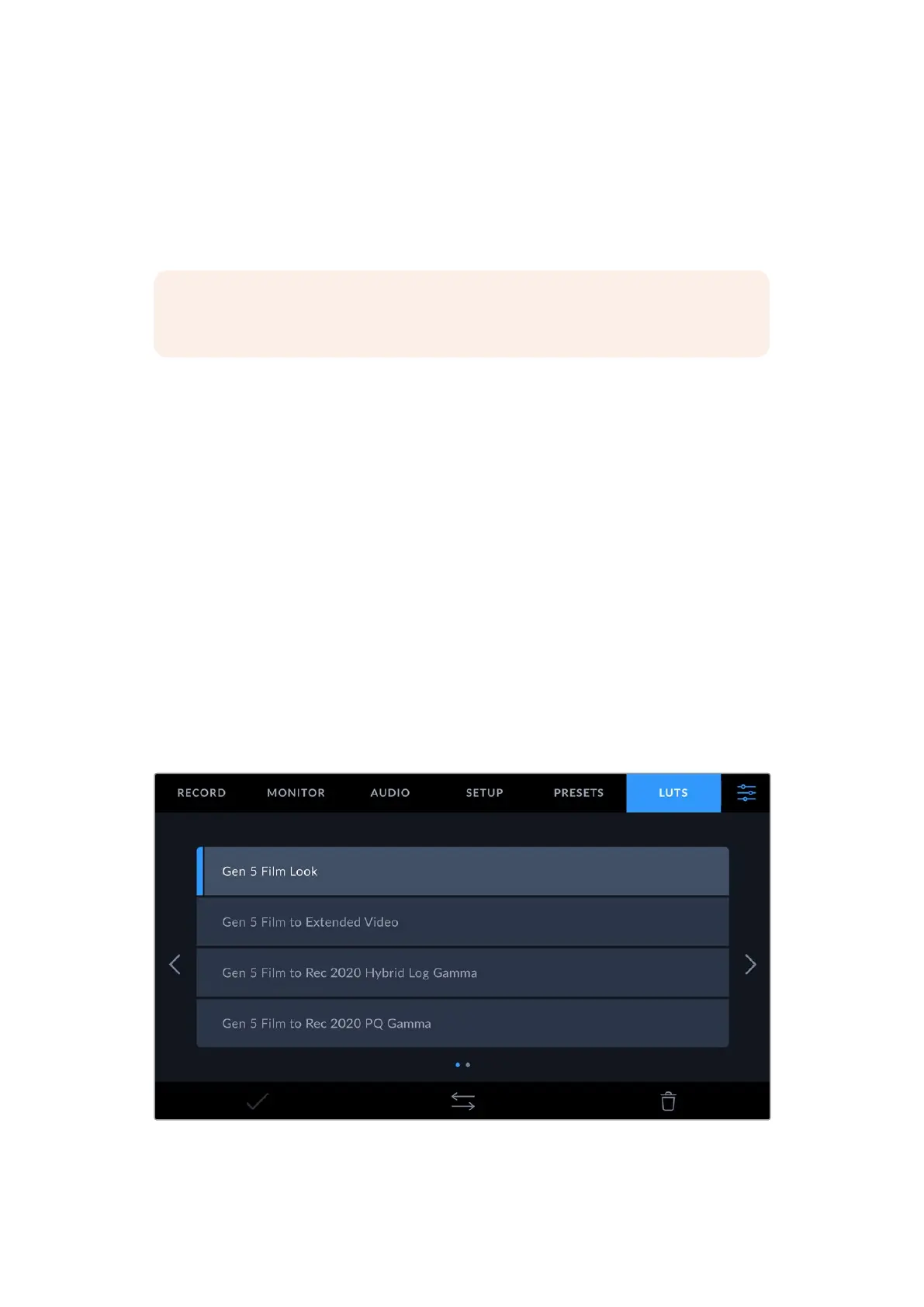
The ‘LUTS’ menu lets you import, export and apply 3D LUTs to your camera’s outputs.
The LUTs tab provides a range of 3D look up tables and you can add your own
154Settings



 To Next Page