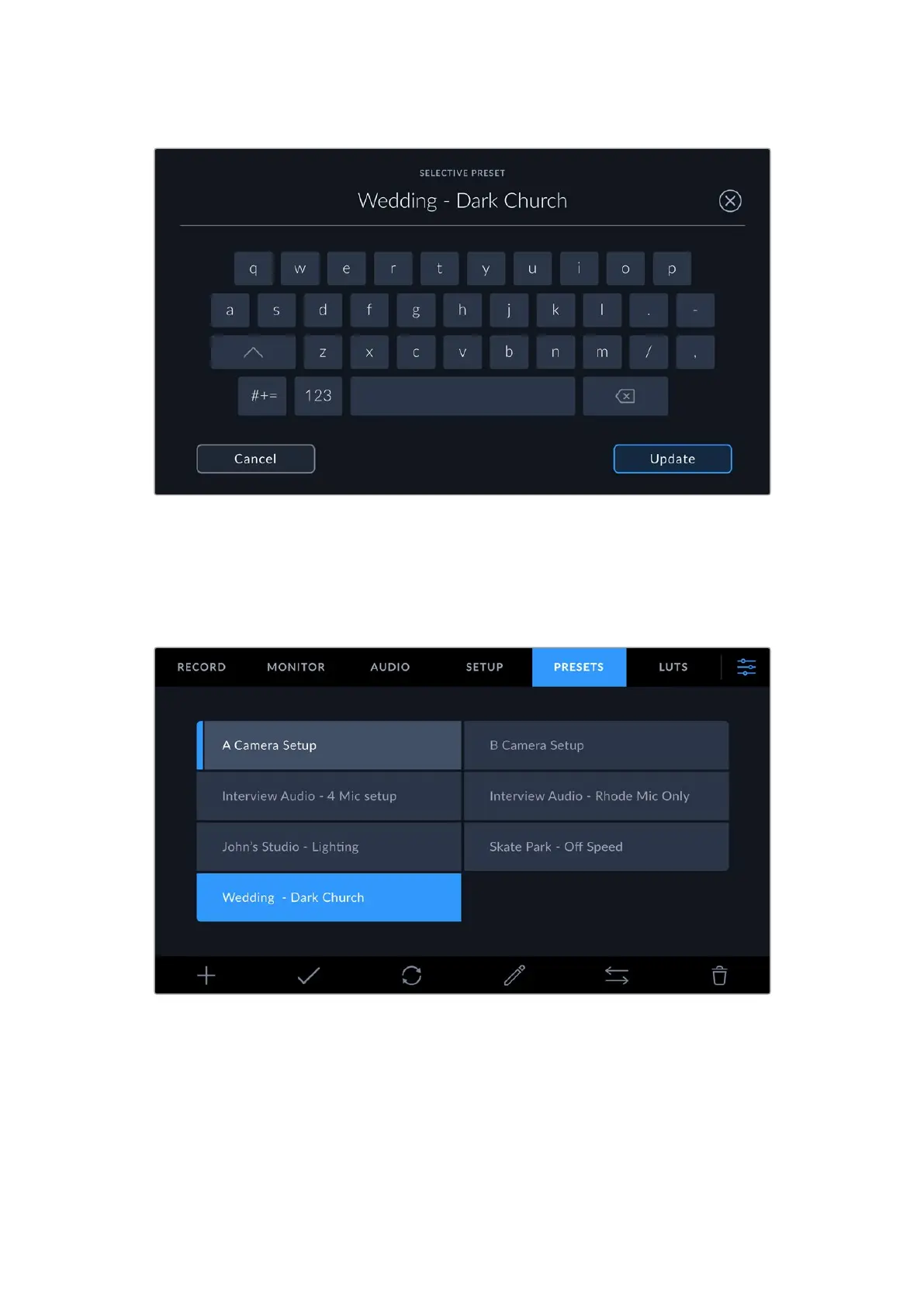
Enter a name for your preset by tapping the ‘add’ icon in the preset tab and using the touch keyboard
Once you have a preset saved, tap its name in the presets menu to select it. To load it tap the
‘load’ icon.
You can update a preset by tapping the ‘update’ icon. This will bring up a prompt asking you
ifyou want to update the preset with your URSA Cine’s current setting. Tap ‘update’ to confirm.
Select a preset and tap the ‘load’ icon to load it. Selected presets will appear solid blue,while currently loaded
presets have a blue line on the left of their icon
Importing Presets
To import a preset, tap the ‘manage’ icon at the bottom of the presets menu. Select the storage
media where your presets are saved.
Confirm your selection by tapping the ‘import’ button. This will bring up the import screen.
You can use the buttons at the top left of this screen to display any available presets in the
storage media.
153Settings



 To Next Page