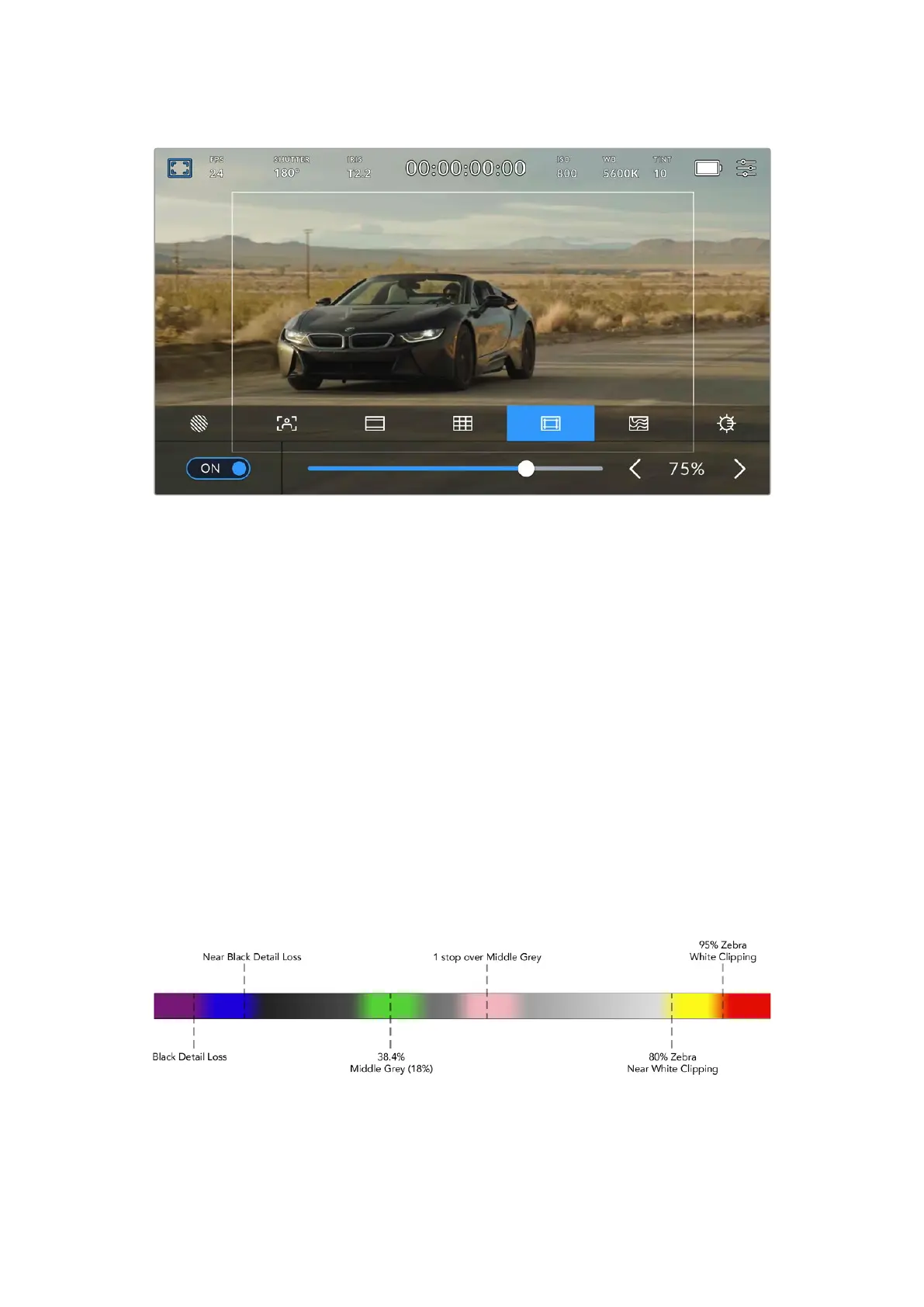
The ‘safe area’ indicator set to 85%
Safe area guides can also be used to assist with framing your shot where you know that the
shot will be stabilized in post production, which can crop the edges of the image. They can also
be used to indicate a specific crop. The safe area guides also scale to your frame guides, so
they will adjust to indicate the chosen percentage of your target frame.
To toggle safe area guides for the LCD touchscreen, tap the switch icon in the bottom left of the
screen while in the ‘safe area guides’ tab. To set the level of safe area guides for all outputs on
your URSA Cine, tap the left or right arrows on either side of the current numerical value at the
bottom of your touchscreen. Alternatively, you can drag the slider left or right.
False Color
The ‘false color’ setting toggles the appearance of false color exposure assistance on the
LCDtouchscreen.
False color overlays different colors onto your image that represent exposure values for
different elements in your image. For example, pink represents optimum exposure for lighter
skin tones, while green is a good match to darker skin tones. By monitoring the pink or green
false color when recording people, you can maintain consistent exposure for their skin tones.
Similarly, when elements in your image change from yellow to red, that means they are now
over exposed.
False Color Chart
86Touchscreen Controls



 To Next Page