White Balance
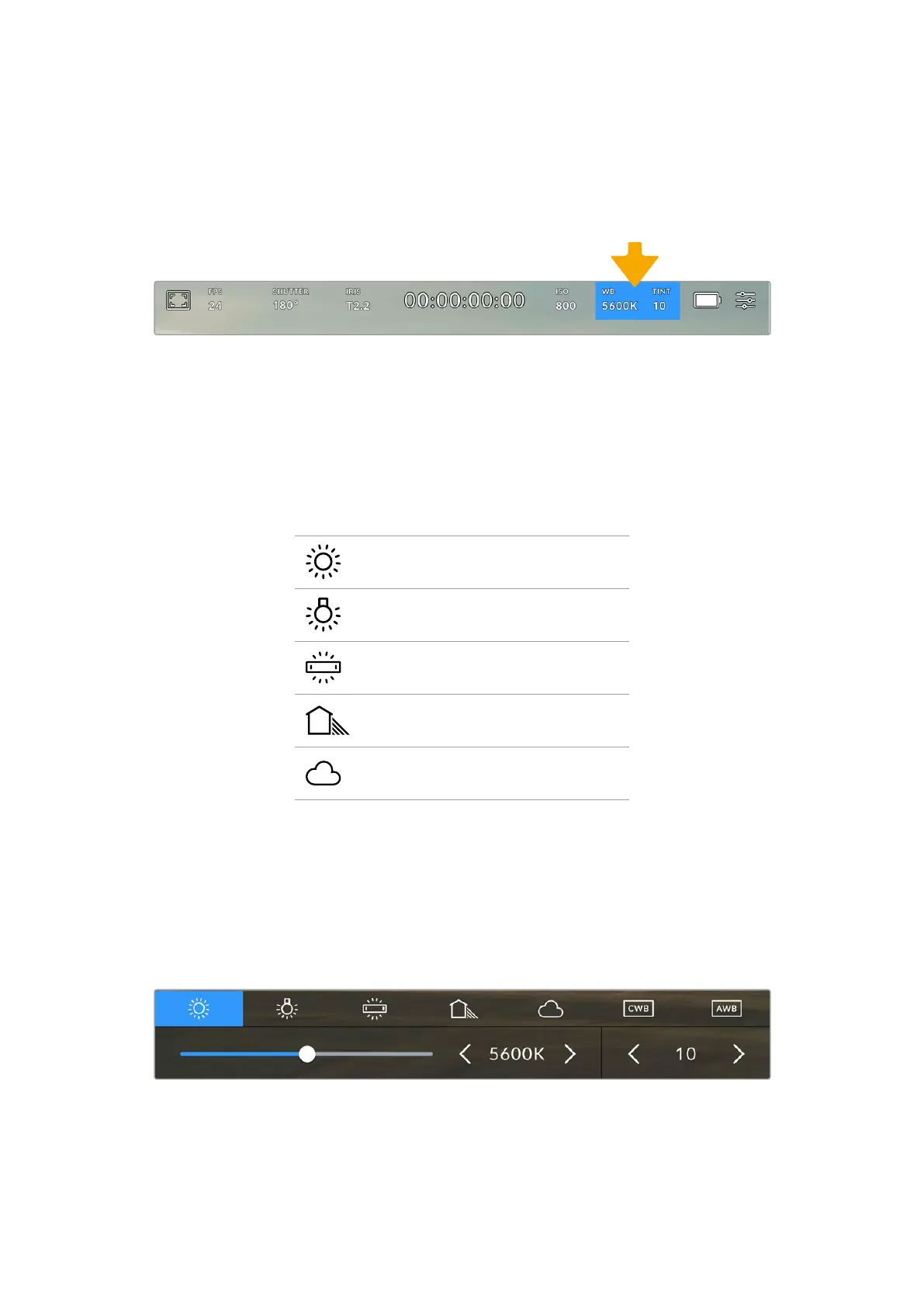
The ‘WB’ and ‘TINT’ indicators display your camera’s current white balance and tint.
Tappingthese indicators lets you adjust your camera’s white balance and tint to suit varying
lighting conditions.
Tap your URSA Cine’s white balance and tint indicators to access white balance and tint settings
Every light source emits a color. For example, a candle flame emits a warm color, and an
overcast sky emits a cool color. White balance settings are used to color balance your image
so white stays white by adjusting the mix of orange and blue in your image. For example, when
shooting under tungsten lamps that emit a warm, orange light, selecting 3200K adds some blue
to the image. This balances the color so white is accurately recorded.
Your URSA Cine comes with white balance presets for a variety of color temperature conditions.
These are:
Bright sunlight
5600K
Incandescent bulbs
3200K
Fluorescent bulbs
4000K
Mixed light
4500K
Cloud
6500K
You can customize any of these presets by tapping or holding the arrow icons to the left and
right of the temperature indicator in the bottom left of the ‘white balance’ menu. Each tap moves
the color temperature up or down 50K, but holding the arrow icons down will increase these
increments for faster changes. Alternatively, you can move the temperature slider.
To further dial in your image, you can adjust the ‘tint.’ This adjusts the mix of green and magenta
inyour image. For example, adding some magenta can compensate for the green cast of many
fluorescent lights. Many of your URSA Cine’s white balance presets include some tint.
Tapping the white balance and tint indicator on your URSA Cine gives you access to white balance and tint
presets plus manual adjustment controls
95Touchscreen Controls



 To Next Page