Iris + Shutter
Maintains the correct exposure levels by adjusting the aperture, then the shutter value. If the
maximum or minimum available aperture is reached and exposure still cannot be maintained,
URSA Cine will begin adjusting the shutter value to keep exposure constant.
While in the shutter menu, tap ‘auto exposure’ toaccessshutter based auto exposure modes
TIP When an auto exposure mode that effects the shutter is enabled, a small‘A’ will
appear next to the shutter angle indicator at the top of your URSA Cine touchscreen.
Iris
The ‘Iris’ indicator displays your current lens aperture. By tapping this indicator, you can change
the aperture of compatible lenses and configure iris based auto exposure modes.
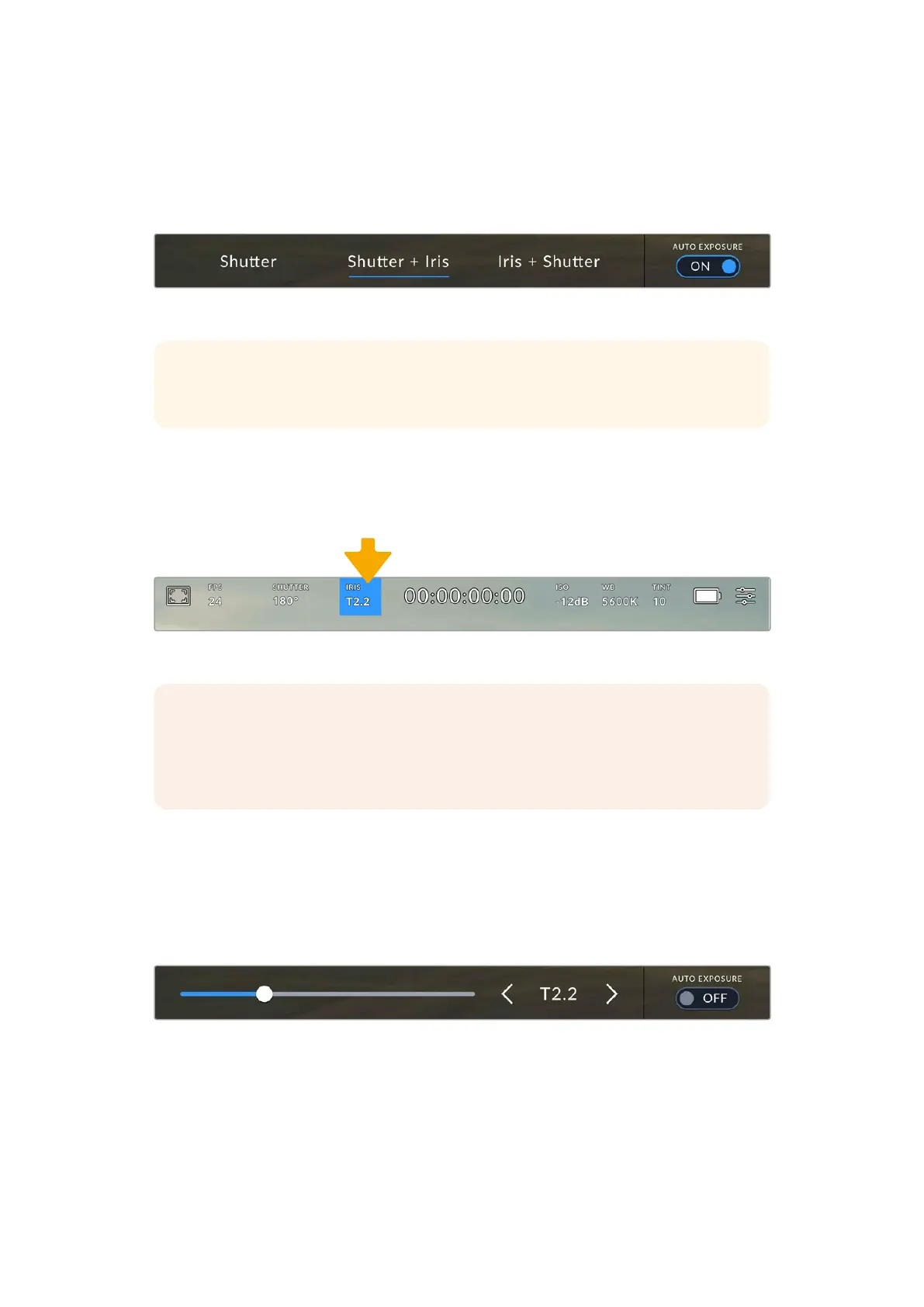
Tap your URSA Cine’s iris indicator to access iris settings
NOTE To adjust the iris from the LCD touchscreen, your URSA Cine must befitted with
a lens that supports changing aperture via the camera. If you are using an EF or PL
lens that supports lens control through the pins in the mount, make sure that the lens
iris switch on the handgrip is set to ‘A’ or ‘auto.’
Tapping the ‘iris’ indicator once brings up the iris menu along the bottom of your URSACine
touchscreen. You’ll see your current lens aperture at the far left of this menu. You can change
the aperture by tapping the left and right arrows on either side of the current aperture, or
moving the slider left or right.
Tapping the ‘auto exposure’ switch icon at the far right of the iris menu opens the iris auto
exposure menu.
While in the ‘iris’ menu, tap the arrows on either side of the iris indicator or use theslider to adjust iris settings
This gives you the following auto exposure options.
Iris
This setting automatically adjusts the aperture to maintain a constant exposure, while keeping
shutter angle constant. This will keep motion blur constant, but may affect your depth of field.
92Touchscreen Controls



 To Next Page