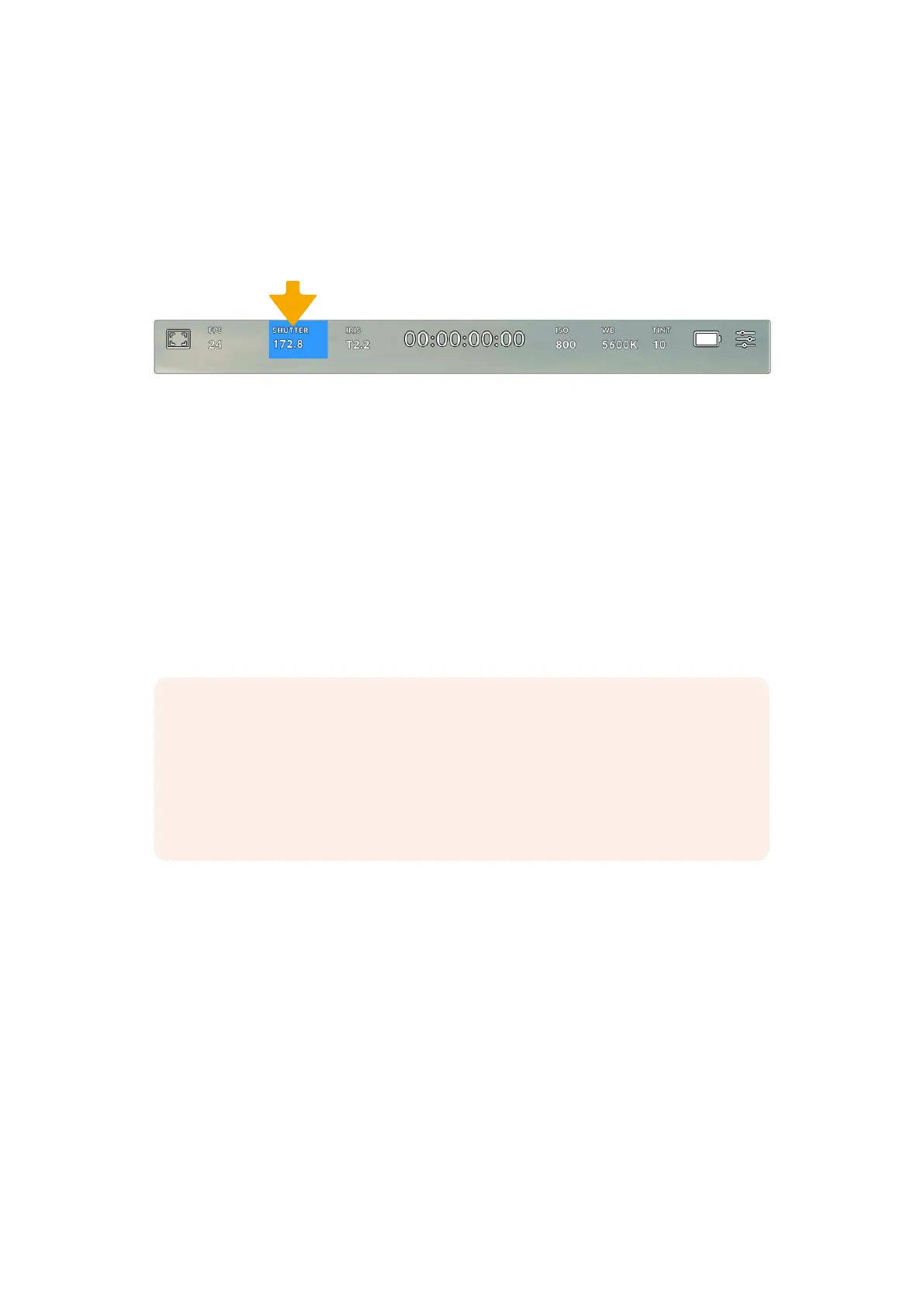
Shutter
The ‘Shutter’ indicator displays your shutter angle or shutter speed. By tapping this indicator,
you can manually change your URSA Cine’s shutter values or configure shutter priority auto
exposure modes. The shutter measurement setting can be used to select whether to display
shutter information as ‘shutter angle’ or ‘shutter speed’. See the ‘setup settings’ section in this
manual for more information.
Tap your URSA Cine’s shutter indicator to access shutter settings
Shutter angle or shutter speed defines the level of motion blur in your video, and can be
used to compensate for varying light conditions. 180 degrees is the optimum shutter angle for
capturing satisfying motion blur in most conditions, with the equivalent being a shutter speed of
1/50th of a second. However as lighting conditions change, or the amount of movement in your
scene increases, you may decide to adjust accordingly.
For example, 360 degrees is considered ‘wide open’ and allows maximum light onto the
sensor. This is useful for low light conditions with subtle movement in your scene. Alternatively,
ifshooting subjects with a lot of movement, a narrow shutter angle like 90degrees will provide
minimal motion blur for sharper, crisper images. The equivalent shutter speeds compared to
shutter angle depends on the frame rate you are using. For example, if you are shooting at
25frames per second, then 360 degrees will equate to 1/25th, and 90 degrees will equate to
1/100th of a second.
NOTE When shooting under lights, your shutter can affect the visibility of flicker. Your
URSA Cine will automatically calculate a flicker free shutter value for your current frame
rate. It will display up to three suggested flicker free shutter options at the bottom of
the heads up display when adjusting your shutter. These shutter values are affected
by mains power frequency in your region. You can set your local power frequency to
50Hzor60Hz in your URSA Cine’s setup menu. See the ‘setup settings’ section in
thismanual for more information.
Tapping the ‘shutter’ indicator brings up the suggested shutter values along the bottom of
your URSACine’s touch screen. If you have auto exposure set to ‘off,’ this screen will show
you your currently selected shutter value, as well as the available flicker free shutter values,
based on the mains power frequency you have selected in your URSA Cine’s ‘setup’ menu.
For more information, see the ‘setup settings’ section in this manual. It’s worth mentioning the
characteristics of individual light sources may still cause flicker even when using flicker free
values. We recommend always performing a test shoot when not using continuous lights.
To select one of the flicker free shutter values, simply tap on one of the displayed shutter
values. Tap the arrows on either side of the current shutter value indicator to cycle through
some of the most commonly used values.
90Touchscreen Controls



 To Next Page