Playback
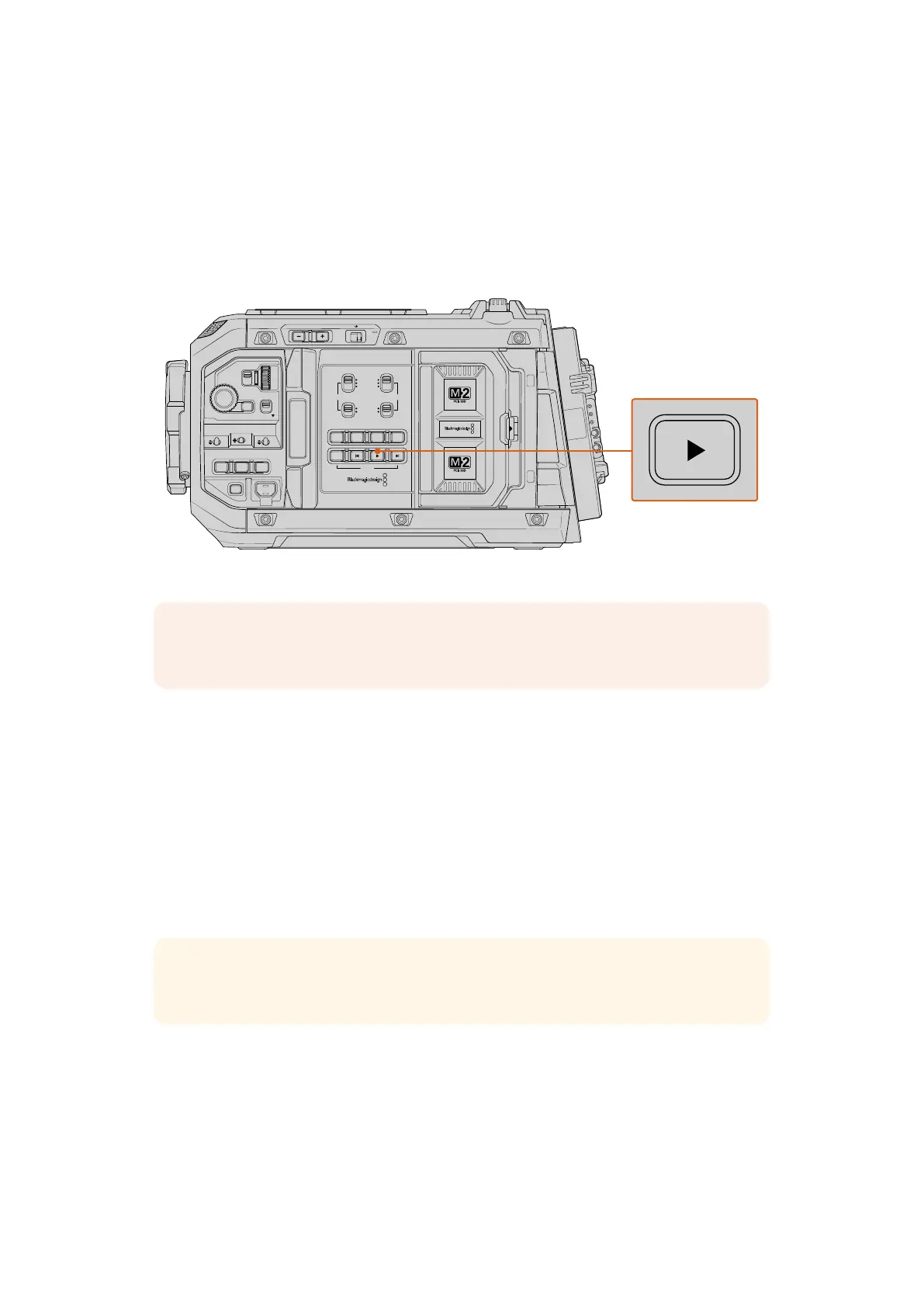
Once you have recorded your clips, you can use the transport control buttons to play
them back.
Press the ‘play’ button once for instant playback and you’ll see your recorded video on
URSACine’s LCD touchscreen. Your clips can also be viewed on any display connected to your
camera’s SDI outputs, plus the URSA Cine EVF.
LOCKBACKMENU
H PHONE
MONITOR
IRIS
SHUTTERISO / GAIN WHITE BAL
REC
FOCUS
XLR1 XLR2
MIC
LINE
AES
OFF
48V
PEAK
POWER
STILL MENU
MENU
REC
F1 F2 HFR
OFF ON
URSA Cine playback controls
NOTE Blackmagic URSA Cine will play back clips of different quality settings as long
as they are in the same frame rate and resolution.
Press the forward and reverse buttons to skip to the start or end of clips. Press the ‘reverse skip’
button once to go to the start of the current clip or press twice to skip back to the start of the
previous clip. Hold the ‘forward’ or ‘reverse skip’ button to play or reverse at 2x speed. Once
shuttling forward or backwards, press the ‘fast forward’ or ‘reverse skip’ buttons twice for 4x,
three times for x8 and four times for x16. You can also use the forward and reverse skip buttons
to open or close the iris on compatible lenses while recording clips.
When recording a clip using a sensor frame rate that differs from your project frame rate, your
clip’s playback speed will also differ. For example, imagine you have set your camera’s project
frame rate to match your post production timeline of 24 frames per second. If you record a clip
with your sensor frame rate set to 60 frames per second, your clips will play back in slow motion
on both the camera and on your post production timeline.
TIP Refer to the ‘recording’ section of this manual for more information about
framerates.
26Playback



 To Next Page