4 Bright
Press the ‘bright’ button to cycle through four brightness settings for your URSA Cine’s LCD
status display and backlit buttons. The settings are ‘off,’ ‘low,’ ‘medium’ and ‘high.’
5 Still
Press this button to capture a single Blackmagic RAW still frame. Image files will be saved
to the ‘stills’ folder in the root directory of the media you are currently recording to. These
will follow the file naming convention for video clips but the filename will have an ‘S001’
representing the ‘still number’ as the last four digits of the filename. To confirm you have
successfully saved a still, an image of a camera will show in the top right corner of the
touchscreen and the record indicator on the status LCD will flash three times.
Control and Playback Buttons
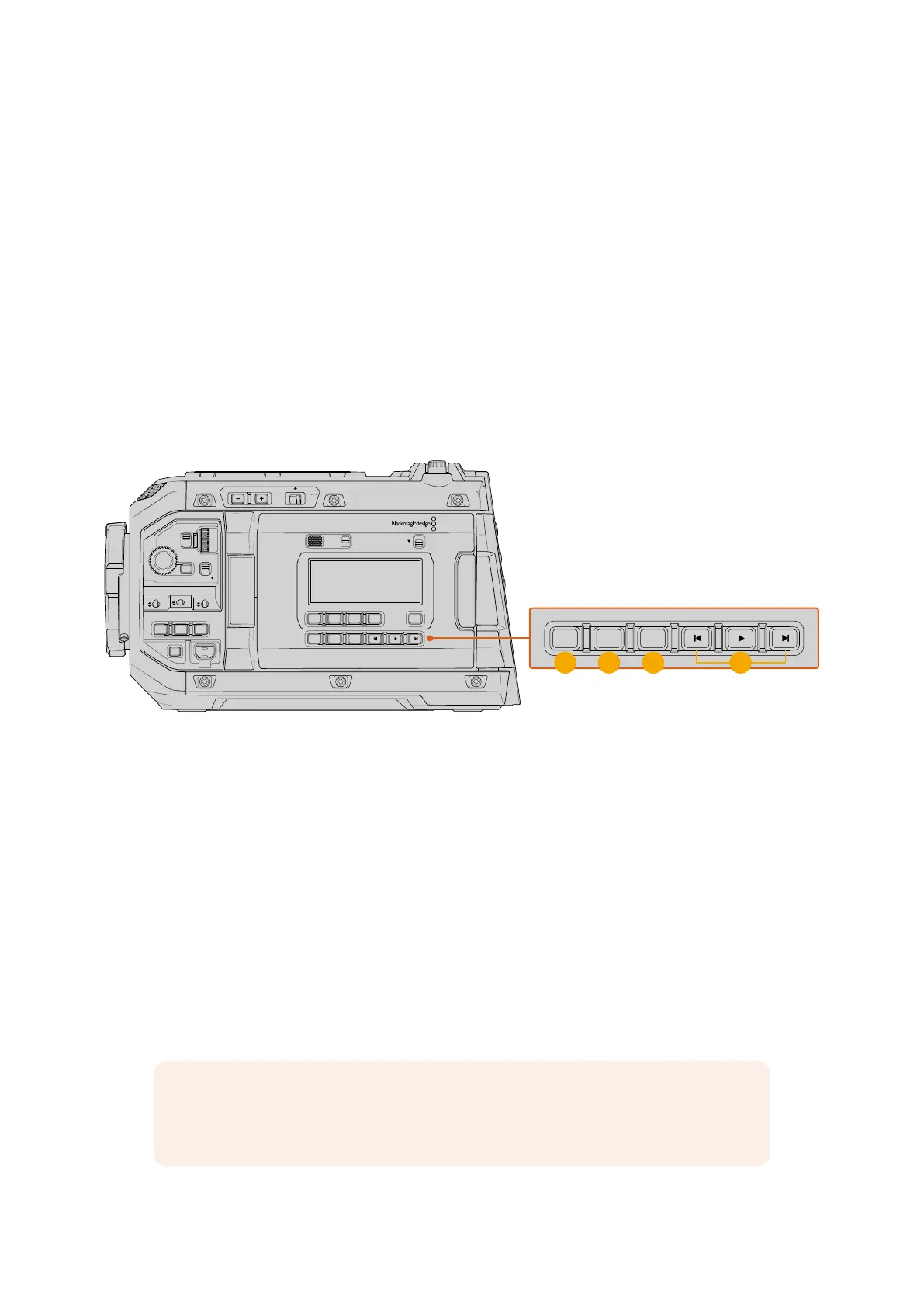
The control and playback buttons underneath the status LCD let you set auto iris and focus,
usethe custom program button, plus view clips via playback controls.
LOCKBACKMENU
H PHONE
MONITOR
IRIS
SHUTTERISO / GAIN WHITE BAL
MENU
REC
F1 F2 HFR
OFF ON
LOCK
CH1/2
CH3/4
IRIS FOCUS
PGM
RESET
HOLD TC BRGT
STILL
1 2 3 4
URSA Cine’s control and playback buttons
1 Iris
The ‘iris’ button activates the automatic aperture setting on compatible lenses. When
using video dynamic range settings, a single press of the iris button will set an average
exposure based on the highlights or shadows in your shot. When using film dynamic range
settings, pressing the iris button sets your exposure to the brightest highlight in your shot.
This button works with compatible EF lenses and PLlenses connected with acompatible
broadcast lens controller.
To set your aperture manually, press the forward and reverse skip transport buttons.
2 Focus
When using an EF lens that supports electronic focus adjustments, press the ‘focus’ button
to activate auto focus. A white focus square will appear on any viewfinder or monitor
connected to camera’s video outputs. Anything within the square will be correctly focused.
When the lens is focused, the square will disappear.
NOTE Some lenses have both manual and auto focus modes. In order for URSA Cine
to be able to auto focus with your lens, you need to ensure that your lens is set to auto
focus mode.
72Control Buttons



 To Next Page