NOTE If you don’t see a histogram in the bottom left of your touchscreen, your
LCDmonitor settings may be set to display ‘codec and resolution.’ See the ‘monitor
settings’ section in this manual for more information.
Record Button
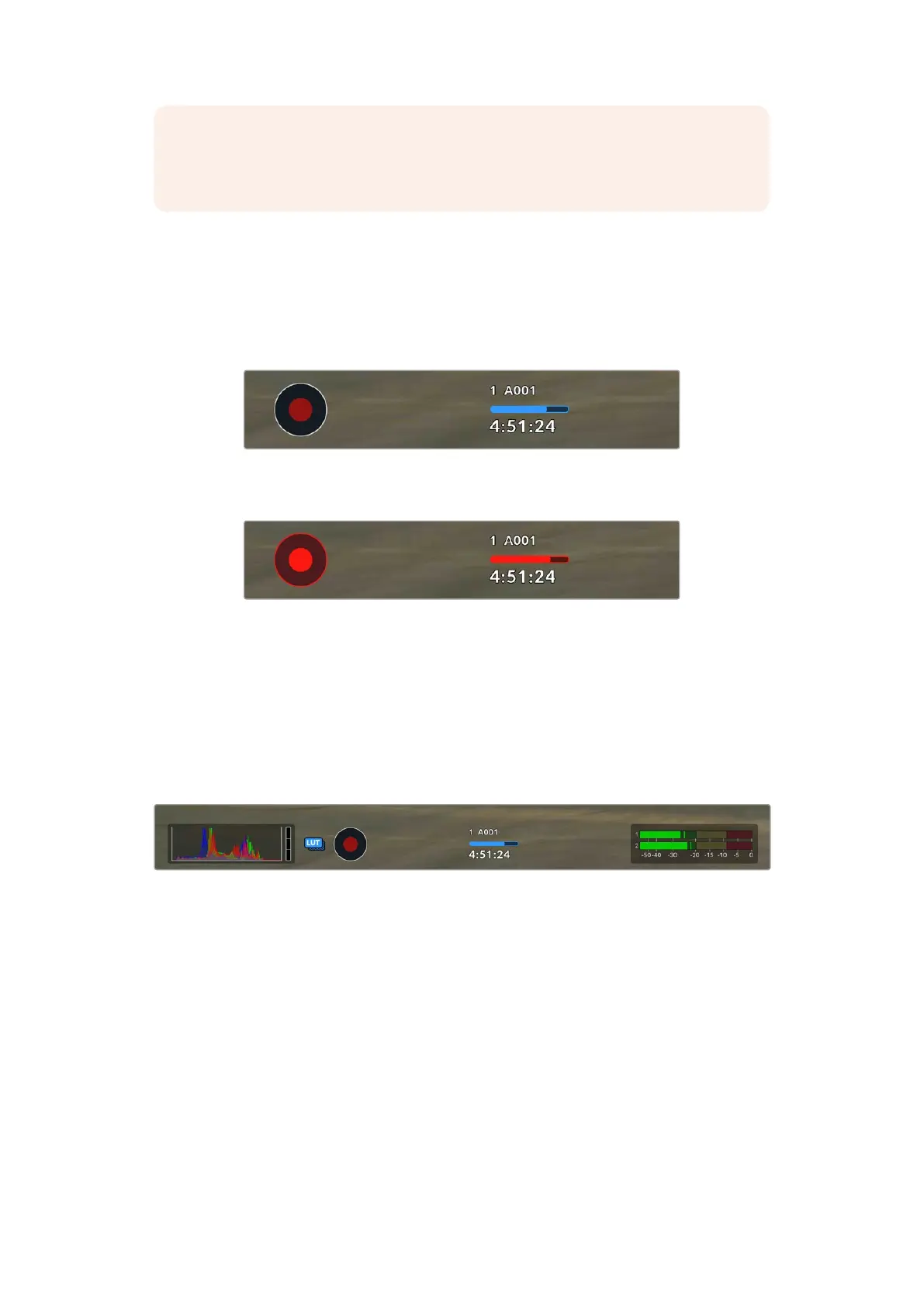
Next to the histogram at the bottom of your URSA Cine’s touchscreen, you’ll see a round gray
button. This is the ‘record’ button. Tap this once to begin recording, and tap it again to stop.
While recording, the button and the timecode at the top of your URSA Cine touchscreen will
glow red.
Your URSA Cine’s ‘record’ button, next to the storage indicatorsat the bottom
ofthe LCD touchscreen
The ‘record’ button glows red when recording
Apply LUT in File
If you are recording to Blackmagic RAW and have chosen to apply a LUT to your recorded clips
in the ‘record’ settings tab, a blue ‘LUT’ icon is displayed next to the ‘record’ button. The LUT
indicator is displayed in both standby and record mode.
For more information on recording LUTs with Blackmagic RAW, refer to the ‘Record Settings’
section later in this manual.
A blue ‘LUT’ icon is displayed when recording to Blackmagic RAW
Storage Indicators
At the bottom of your URSA Cine’s touchscreen next to the ‘record’ button, you’ll see the
storage indicators.
Record Time Remaining
The storage indicators show how much recording time is left. The time is displayed in
hours:minutes:seconds based on your chosen frame rate and codec and is automatically
recalculated if you change either of these settings.
When there is approximately 5 minutes remaining in storage, the indicator text will turn red,
then blink slowly when there is 3 minutes remaining. When there is less than 30 seconds of
recording time remaining, the indicator will blink rapidly.
98Touchscreen Controls



 To Next Page