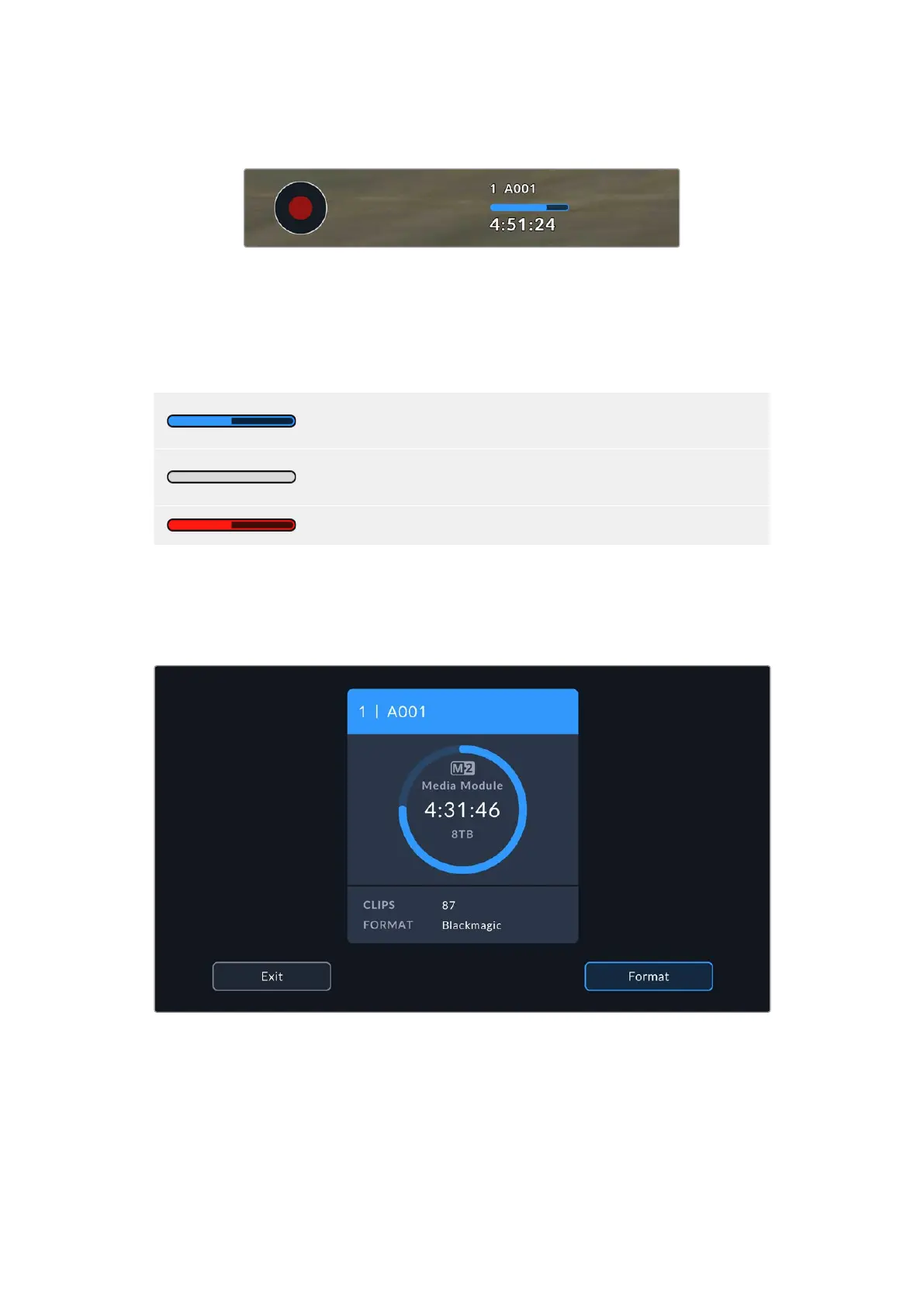
When storage reaches maximum capacity the indicator will display ‘full’.
Your URSA Cine’s storage indicator will display the name of the storageandthe
record time remaining
Media Bar
The media bar icon above the recording time will be either blue, white or red depending on its
current status and will display the used space on the storage.
The blue drive icon indicates the active drive. This is the drive that will be
used for recording.
A white drive icon indicates there is media present, but not active.
A solid white icon indicates the media is full.
The bar will illuminate red during recording.
To switch recording to a different card, press and hold the name or media bar of the card that
you wish to record to.
Tapping the storage indicators will open the media pool, tap the media storage icon at the top
of the touchscreen to bring up the storage and formatting menu.
Tap the storage indicators to open the media pool and then tap the storage icon to enter the storage and
formatting menu
This menu displays the amount of free space on the media module as well as the module name,
remaining record time, total number of clips, and the file format.
Tapping the card in the storage menu sets it as the active card. Your URSA Cine will fill this card
first. You can format your media from this menu. For more information on formatting media using
URSA Cine, see the ‘Blackmagic media module’ section of this manual.
99Touchscreen Controls



 To Next Page